
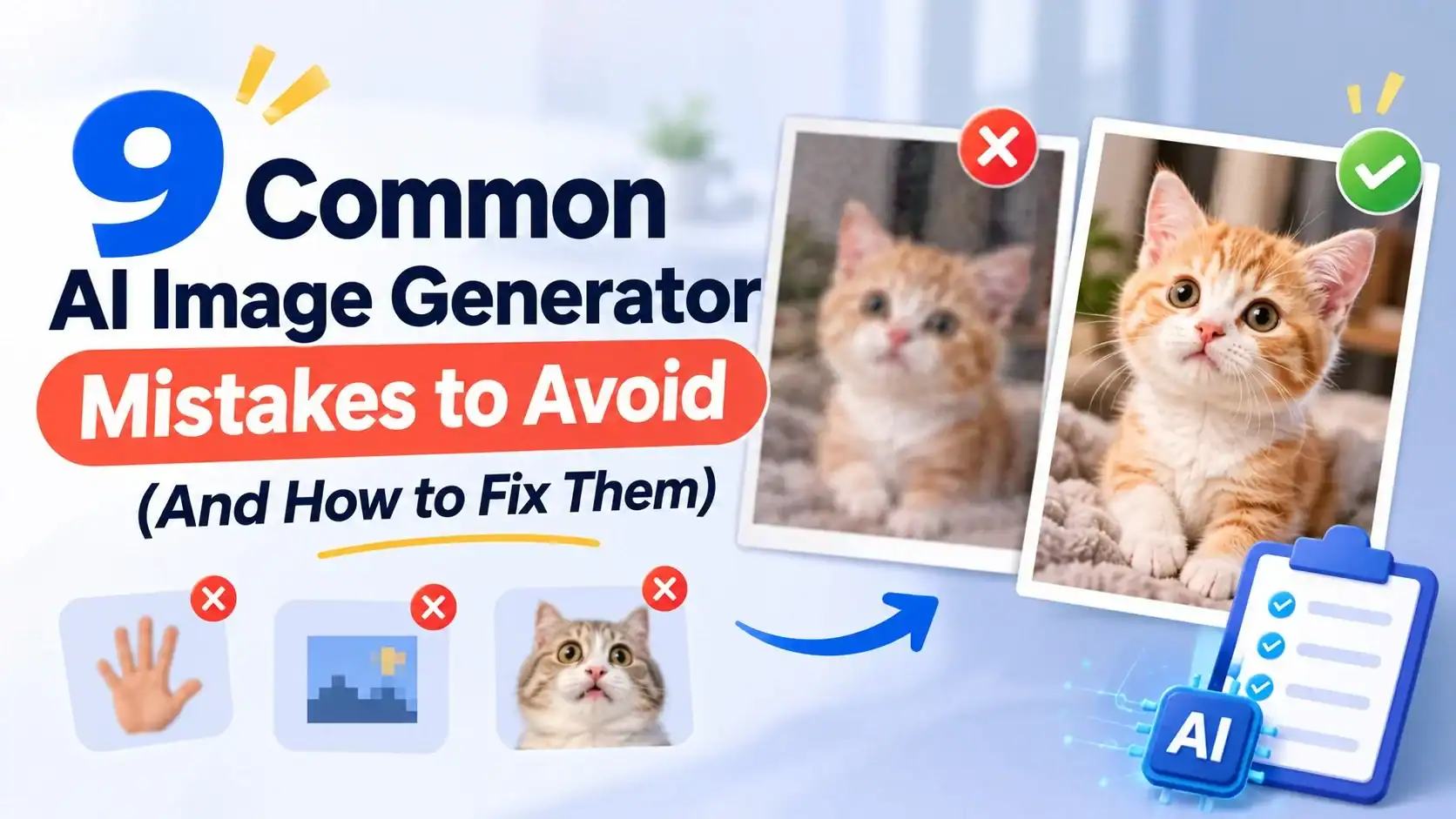
AI image generators have made it easier for designers, marketers, and content creators to create product photos, marketing graphics, illustrations, and social media images with just a few text prompts. Platforms like Crun AI bring multiple AI image models together in one place, allowing users to explore different generation tools and create visuals more efficiently.
However, AI-generated images are not always perfect. Common problems include incorrect hands, distorted objects, inconsistent styles, messy backgrounds, and unwanted details. These mistakes can affect image quality and make visuals unsuitable for professional or commercial use.
Fortunately, you can improve your results with clear prompts, reference images, and AI image editing tools. In this guide, we will explore 9 common AI image generator mistakes, explain why they happen, and share practical tips to help you create more accurate, consistent, and professional images.
1. Incorrect Hands and Limbs in AI Images
Incorrect hands and limbs are among the most recognizable AI image generation mistakes. You may notice people with six fingers, missing thumbs, extra arms, or hands that look unnatural.
These errors are especially noticeable in portraits, fashion photography, group photos, and product images featuring people holding objects.
Why AI Struggles with Human Anatomy and Complex Body Structures
AI image generators learn visual patterns from large collections of training images. However, hands and limbs have complex shapes, movements, and positions. Hands can appear from different angles, overlap with objects, or partially hide behind other body parts.
When an AI model does not understand these relationships correctly, it may create details that look realistic at first glance but are anatomically incorrect.
Common examples include:
-
Extra or missing fingers.
-
Fingers that are connected or twisted unnaturally.
-
Duplicated arms or legs.
-
Hands with incorrect proportions.
-
Unnatural wrist and elbow positions.
How to Fix Incorrect Hands and Limbs
-
Describe hand positions and body poses clearly. Instead of writing “a person holding a cup,” describe how the person holds it. For example, specify that the person holds the cup with one hand, with five natural fingers wrapped around the handle.
-
Use reference images. Uploading a reference image can help guide the model toward more accurate hand positions, body proportions, and poses.
-
Use inpainting or localized editing. If the rest of the image looks good, there is no need to regenerate everything. Use an image editing tool to select the incorrect hand or limb and regenerate only that area.
-
Review anatomy before commercial use. Always zoom in and check hands, fingers, arms, and legs before publishing an image in advertisements, product pages, or marketing materials.
2. Writing Vague or Incomplete AI Image Prompts
A good AI image prompt is the foundation of a good result. One common mistake is giving the AI generator a short or unclear instruction and expecting it to produce an image that matches a specific creative idea.
For example, a prompt such as “Create a beautiful product photo” does not explain what the product looks like, where it should appear, or what visual style is required.
Why Generic Prompts Produce Unpredictable Results
AI image generators need clear instructions to understand what users want. When a prompt contains too little information, the model has to make more decisions on its own.
As a result, the generated image may have the wrong subject, composition, colors, background, or artistic style.
Missing details can also affect subject placement, camera angles, lighting, and the relationship between different objects.
How to Write Clear and Effective AI Image Prompts
Follow these five practices to make your prompts more specific and useful.
1. Define the subject and its characteristics.
Clearly describe the main subject, including its appearance, materials, colors, shape, and important details. For example, rather than saying “a coffee bottle,” write “a matte black glass coffee bottle with a minimal white label and a silver cap.”
2. Specify composition, camera angle, and lighting.
Explain where the subject should appear and how the image should be captured. You can specify a close-up shot, overhead view, centered composition, soft natural lighting, or studio lighting.
3. Describe the desired art style, format, and mood.
Choose whether you want photorealism, 3D rendering, watercolor, cartoon illustration, or another style. Also describe the mood, such as modern, elegant, playful, or cinematic.
4. Include aspect ratio and resolution.
Specify the image dimensions or aspect ratio according to your intended use. For example, use 1:1 for product thumbnails, 16:9 for YouTube thumbnails, and 9:16 for vertical social media content. Select a suitable output resolution when the tool supports it.
5. Use negative prompts when supported.
Negative prompts tell the AI what to avoid. Examples include blurry details, extra fingers, distorted objects, unwanted text, and cluttered backgrounds. Not all image models support negative prompts, so check the tool’s instructions first.
3. Unrealistic Proportions and Other Major Visual Errors
Another common problem with AI-generated images is unrealistic proportions. A person may have an unusually long arm, a product may have a distorted shape, or objects may appear too large or too small compared with their surroundings.
These errors can make an image look artificial, even when the overall composition is attractive.
Typical examples include:
-
Faces with uneven or incorrectly sized features.
-
Bodies with unrealistic head-to-body ratios.
-
Products with distorted shapes or incorrect dimensions.
-
Objects that appear to float or overlap unnaturally.
-
Incorrect perspective between foreground and background objects.
Why AI Struggles with Spatial Relationships and Object Consistency
AI image generators predict visual patterns rather than understanding every physical relationship in the same way humans do.
They may recognize individual objects but struggle to maintain accurate size, distance, depth, and perspective when several objects appear together.
How to Fix Unrealistic Proportions
-
Specify realistic proportions and spatial relationships. Explain how objects should relate to one another. For example, state that a coffee cup should be smaller than the coffee machine beside it.
-
Use reference images. For people, products, and architecture, reference images can help preserve important shapes and dimensions.
-
Refine distorted areas through image editing. Use localized editing to correct an oversized hand, distorted product label, or incorrectly shaped object.
-
Check perspective and scale. Review the image from foreground to background. Make sure objects have realistic sizes, positions, and proportions.
4. Broken Symmetry and Misaligned Features
Symmetry plays an important role in portraits, product photography, architecture, and graphic design. However, AI image generators sometimes produce images with uneven or misaligned elements.
For example, a person’s eyes may be at different heights, a bottle label may appear crooked, or a building may have windows arranged inconsistently.
Why Symmetry Is Challenging for Generative Models
Many objects have small but important symmetrical details. AI models may reproduce the general appearance of an object without keeping every feature perfectly aligned.
This becomes more noticeable when generating front-facing portraits, logos, packaging, furniture, and architectural designs.
How to Achieve Better Symmetry and Alignment
-
Request symmetrical compositions: Include instructions such as “perfectly centered composition” or “balanced symmetrical facial features” when symmetry is important.
-
Use front-facing reference images: Clear, centered reference images provide better guidance for symmetrical objects and portraits.
-
Apply alignment tools: Use image editing tools to adjust uneven edges, misplaced objects, and misaligned elements.
-
Use targeted editing: Correct only the affected area instead of generating the entire image again.
5. Relying Only on Text-to-Image Generation
Text-to-image generation is a convenient way to create images from written descriptions. However, relying only on text prompts can make it difficult to achieve consistent results, especially when creating images for brands, products, or recurring characters.
Why Generating Images Entirely from Text Can Require Multiple Attempts
A text prompt describes what an image should look like, but it may not provide enough visual information to reproduce specific details accurately.
For example, you may ask an AI image generator to create a product advertisement featuring a particular bottle. The result may look attractive, but the bottle shape, label, logo, or color may differ from the original product.
Problems with Inconsistent Characters, Product Designs, and Brand Identity
This problem becomes more serious when creating multiple images for the same project. A character may have different hairstyles or clothing in each image. A product may change its shape, and a brand’s colors or visual identity may become inconsistent.
Repeatedly adjusting prompts does not always solve these problems because the model may interpret the same description differently each time.
How to Improve Image Consistency with Image-to-Image Generation
One practical solution is to combine text-to-image and image-to-image generation.
For example, Crun AI provides access to multiple AI image models such as Seedream 5.5, GPT Image 5.6, that support different image generation workflows, including text-to-image and image-to-image generation. Creators can explore different models and use visual references to guide their creative process in one platform.
Here are 4 ways to improve consistency:
1. Upload reference images.
Use an existing product photo, character design, or visual example to guide the AI. This gives the model more visual information than a text prompt alone.
2. Use image-to-image workflows.
Start with an existing image and ask the model to change specific elements while keeping important details consistent.
3. Provide multiple visual references when supported.
Some AI models allow users to upload multiple reference images. You can provide separate references for character appearance, clothing, product design, or artistic style.
4. Combine text prompts with reference images.
Explain which elements should remain unchanged and which elements can be modified. For example, ask the AI to preserve the product’s shape and label while changing the background and lighting.
6. Generating Incoherent or Distracting Backgrounds
AI image generators sometimes create backgrounds with duplicated objects, floating elements, unusual structures, or unnecessary details. These problems can distract viewers from the main subject.
For example, a product advertisement may feature a beautiful bottle, but the background contains strange furniture, inconsistent shadows, or objects that do not belong in the scene.
How to Generate Clean and Consistent Backgrounds
1. Describe the environment separately.
Do not focus only on the main subject. Include details about the surrounding environment, such as a clean studio, modern office, natural landscape, or minimalist bedroom.
2. Specify foreground, middle ground, and background.
Explain where different elements should appear. For example, place the product in the foreground, a soft decorative element in the middle ground, and a blurred neutral wall in the background.
3. Use simple backgrounds for commercial product images.
For e-commerce and advertising, simple backgrounds often work better than complicated scenes. White, beige, or soft gradient backgrounds can help products stand out.
4. Remove unwanted objects through editing.
If the main subject looks good but the background contains unwanted details, use background editing, object removal, or inpainting instead of regenerating the entire image.
7. Mixing Inconsistent Visual Styles
Another common AI image generation mistake is mixing visual styles that do not work well together.
For example, an image may combine a photorealistic person with cartoon furniture, a 3D-rendered product with watercolor decorations, or realistic lighting with flat illustration elements.
These combinations can make the final image look confusing and unprofessional.
Why Inconsistent Styles Make Images Look Unprofessional
AI models can generate different artistic styles, but they may not always apply them consistently across every object.
This becomes a problem when creating a series of marketing images, brand illustrations, product advertisements, or social media graphics. If each image uses a different style, the overall visual identity becomes difficult to maintain.
How to Maintain a Consistent Visual Style
1. Choose one primary visual style.
Decide whether the image should be photorealistic, cinematic, minimalist, cartoon, watercolor, or 3D-rendered. Avoid combining unrelated styles unless you intentionally want an artistic contrast.
2. Define a consistent color palette and lighting direction.
Choose a small group of colors and maintain similar lighting across the images. This helps create a recognizable visual identity.
3. Use style reference images.
Upload examples that demonstrate the desired artistic style. These references can help the AI understand the texture, colors, and overall appearance you want.
4. Maintain the same style instructions across generations.
When creating multiple images for one project, reuse important style descriptions. Consistent prompts make it easier to achieve a unified visual result.
8. Ignoring Visual Artifacts and Image Quality Issues
Sometimes an AI-generated image looks impressive at first but contains small defects when viewed more closely.
These defects are known as visual artifacts. They can affect the overall quality of an image, especially when it is used for commercial purposes.
Some frequently seen problems include:
-
Blurry or unnatural textures.
-
Distorted edges and object boundaries.
-
Duplicated details or unwanted objects.
-
Incorrect or unreadable text.
-
Strange shadows and reflections.
-
Low-resolution details and visual noise.
Why Small Imperfections Matter in Professional Designs
Small visual defects may not be obvious on a mobile screen, but they become more noticeable when images are enlarged, printed, or used in advertisements.
For example, a distorted product label can reduce customer trust, while blurry details can make an e-commerce product image look less professional.
How to Fix AI Image Artifacts Through AI Image Editing
You do not always need to generate a completely new image to fix these problems. AI image editing tools can help improve specific areas while preserving the rest of the composition.
1. Use AI image editing for targeted corrections.
Select the area that needs improvement and provide a clear editing instruction. This helps avoid unnecessary changes to the entire image.
2. Apply inpainting to remove unwanted details.
Inpainting allows you to select a specific area and regenerate it. It is useful for removing unwanted objects, correcting small distortions, or replacing damaged visual details.
3. Use AI image upscaling to improve resolution.
If an image looks blurry or lacks detail, an AI upscaler can help increase its resolution and improve its appearance.
For example, Crun AI’s Image Upscaler can be explored for improving image resolution. Its AI tools also provide access to other creative workflows, including background removal and image-related tasks.

4. Check text, edges, textures, and fine details before exporting.
Zoom in on important areas, especially product labels, logos, faces, and small text. Make sure the final image meets the quality requirements of your intended platform.
9. Ignoring AI Image Safety, Copyright, and Privacy
Image quality is important, but responsible AI image generation is equally essential.
As AI image generators become more powerful, concerns about harmful content, copyright, personal consent, and data privacy are receiving greater attention.
Understanding Harmful and Prohibited AI-Generated Content
AI image generators should not be used to create harmful, exploitative, or illegal content.
Why Generating Sexualized Images of Minors and CSAM Is Strictly Prohibited
Child sexual abuse material (CSAM) is illegal and harmful. Creating, sharing, or distributing sexualized images of minors is unacceptable, including when the images are artificially generated or edited.
AI platforms have a responsibility to prevent their technologies from being misused. Users should follow platform safety rules and never attempt to bypass content restrictions.
OpenAI’s Efforts to Strengthen Image Safety
On November 16, 2026, OpenAI announced a new CSAM image classifier designed to help approved organizations detect potential child sexual abuse material, including AI-generated material.
The classifier provides risk signals to help trained reviewers prioritize images for further review. OpenAI also introduced new ChatGPT warnings that interrupt attempts to find abusive material, explain the consequences, and point users toward support resources.
These measures show why AI safety is becoming an important part of the image generation industry. Importantly, the classifier supports human review rather than making a final legal determination about an image.
Copyright, Consent, and Unauthorized Use of Reference Images
Do not assume that every image found online is free to use. Before uploading reference images or using AI-generated visuals commercially, consider copyright, licensing, and the rights of identifiable people.
Risks of Uploading Confidential or Sensitive Visual Materials
Uploading confidential product designs, customer photos, internal documents, or unreleased marketing materials to third-party AI platforms may create privacy risks.
How to Generate AI Images Safely and Responsibly
Follow steps below to reduce potential risks:
-
Follow content policies: Read and follow the AI image generator’s safety rules and restrictions.
-
Never create CSAM: Do not generate, edit, request, or distribute sexualized or exploitative images of minors.
-
Obtain permission: Get appropriate consent before using identifiable people’s images as references.
-
Check commercial usage rights: Review the platform’s licensing terms and any restrictions on generated content.
-
Protect private information: Review data retention, file storage, and privacy policies before uploading confidential materials.
Build AI Image Review into Your Professional Workflow
Avoiding common AI image generator mistakes is not just about writing better prompts. Professional creators also need a repeatable workflow to check, edit, and improve generated images before publishing them.
Here are 6 steps to help you build a more reliable AI image creation process.
Step 1. Define Your Visual Requirements Before Generation
Before writing a prompt, decide what you want to create and where the image will be used.
Consider the target audience, image purpose, visual style, dimensions, and output format. A product advertisement, website banner, and social media illustration may require different compositions and resolutions.
Step 2. Generate with Detailed Prompts and Visual References
Combine clear text prompts with reference images whenever possible. Define the main subject, composition, lighting, colors, and artistic style.
This approach gives the AI more information and can reduce unnecessary generation attempts.
Step 3. Review AI-Generated Images Against a Quality Checklist
Do not publish the first generated result without checking it. Review the following elements:
-
Human anatomy, hands, and facial features.
-
Object proportions and perspective.
-
Symmetry and alignment.
-
Background consistency.
-
Typography, logos, and product details.
-
Visual style and image resolution.
Step 4. Refine Imperfections Through AI Image Editing
Use image editing tools to correct specific problems. Inpainting can fix unwanted details, image-to-image generation can help maintain visual consistency, and background removal can simplify product images.
AI upscaling is also useful when you need higher-resolution images for websites, advertisements, or print materials.
Step 5. Verify Safety, Privacy, and Commercial Usage Rights
Before publishing, check whether the image follows the platform’s content policies. Make sure you have permission to use reference images and that your intended commercial use complies with the relevant licensing terms.
Avoid uploading sensitive or confidential materials without reviewing the platform’s privacy policy.
Step 6. Choose an All-in-One AI Image Creation Platform
Using multiple separate AI tools can make creative work more complicated.
An all-in-one platform like Crun AI can simplify this process, which provides users with access to multiple AI models through one platform, allowing creators to explore different image generation capabilities, compare models, and build image workflows.
Its Infinite Canvas offers a visual workspace where users can organize prompts, reference images, and generated media through connected nodes. This makes it easier to manage different creative ideas, experiment with variations, and refine visual assets.
For designers, marketers, and content creators, choosing the right platform can reduce tool-switching and make the image creation process more efficient.
FAQs About AI Image Generator Mistakes
What Are the Most Common Mistakes Made by AI Image Generators?
Common AI image generator mistakes include incorrect hands and fingers, distorted body proportions, unrealistic objects, broken symmetry, inconsistent visual styles, messy backgrounds, and visual artifacts. Vague prompts and a lack of reference images can also lead to unpredictable results.
Why Do AI Image Generators Produce Distorted Images?
AI image generators learn patterns from training data and use them to predict visual content. They may struggle with complex anatomy, spatial relationships, object details, and text. As a result, some generated images contain unrealistic shapes or incorrect details.
How Can You Fix AI-Generated Images with Incorrect Hands and Fingers?
Start by using more detailed prompts that describe hand positions and body poses. You can also upload reference images to guide the generation process. If the result still contains errors, use inpainting or localized editing to correct the affected areas.
How Can You Improve the Accuracy of AI-Generated Images?
Write detailed prompts, provide clear reference images, specify composition and lighting, and choose an appropriate image model. After generation, review the result and use image editing tools to correct errors.
What Are the Common Types of AI Training Data Errors?
Common training data problems include inaccurate labels, duplicated images, missing information, low-quality images, and biased or unbalanced datasets. These issues can affect how AI models recognize objects, interpret visual details, and generate images.
How Does Generative AI Expand a Designer’s Creativity?
Generative AI helps designers explore new ideas, create visual concepts, test different styles, and produce content more quickly. It can also automate repetitive tasks such as background removal and image enhancement, allowing designers to focus more on creative decisions.
Will AI Image Generators Replace Graphic Designers?
AI image generators are unlikely to replace the full role of graphic designers. They can speed up image creation and editing, but human designers are still needed for creative direction, brand strategy, visual storytelling, and quality control. AI works best as a tool that supports human creativity.
How Can You Protect File Privacy When Using AI Image Generators?
Choose platforms with clear privacy policies and review how they store, process, and use uploaded files. Avoid uploading confidential business documents, unreleased product designs, or personal images without proper authorization. Check data retention policies before using an AI tool for professional projects.
Conclusion
AI image generators make visual content creation faster and easier, but creating high-quality images still requires careful planning and review. By avoiding these 9 common mistakes, you can improve image accuracy, maintain visual consistency, and reduce unnecessary editing. Key practices include writing clear prompts, using reference images, choosing the right AI models, and reviewing every generated image.
Whether you are creating product advertisements, social media graphics, website visuals, or creative illustrations, combining AI generation with the right editing tools can improve your results. Platforms like Crun AI bring multiple AI models and creative tools together in one place, making it easier to test different approaches and streamline your creative workflow.
Ultimately, successful AI image generation is not just about creating more images. It is about producing visuals that are accurate, consistent, safe, and ready for real-world use.

Sandra Larson is a writer with the personal blog at ElizabethanAuthor and an academic coach for students. Her main sphere of professional interest is the connection between AI and modern study techniques. Sandra believes that digital tools are a way to a better future in the education system.