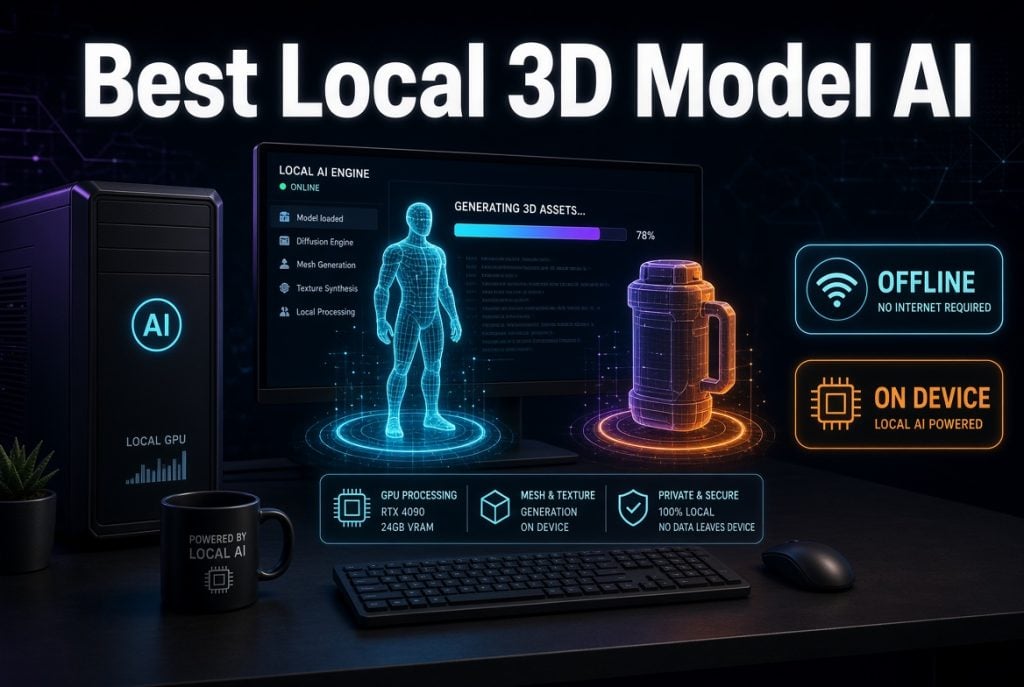
The best local 3D model AI isn’t a single tool: it depends on your GPU, your target use case, and how much control you want. For hobbyists, indie developers, and 3D printing enthusiasts who want to avoid cloud services for privacy or cost, open-source generators offer the best balance of capability and flexibility.
Which Local 3D Model AI Is Right for You?
No single local 3D generator is best for everyone. The right choice depends on your hardware, the types of assets you need, and your tolerance for setup effort. Currently, the leading open-source options each offer distinct strengths: some excel at generating textured meshes with PBR materials, others output Gaussian splats for realistic rendering, and a few focus on text-to-3D workflows.
Local generation has clear benefits: your images stay private, you can work offline, there are no recurring fees, and you have full control over the pipeline. The trade-off is that you need a reasonably powerful NVIDIA GPU and are willing to spend time on installation and post-processing. For those without the hardware or patience, cloud-based alternatives like Meshy offer a convenient middle ground.
Comparison of Leading Local 3D AI Generators
Here’s a data-driven comparison of the top local 3D AI generators as of 2026, based on official benchmarks and community reports:
| Tool | Generation Time (H100) | Generation Time (Consumer GPU) | Minimum VRAM | Output Type | Quality Notes |
| Textured mesh generator | 3s at 512³ | ~30s on RTX 3060 | 16GB recommended, 6GB with quantization | Mesh with PBR materials | Excellent for organic shapes, supports multi-view |
| Gaussian splat generator | ~10s | ~30s on RTX 3060 | 8GB | Gaussian splat (convertible to mesh) | Great for realistic rendering, but requires conversion for standard workflows |
| Text-to-3D focused generator | ~15s | ~60s on RTX 3060 | 16GB+ | Mesh | Good for text-to-3D, generates characters and organic models well |
Benchmarks are from H100; consumer GPUs are significantly slower. Community-optimized versions of the textured mesh generator can run on 6GB VRAM with quantization, but generation times increase to 5-7 minutes.
The textured mesh generator produces textured meshes ready for further editing, while the Gaussian splat generator outputs point-based splats that may need conversion to mesh for game engines or 3D printing.
Hardware Requirements: What GPU Do You Need?
Before choosing a tool, check your hardware. Here are the minimum and recommended specs for popular local 3D AI models:
- Textured mesh generator: Minimum 16GB VRAM for 512³ resolution, but community quantized workflows can run on 6GB. Recommended 16GB+ VRAM and 32GB RAM. Storage: ~10GB for models.
- Gaussian splat generator: Requires an NVIDIA GPU (RTX 20 series or above) with 8GB VRAM. RAM: 16GB minimum. Storage: ~10GB.
- Text-to-3D focused generator: Requires 16GB+ VRAM and 16GB RAM. Storage: ~15GB.
All tools require CUDA on Linux or Windows. AMD GPUs are not officially supported. If you have 6GB VRAM, use quantized versions of the textured mesh generator; if you have 8GB, both the textured mesh generator (with low VRAM mode) and the Gaussian splat generator are viable. For 16GB+, you can run most tools at higher resolutions.
Step-by-Step Setup Guide for Local 3D AI Pipelines
Here’s a practical guide to get you started with ComfyUI, the most popular platform for local 3D AI generation:
- Install ComfyUI – Download the portable version for your OS (Windows/Mac/Linux). Use the Easy Install script if available to simplify setup.
- Install required custom nodes – For the textured mesh generator, install the ComfyUI-TRELLIS2 custom node; for the Gaussian splat generator, update ComfyUI to the latest version and download the splatting nodes.
- Download model weights – Load the checkpoint from HuggingFace (about 15-16GB). For the Gaussian splat generator, download the model from the official repository.
- Run the workflow – Load the provided image-to-3D workflow, upload your input image (clean background, single object), and run. Adjust settings like resolution and sampling steps to match your VRAM.
- Export – Save the generated model in your desired format. For the Gaussian splat generator, you can export as .ply or .splat, or convert to mesh using the SplatToMesh node.
- Troubleshoot common issues – If you encounter CUDA out of memory errors, use the low VRAM mode or reduce the workflow steps. For slower speeds, reduce resolution or enable Flash Attention.
Export Formats and Commercial Licensing
Understanding export formats and licensing is crucial for legal use. The table below summarizes common output formats for local generators:
| Tool | Formats | License | Commercial Use |
| Textured mesh generator | GLB, OBJ, STL, PLY, GLTF, USDZ | MIT | Yes, but verify current license |
| Gaussian splat generator | PLY, SPLAT, GLB (via conversion) | MIT | Yes, but verify current license |
| Text-to-3D focused generator | GLB, OBJ, PLY | MIT (for model) | Check model card |
Both the textured mesh generator and the Gaussian splat generator are open-source under the MIT License, which generally allows commercial use of both code and weights. However, licenses can change, so always verify at the time of use. If you use a hosted platform, the terms may differ.
Improving Quality: Refining AI-Generated 3D Models
AI-generated models often need post-processing to be production-ready. Common issues include non-manifold geometry, low texture detail, and missing dimensions. Here’s how to improve them:
- Inspect the model – Use a viewer like Blender to check for errors.
- Fix non-manifold geometry – Use Blender’s Mesh Analysis tool to identify and repair.
- Retopologize – For game-ready assets, retopologize to a clean mesh with proper edge flow.
- Re-texture – Use AI texturing tools or manual painting to enhance UV maps.
- Refine with scale – For 3D printing, ensure dimensions and tolerances are correct.
Tools like Direct3D-S2 can add detail to your models. If you need extreme quality, consider using a cloud service for a second pass.
Local vs. Cloud: Which Approach Is Right for You?
Local generation offers privacy, offline use, and full control, but requires strong hardware and technical setup. Cloud services like Meshy offer convenience: browser-based access, no hardware requirements, and quick results. Meshy supports both text-to-3D and image-to-3D generation, and provides common export formats, along with post-generation tools such as AI Texturing and Remesh.
If you want a browser-based alternative before setting up a local stack, try a best local 3d model ai workflow from Meshy and compare its output with your local workflow.
If you have a 6GB GPU and need quick, easy results, a cloud service may be better. If you prioritize privacy and have a 16GB+ GPU, local tools give you freedom. For a best local 3d model ai workflow, you can even combine both: generate locally for iteration and refine with cloud for final touches.
Frequently Asked Questions
Can I run local 3D AI on a 6GB VRAM GPU?
Yes, with quantized models. The textured mesh generator can run on 6GB VRAM using GGUF quantization, but generation takes 5-7 minutes per model. The Gaussian splat generator may have issues with memory unless you reduce the number of Gaussians.
Are AI-generated 3D models free to use commercially?
For open-source tools like the textured mesh and Gaussian splat generators, the MIT license allows commercial use, but always check the exact terms at the time. Hosted platforms may have different restrictions.
What is the difference between mesh and Gaussian splat?
A mesh is a polygon surface, while a Gaussian splat is a point cloud. Meshes are standard for gaming and 3D printing, while splats are used for photorealistic rendering and can be converted to mesh.
Do I need an internet connection to use local 3D AI?
No, local tools work offline after installation. However, you need to download model weight files once.
What is Meshy and how does it compare to local tools?
Meshy is a cloud-based 3D generation platform offering text-to-3D and image-to-3D. It requires no local hardware, works in a browser, and provides post-generation tools and export formats. It’s a good choice for quick results without installation.

Caroline is doing her graduation in IT from the University of South California but keens to work as a freelance blogger. She loves to write on the latest information about IoT, technology, and business. She has innovative ideas and shares her experience with her readers.