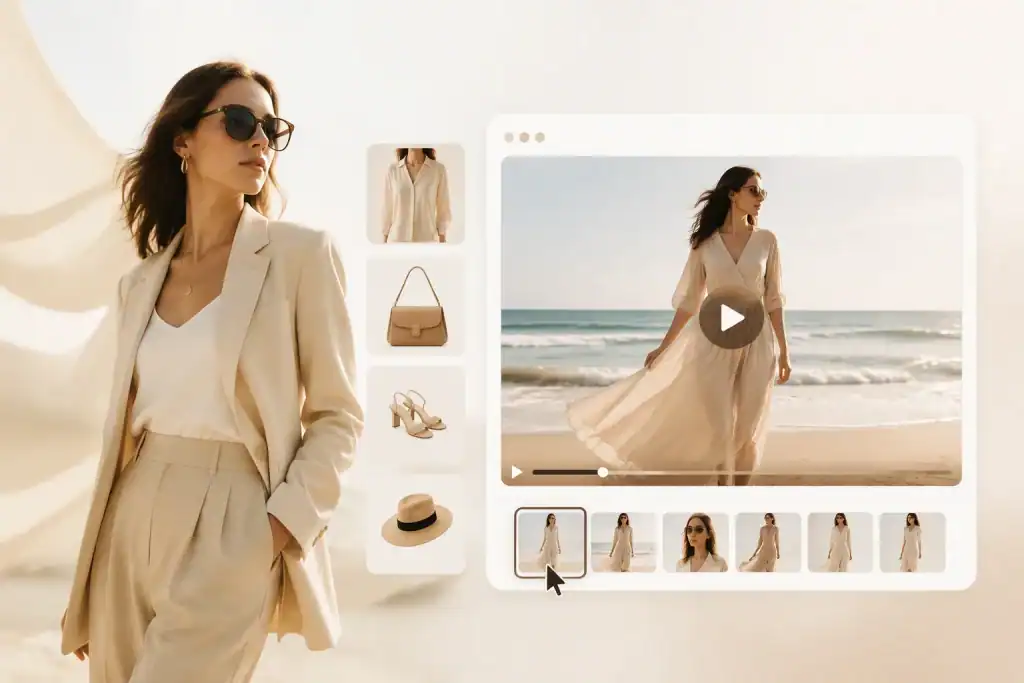
Making great content is no longer just for professionals with expensive gear. You can now produce amazing visuals using simple tools found online. If you want to make a movie from just a few words, a free AI Video Generator is the best place to start. These tools take your text descriptions and turn them into high quality clips that look like they were filmed by a crew. You do not need to learn complex editing software or buy a powerful computer to get results.
Editing your photos has also become much faster and simpler than it used to be. You can fix lighting, remove backgrounds, or add new elements without any technical skills. When you use a free AI image editor no sign-up tool, you save time because you do not have to fill out forms or verify emails. You simply upload your file and start making changes right away. This approach lets you focus on your creative ideas instead of technical hurdles.
Step by Step Guide to Creating AI Videos
The process of making a video with artificial intelligence is straightforward. You do not need to draw every frame or record any footage yourself. Follow these steps to create your first project.
Step 1: Define Your Concept
Before you open any tool, you need a clear idea of what you want to see. Think about the story you want to tell or the message you want to send. Write down a few sentences that describe the scene. Include details about the characters, the setting, and the lighting. For example, instead of saying a cat, say a fluffy ginger cat sitting on a wooden fence during a sunny afternoon.
Step 2: Write an Effective Prompt
The prompt is the instruction you give to the AI. It is the most important part of the process. Use strong verbs and descriptive adjectives. Avoid using vague words. If you want a specific art style, mention it clearly. You can ask for a cinematic look, a 3D animation style, or even a vintage film appearance. The more specific you are, the better the tool will understand your vision.
Step 3: Select Your Settings
Most online tools offer different settings to customize your output. You can choose the aspect ratio, such as vertical for social media stories or horizontal for traditional screens. You can also adjust the motion level. High motion makes the scene very active, while low motion keeps things calm and steady. Pick the settings that match the mood of your project.
Step 4: Generate and Review
Once you hit the generate button, the AI starts working. This usually takes a minute or two. When the clip is ready, watch it carefully. Check if the movements look natural and if the colors match what you wanted. If it is not perfect, you can go back and tweak your prompt. Sometimes adding one or two extra words can change the entire result for the better.
How to Edit Images with AI Tools
Editing images used to require hours of clicking and dragging. Now, smart tools can handle the heavy lifting for you. Here is how to polish your pictures.
Step 1: Upload Your Image
Start by choosing a high quality image from your device. Most tools support common formats like JPG and PNG. If your original photo is a bit blurry, do not worry. Many AI editors have built in features to sharpen details and improve clarity as soon as you upload the file.
Step 2: Use Automatic Enhancements
Most modern editors have a one click button to improve the overall look of a photo. This feature analyzes the brightness, contrast, and color balance. It makes instant adjustments to make the image pop. This is a great starting point before you move on to more specific edits like removing objects or changing the background.
Step 3: Remove or Replace Backgrounds
One of the most popular uses for AI is background removal. The tool identifies the main subject and cuts it out perfectly. You can then leave the background transparent or replace it with something new. You might want to place a product photo in a luxury room or put a portrait in front of a sunset. The AI handles the edges, so you do not have to worry about messy cutouts.
Step 4: Apply Generative Edits
Generative editing allows you to add things that were not there before. You can highlight an area of the photo and type what you want to appear. For example, you could add a hat to a person or put a vase of flowers on an empty table. The AI matches the lighting and shadows of the original photo so the new object looks like it belongs there.
Tips and Best Practices
To get the best results from these tools, you should keep a few things in mind. First, always start with a clear goal. If you are not sure what you want, the AI might give you something that looks strange or confusing. Second, use high resolution images whenever possible. AI works better when it has more data to analyze.
When writing prompts for videos, try to describe the camera movement. Words like zoom in, pan left, or tracking shot help the AI understand how the scene should feel. This makes your videos look more professional and less like a static image that is just wiggling.
For image editing, less is often more. It is easy to get carried away with all the filters and effects. Try to keep the final result looking natural. If you add too many generated objects, the photo might start to look fake. Focus on improving what is already there before you add new elements.
Common Mistakes to Avoid
Many people make the mistake of using prompts that are too short. If you only type a dog, the AI has to guess everything else. It might choose a breed you do not like or a background that does not fit your needs. Always provide context.
Another common error is ignoring the aspect ratio. If you create a square video for a platform that requires vertical clips, you will end up with black bars on the top and bottom. This looks unprofessional. Always check the requirements of where you plan to share your content before you start generating.
Do not expect the AI to get everything right on the first try. Sometimes the hands or faces in generated content can look a bit odd. This is normal. If this happens, try generating the same prompt again or slightly change the wording. Patience is a big part of working with artificial intelligence.
Finally, do not forget to save your work in the right format. Some tools might default to a low quality setting to save space. Always look for the export or download options and choose the highest quality available. This ensures your hard work looks great on any screen.
Conclusion
Creating and editing visual content has never been more accessible. With the right online tools, you can produce professional videos and stunning images without spending a dime. You can use text to build entire worlds or use smart editors to fix your favorite photos in seconds. By following a simple workflow and practicing your prompting skills, you will be able to create content that stands out. Start experimenting with these free tools today and see how easy it is to bring your creative ideas to life.

Caroline is doing her graduation in IT from the University of South California but keens to work as a freelance blogger. She loves to write on the latest information about IoT, technology, and business. She has innovative ideas and shares her experience with her readers.