You click the shutter and think you have the perfect shot. Then you look at your screen and see a blurry mess. This happens to everyone at some point. You might have moved your hand or the camera might have missed the focus. You can now unblur pictures online free to save those memories from the trash bin.
Fixing these images used to take hours of work in expensive software. Now you can use an AI Photo Editor to do the hard work for you. These tools look at the pixels and figure out where the edges should be. They can sharpen a face or a landscape in just a few seconds.
Blurry photos usually come from three main problems. The first is camera shake, which happens when your hands move while the shutter is open. The second is motion blur, which happens when the subject moves too fast. The third is missed focus, where the camera locks onto the background instead of the person. AI tools are built to recognize these specific patterns and fix them.
Before you start the repair process, it helps to understand how the technology works. Traditional sharpening tools just make the edges darker to trick your eyes. AI is different because it actually recreates the missing details. It has seen millions of clear photos and knows what a sharp eye or a crisp leaf should look like.
This guide will show you how to use these tools to get the best results. You do not need any special skills or a powerful computer. Most of the work happens on a server, so you just need a browser and a decent internet connection. Follow these steps to bring your blurry photos back to life.
Step by Step Guide to Fixing Blurry Photos
Step 1: Choose the right photo for restoration. Not every blurry photo can be saved, but most can be improved. Look for images where the shapes are still visible. If the photo is just a giant smudge of colors, the AI might struggle to find the original details. Pick the highest resolution version of the photo you have.
Step 2: Upload your image to the editor. Open your chosen tool in your web browser. Most sites have a big button that says upload or a box where you can drag and drop your file. Make sure the file is in a common format like JPG or PNG. Larger files might take a few extra seconds to process, but they usually give better results.
Step 3: Select the sharpening or unblur tool. Once your photo is on the screen, look for the enhancement options. Some tools do this automatically as soon as you upload. Others give you a slider to control how much sharpening you want. It is often best to start with the default settings and see how it looks.
Step 4: Let the AI process the image. This is the part where the computer does the heavy lifting. It scans every pixel and compares it to the surrounding pixels. It looks for patterns that suggest an edge or a texture. This usually takes between five and thirty seconds depending on the size of your photo.
Step 5: Review the results and make adjustments. Look closely at the eyes, hair, and any text in the photo. These are the areas where you will notice the biggest change. If the photo looks too sharp or unnatural, you can turn the intensity down. If it is still a bit soft, you can try a second pass or increase the strength.
Step 6: Download your fixed photo. Once you are happy with how it looks, click the save or download button. Many tools let you choose the quality level. Always choose the highest quality possible to keep the new details sharp. You should now have a clear version of a photo you thought was ruined.
Tips and Best Practices
Start with a good original whenever you can. Even though AI is powerful, it works best when it has more data to use. A large blurry photo is easier to fix than a tiny blurry photo. If you have the original file from your camera, use that instead of a version you downloaded from social media. Social media sites often shrink photos and remove detail.
Check the lighting in your photo before you start. AI tools need to see contrast to find edges. If a photo is both blurry and very dark, it is much harder to fix. You might want to brighten the photo slightly before you try to unblur it. This helps the software see the shapes it needs to sharpen.
Do not overdo the sharpening effect. It is tempting to push the sliders to the maximum to get the sharpest image possible. This can lead to artifacts, which are weird lines or dots that do not belong there. It can also make skin look like plastic or stone. Aim for a look that is clear but still looks like a real photograph.
Use the right file format for saving. When you finish your edit, save the file as a PNG if you want to keep every bit of detail. If you need a smaller file size for sharing, a high quality JPG is fine. Avoid saving the same photo over and over as a JPG because the quality drops each time you do it.
Keep a copy of your original photo. Always save your fixed version as a new file. You might find a better tool in the future, or you might realize you sharpened the photo too much. Having the original file means you can always try again. It is a safety net for your digital memories.
Common Mistakes to Avoid
One big mistake is trying to fix photos that are completely out of focus. If the camera was focused on a tree a mile away instead of the person in front of it, the person will be a total blur. AI can help, but it cannot invent a face from nothing. Be realistic about which photos can actually be saved.
Another mistake is ignoring the background. Sometimes the AI focuses so much on the main subject that the background starts to look strange. It might create weird patterns in the grass or sky. Always look at the whole image before you hit the save button. If the background looks bad, try a lower setting.
Many people also forget to check for noise. Noise is the grainy look you see in photos taken in the dark. Sharpening a blurry photo can often make this grain look much worse. You might need to use a noise reduction tool before or after you unblur the image. This keeps the photo looking smooth and clean.
Do not expect the AI to work instantly on very large files. If you upload a massive 50 megapixel photo, the server needs time to think. Some people get impatient and refresh the page, which cancels the process. Give the tool a minute to do its job. The wait is usually worth it for a high quality result.
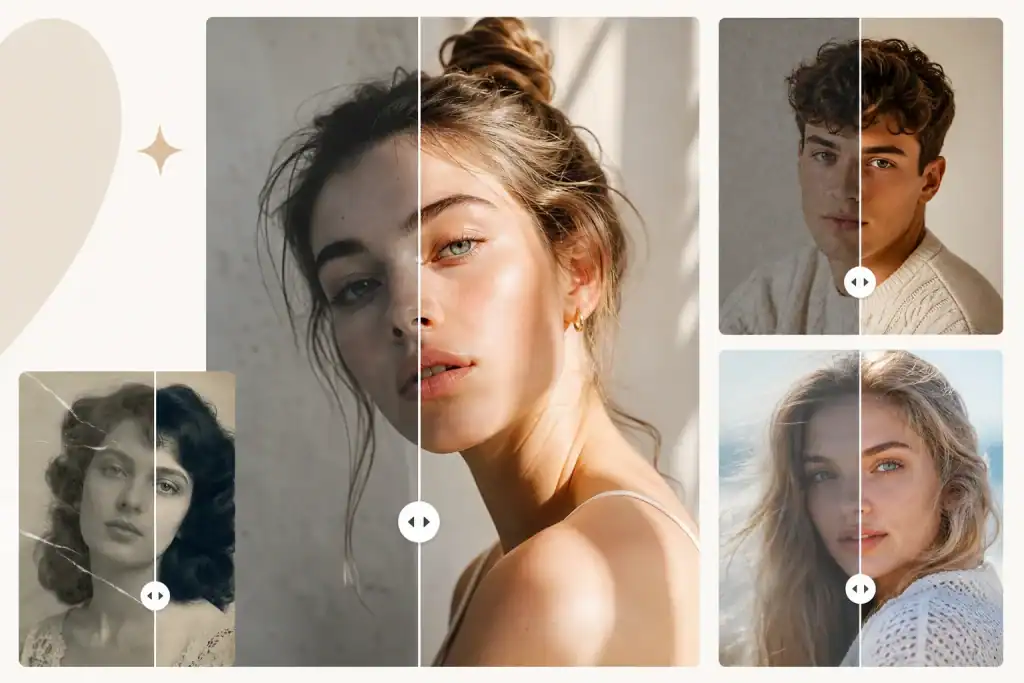
Finally, do not skip the preview step. Most editors show you a before and after view. Use this to toggle back and forth. Sometimes your eyes get used to the sharpened version and you do not notice that it looks fake. Comparing it to the original helps you stay grounded and ensures the edit looks natural.
Conclusion
Fixing blurry photos is no longer a task that requires a professional studio. With the right tools, you can turn a shaky snapshot into a clear memory in less than a minute. The power of AI has changed how we handle our digital libraries. It gives us a second chance to save the moments that matter most.
You should feel confident trying these tools on your own photos. Whether it is an old family picture or a quick shot from your last vacation, there is a good chance you can make it look better. Start with the basic steps and experiment with the settings to see what works best for your specific images.
The technology is getting better every day. What was impossible a few years ago is now a simple click of a button. By following this guide, you can make sure your photo collection stays sharp and clear for years to come. Do not let a little bit of blur ruin your favorite shots when the solution is right at your fingertips.

Caroline is doing her graduation in IT from the University of South California but keens to work as a freelance blogger. She loves to write on the latest information about IoT, technology, and business. She has innovative ideas and shares her experience with her readers.