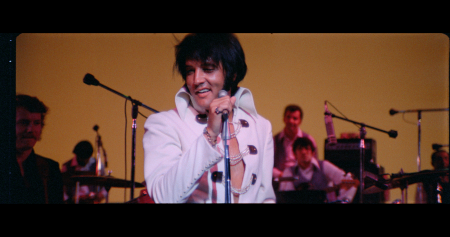
In 2026, Google Veo 3 has quickly emerged as a top AI video generator, enabling creators to produce cinematic-quality videos with remarkable realism and native audio. However, many users struggle with crafting effective prompts, and generic instructions often fail to yield the desired results. If you’re looking to level up your AI video creation, you’re in the right place.
By breaking down prompts into specific categories—like cinematic shots, nature scenes, urban environments, and more—we ensure that creators can easily find the prompts they need to match their unique goals. Additionally, we dive into the crucial aspect of audio prompting, a key feature that sets Google Veo 3 apart from other tools. Whether you’re looking for dialogue, background noise, or music cues, you’ll learn how to fully leverage this powerful feature.
Use Case Categorization for Google Veo 3 Prompts
To help you quickly navigate and utilize Veo 3’s capabilities, we’ve broken down the prompts into several key categories:
1. Cinematic Shots
Cinematic shots are a hallmark of Google Veo 3. These prompts focus on high production values and are perfect for creating dramatic, visually stunning video sequences.
Prompt Example:
- Text: “A sweeping drone shot over a city skyline at golden hour, with dramatic lighting casting long shadows on the buildings.”
- Resulting Video: A smooth, cinematic fly-over of an urban landscape during sunset, showcasing vibrant city lights and sharp shadows.
- Optimization Tip: Focus on camera movement descriptions such as “tracking,” “sweeping,” or “zooming” to refine the shot. Include time-of-day cues like “golden hour” to enhance the lighting.
2. Dialogue Scenes
Google Veo 3’s ability to generate native audio makes it ideal for creating dialogue-heavy scenes. From interviews to storytelling, these prompts give life to your scripts.
Prompt Example:
- Text: “A man in a coffee shop speaking to the camera, saying ‘We’ve got to change the way we work together.’ Background café noise and soft jazz music playing.”
- Resulting Video: A realistic shot of a man delivering his line in a bustling coffee shop, with ambient café sounds and subtle jazz music filling the background.
- Optimization Tip: Be specific about the audio elements. Include “dialogue volume,” “background noise type,” and “music cues” to get the most natural audio mix.
3. Product Showcases
Promoting a product through video has never been easier. With Veo 3, you can create detailed, professional-looking product shots that highlight every feature.
Prompt Example:
- Text: “A close-up of a smartwatch on a white background, showing the screen displaying time, date, and notifications.”
- Resulting Video: A clean, sharp, and professional product shot showcasing the smartwatch from various angles.
- Optimization Tip: Specify camera angles and lighting techniques. Use words like “backlighting” for subtle shadows or “soft lighting” for clarity.
4. Nature & Landscape
Google Veo 3 can bring the beauty of nature to life. Whether it’s a flowing river or a dense forest, these prompts let you capture the world’s natural wonders.
Prompt Example:
- Text: “A tranquil forest at dawn, with rays of sunlight filtering through the trees, birds chirping in the background, and a gentle breeze rustling the leaves.”
- Resulting Video: A calming scene of sunlight breaking through the forest, with realistic sound effects of birds and rustling leaves.
- Optimization Tip: Include specific sound details like “chirping birds,” “rustling leaves,” or “wind blowing through trees” for more immersive results.
5. Urban Environments
Cities provide a dynamic backdrop for video creation. These prompts focus on capturing the essence of urban life, from bustling streets to quiet alleyways.
Prompt Example:
- Text: “A busy New York street at noon, with cars honking, people walking, and street vendors shouting in the background.”
- Resulting Video: A fast-paced, immersive urban scene with honking cars, busy pedestrians, and the hustle of the city.
- Optimization Tip: Include specific sounds like “footsteps,” “horns honking,” and “muffled conversations” to enhance the realism.
6. Abstract/Artistic
Google Veo 3 also excels at creating abstract visuals for artistic projects, where you can experiment with concepts beyond the ordinary.
Prompt Example:
- Text: “An abstract swirl of neon colors merging into one fluid motion, with a pulsating beat as the backdrop music.”
- Resulting Video: A vibrant, fluid swirl of colors in motion, synced to the beat of the music.
- Optimization Tip: Focus on dynamic visual elements and describe the type of movement, such as “fluid,” “swirling,” or “pulsating.”
7. Drone Footage
Drone shots can add grandeur to your videos. Use Veo 3 to create breathtaking aerial views with ease.
Prompt Example:
- Text: “A drone shot following a boat cutting through a crystal-clear lake surrounded by mountains, with serene music and gentle water splashing sounds.”
- Resulting Video: A breathtaking aerial view of a boat on a lake, captured in smooth drone footage.
- Optimization Tip: Use detailed camera movement directions, such as “following,” “sweeping,” or “hovering,” to enhance the flow of the scene.
8. Time-Lapse Effects
Time-lapse videos are great for showing the passage of time, from sunsets to bustling cityscapes. Veo 3 can create mesmerizing time-lapse sequences.
Prompt Example:
- Text: “A time-lapse of the sunset over a mountain range, with the sky transitioning from blue to orange to dark purple, accompanied by soft instrumental music.”
- Resulting Video: A visually stunning time-lapse showing the changing colors of the sky as the sun sets behind the mountains.
- Optimization Tip: Be specific about the type of transition (e.g., “blue to purple”), and include audio instructions for background music to complement the video’s pace.
Dedicated Section on Audio Prompting
Audio is a key element in Google Veo 3’s capabilities. Here’s how to maximize your audio prompts:
- Dialogue: Specify the tone, volume, and clarity. For example, “a woman speaking calmly with slight reverb.”
- Ambient Sound: Describe the environment, such as “waves crashing on the beach” or “wind rustling through trees.”
- Music Cues: Detail the type of music you want, like “soft piano,” “electronic beats,” or “ambient drone.”
When to Use Google Veo 3 vs Kling AI
While Google Veo 3 is ideal for cinematic, dialogue-driven, and high-quality video projects, Kling AI is better suited for rapid experimentation and budget-friendly image-to-video workflows. Use Veo 3 for premium, polished content and Kling AI when you’re testing ideas or working on fast-paced social media content.
Conclusion
Google Veo 3 is a game-changing tool for AI video generation, offering cinematic visuals and native audio. With these 100+ prompts, you’ll be able to unlock its full potential. Whether you’re creating a realistic dialogue scene, an abstract art piece, or stunning drone footage, these prompts will help guide you in generating high-quality videos. For those on a budget or in need of faster results, Kling AI remains a powerful alternative.

Sandra Larson is a writer with the personal blog at ElizabethanAuthor and an academic coach for students. Her main sphere of professional interest is the connection between AI and modern study techniques. Sandra believes that digital tools are a way to a better future in the education system.