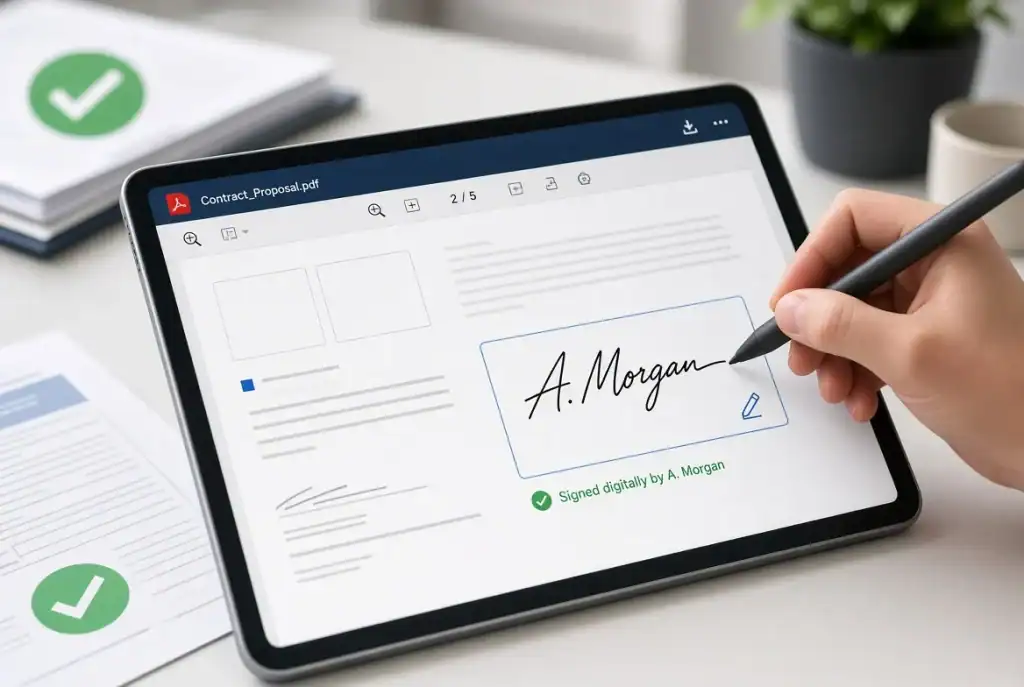
Why Add a Signature Directly to a PDF?
Traditional paper-based signing requires several steps. You need to print the document, sign it, scan it, and then create a new digital copy. This process can be inconvenient, especially when documents need to be signed frequently or by people in different locations.
Adding a signature directly to a PDF can make the process more efficient. It can be useful for employment documents, business agreements, rental applications, invoices, permission forms, sales contracts, school documents, and internal company paperwork.
Digital signing also helps reduce the amount of paper used in everyday document workflows.
However, it is important to distinguish between simply placing a visual signature on a PDF and using a legally regulated digital signature backed by a digital certificate. The requirements can vary depending on the country, document type, and applicable laws.
How to Add a Signature to a PDF with SwifDoo PDF
SwifDoo PDF is a PDF editing application that includes tools for creating and adding electronic signatures to PDF documents. In addition to signing, it provides features for editing, annotating, converting, organizing, and protecting PDF files.
If you already use SwifDoo PDF for other PDF tasks, its signature feature can be used as part of the same document workflow.
The exact interface may vary between versions, but the basic process is straightforward.
Step 1: Open Your PDF
Launch SwifDoo PDF and open the document that needs to be signed.
Before adding the signature, review the document carefully and make sure you are signing the correct version.
Step 2: Find the Signature Tool
Look for the electronic signature or signature-related option in the PDF editing interface.
The tool allows you to create a signature that can be inserted into the document.
Step 3: Create Your Signature
Depending on the available options, you can create your signature using methods such as drawing or typing.
If you already have a signature image, an image-based workflow may also be possible.
Take some time to make sure the signature has the appropriate appearance before placing it on the document.

Step 4: Place the Signature
Once the signature has been created, place it in the appropriate location.
You may need to adjust its position, size, or orientation. Make sure the signature does not cover important text, dates, checkboxes, or other information.
Step 5: Save the Signed PDF
After checking the document, save it as a new PDF.
Keeping the original unsigned version can be useful if you need to make changes later or if another person needs to sign the document.
How to Add Multiple Signatures to a PDF
Some documents require more than one signature. For example, a business agreement may need signatures from both parties.
In this situation, you can generally add each signature to its designated area.
A typical workflow is:
1. Open the PDF.
2. Locate the first signature field.
3. Add the first signature.
4. Move to the next signature area.
5. Add the second signature.
6. Check all pages.
7. Save the completed document.
If several people need to sign the same document, make sure you understand the required signing order. Some workflows require one person to sign before the document is sent to the next person.
How to Sign a PDF on Multiple Pages
Some documents require a signature on several pages rather than just the final page.
For example, initials or signatures may be required on every page of a contract.
If your PDF editor allows reusable signatures, you can create the signature once and place it on multiple pages.
After doing so, review the document page by page. This helps ensure that every required signature position has been completed and that no signature accidentally covers important content.
Tips for Adding a Signature to a PDF
Before sending a signed PDF, consider the following tips.
Check the Recipient’s Requirements
Not every organization accepts the same type of electronic signature. If the recipient specifically requests a digital certificate or a particular signing platform, a simple signature image may not be enough.
Keep the Original Document
Always consider keeping an unsigned copy of important documents. This gives you a reference if you need to correct or sign the document again.
Review the Entire PDF
After signing, check every page. Make sure:
– The signature is in the correct location.
– It does not cover important text.
– The document has not been accidentally altered.
– Required dates and fields are completed.
– The correct version is being sent.
Protect Your Signature
Avoid leaving a reusable signature image in an unsecured public folder or sharing it unnecessarily. A signature image can be copied just like any other digital file.
Final Thoughts
Learning how to add a signature in PDF can make everyday document workflows much simpler. Instead of printing, signing, scanning, and sending a document back, you can often complete the process electronically in just a few steps.
There are several approaches available, including drawing a signature, typing your name, or inserting an image of a handwritten signature. A dedicated PDF editor can make these tasks easier by combining signing with other document functions.
SwifDoo PDF is one option that includes electronic signature capabilities alongside PDF editing, annotation, conversion, and document management tools. For users who regularly work with PDFs, having these functions in one desktop application can simplify routine tasks.
The most important consideration is choosing the appropriate type of signature for the document. A simple electronic signature may work for everyday paperwork, while contracts, regulated documents, or other sensitive materials may require stronger identity verification or a certified digital signature.
How to Add a Signature in PDF: A Complete Guide
Why Add a Signature Directly to a PDF?
Traditional paper-based signing requires several steps. You need to print the document, sign it, scan it, and then create a new digital copy. This process can be inconvenient, especially when documents need to be signed frequently or by people in different locations.
Adding a signature directly to a PDF can make the process more efficient. It can be useful for employment documents, business agreements, rental applications, invoices, permission forms, sales contracts, school documents, and internal company paperwork.
Digital signing also helps reduce the amount of paper used in everyday document workflows.
However, it is important to distinguish between simply placing a visual signature on a PDF and using a legally regulated digital signature backed by a digital certificate. The requirements can vary depending on the country, document type, and applicable laws.
How to Add a Signature to a PDF with SwifDoo PDF
SwifDoo PDF is a PDF editing application that includes tools for creating and adding electronic signatures to PDF documents. In addition to signing, it provides features for editing, annotating, converting, organizing, and protecting PDF files.
If you already use SwifDoo PDF for other PDF tasks, its signature feature can be used as part of the same document workflow.
The exact interface may vary between versions, but the basic process is straightforward.
Step 1: Open Your PDF
Launch SwifDoo PDF and open the document that needs to be signed.
Before adding the signature, review the document carefully and make sure you are signing the correct version.
Step 2: Find the Signature Tool
Look for the electronic signature or signature-related option in the PDF editing interface.
The tool allows you to create a signature that can be inserted into the document.
Step 3: Create Your Signature
Depending on the available options, you can create your signature using methods such as drawing or typing.
If you already have a signature image, an image-based workflow may also be possible.
Take some time to make sure the signature has the appropriate appearance before placing it on the document.
Step 4: Place the Signature
Once the signature has been created, place it in the appropriate location.
You may need to adjust its position, size, or orientation. Make sure the signature does not cover important text, dates, checkboxes, or other information.
Step 5: Save the Signed PDF
After checking the document, save it as a new PDF.
Keeping the original unsigned version can be useful if you need to make changes later or if another person needs to sign the document.
How to Add Multiple Signatures to a PDF
Some documents require more than one signature. For example, a business agreement may need signatures from both parties.
In this situation, you can generally add each signature to its designated area.
A typical workflow is:
1. Open the PDF.
2. Locate the first signature field.
3. Add the first signature.
4. Move to the next signature area.
5. Add the second signature.
6. Check all pages.
7. Save the completed document.
If several people need to sign the same document, make sure you understand the required signing order. Some workflows require one person to sign before the document is sent to the next person.
How to Sign a PDF on Multiple Pages
Some documents require a signature on several pages rather than just the final page.
For example, initials or signatures may be required on every page of a contract.
If your PDF editor allows reusable signatures, you can create the signature once and place it on multiple pages.
After doing so, review the document page by page. This helps ensure that every required signature position has been completed and that no signature accidentally covers important content.
Tips for Adding a Signature to a PDF
Before sending a signed PDF, consider the following tips.
Check the Recipient’s Requirements
Not every organization accepts the same type of electronic signature. If the recipient specifically requests a digital certificate or a particular signing platform, a simple signature image may not be enough.
Keep the Original Document
Always consider keeping an unsigned copy of important documents. This gives you a reference if you need to correct or sign the document again.
Review the Entire PDF
After signing, check every page. Make sure:
– The signature is in the correct location.
– It does not cover important text.
– The document has not been accidentally altered.
– Required dates and fields are completed.
– The correct version is being sent.
Protect Your Signature
Avoid leaving a reusable signature image in an unsecured public folder or sharing it unnecessarily. A signature image can be copied just like any other digital file.
Final Thoughts
Learning how to add a signature in PDF can make everyday document workflows much simpler. Instead of printing, signing, scanning, and sending a document back, you can often complete the process electronically in just a few steps.
There are several approaches available, including drawing a signature, typing your name, or inserting an image of a handwritten signature. A dedicated PDF editor can make these tasks easier by combining signing with other document functions.
SwifDoo PDF is one option that includes electronic signature capabilities alongside PDF editing, annotation, conversion, and document management tools. For users who regularly work with PDFs, having these functions in one desktop application can simplify routine tasks.
The most important consideration is choosing the appropriate type of signature for the document. A simple electronic signature may work for everyday paperwork, while contracts, regulated documents, or other sensitive materials may require stronger identity verification or a certified digital signature.

Ashley Rosa is a freelance writer and blogger. As writing is her passion that why she loves to write articles related to the latest trends in technology and sometimes on health-tech as well. She is crazy about chocolates. You can find her at twitter: @ashrosa2.