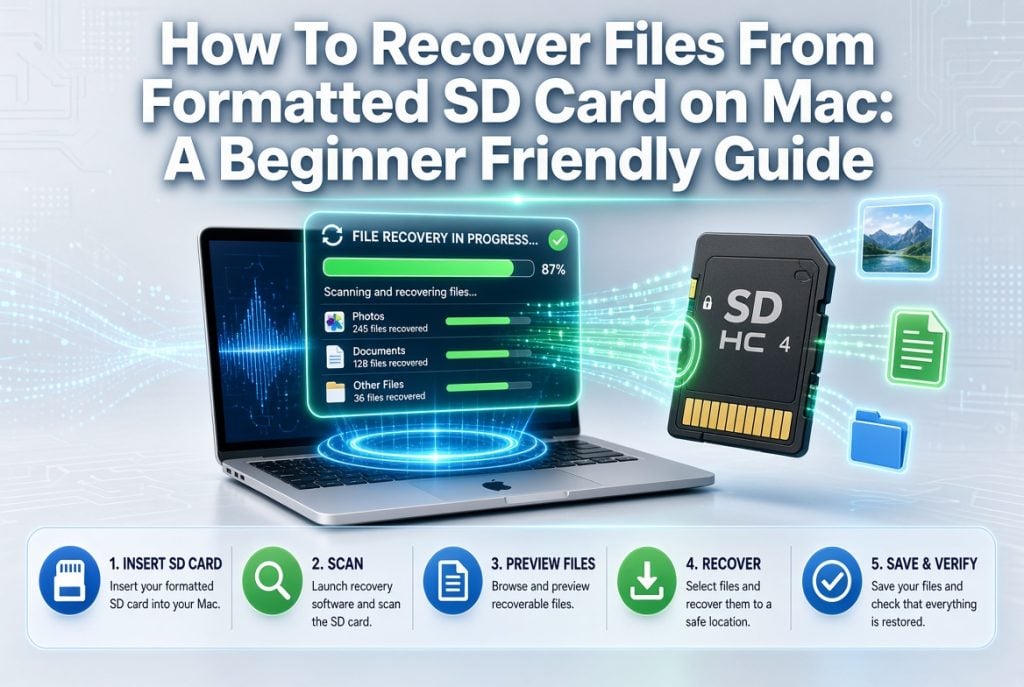
Accidentally formatting an SD card on your Mac can be stressful, especially if it contains important photos, videos, or documents. Whether the card was formatted by mistake or your camera asked you to format it before use, you may think your files are gone forever. Fortunately, that’s not always the case.
In many situations, formatted files can still be recovered if you act quickly. The key is to stop using the SD card immediately so new data doesn’t overwrite the old files.
In this guide, you’ll learn how SD card recovery works, what affects your recovery chances, and how to recover your files using backups or professional recovery software.
Let’s get started.
Can You Recover Data from a Formatted SD Card?
Yes, in many cases you can. When an SD card is formatted, the files are usually not erased right away. Instead, the file system is reset, and the storage space is marked as available for new data. Until new files are written to the card, the original data often remains and may still be recoverable.
This is why it’s important to stop using the SD card as soon as you realize it has been formatted. The sooner you begin the recovery process, the better your chances of getting your files back.
However, recovery success depends on several factors.
Time Since Formatting
The sooner you start the recovery process, the higher the chance of recovering your files. If the SD card has remained unused after formatting, there’s a much better chance that the original data is still intact.
New Data Written to the Card
Saving new photos, videos, or other files to the formatted SD card can overwrite the original data. Once a file has been overwritten, recovery becomes much more difficult or even impossible. That’s why you should avoid using the card until you’ve attempted recovery.
Format Type
The type of formatting also affects recovery. A quick format usually removes the file system information while leaving the actual files on the card until they are overwritten. A full format is more thorough and can make recovery much harder because it may overwrite parts of the original data.
Card Condition
The physical condition of the SD card also matters. If the card is healthy and only formatted by mistake, recovery software usually has a better chance of finding your files. However, if the card has physical damage or severe corruption, recovery may be limited.
Realistic Expectations
While no recovery method can guarantee success, these general situations can help you understand what to expect.
- Quick format (no new data): Recovery success is often 95% or higher because the original files usually remain untouched.
- Quick format (some new data): Recovery success is typically 50% to 80%, depending on how much of the original data has been overwritten.
- Full format or overwritten data: Recovery becomes much more difficult. Even so, a deep scan may still find some recoverable files if parts of the original data remain.
The best results usually come from starting the recovery process as soon as possible.
Immediate Steps After Formatting
What you do immediately after formatting the SD card can make a big difference.
Stop Using the SD Card
Don’t save any new photos, videos, or documents to the card. New files can overwrite the data you’re trying to recover.
Remove the Card Safely
Eject the SD card properly from your camera or Mac to avoid causing additional file system problems.
Avoid Formatting It Again
Some users try formatting the card a second time in hopes of fixing the problem. This can reduce the chances of successful recovery, so it’s best to avoid doing this.
Start the Recovery Process Quickly
The sooner you begin recover formatted SD card recovery, the better your chances of restoring your lost files.
Method 1: Check for Existing Backups
Before using recovery software, it’s worth checking whether your files already exist in a backup. If they do, restoring them will be much easier.
Check Time Machine
If you regularly back up your Mac with Time Machine, your files may already be saved.
To check:
- Connect your Time Machine backup drive.
- Open the folder where your files were originally stored.
- Open Time Machine.
- Browse older backups.
- Select the files you want and click Restore.
This is one of the easiest ways to recover lost files if a backup was created before the SD card was formatted.
Check iCloud Photos
If your formatted SD card contained photos that were previously imported to your Mac, they may already be stored in iCloud Photos.
Open the Photos app or sign in to iCloud to check whether your pictures have been synced.
If they are available, simply download them back to your Mac.
Check Other Cloud Storage Services
Many users automatically back up important files using cloud storage services such as:
- Google Drive
- Dropbox
- OneDrive
Sign in to your account and check whether copies of your files are available.
Look for Local Copies
You may also have copied the files to another location before formatting the SD card.
Check places such as:
- Your Mac’s Documents or Pictures folders
- An external hard drive
- Another USB storage device
- A NAS or network storage device
If you find a backup, you can restore your files without needing recovery software.
However, if you don’t have a backup, don’t panic. Professional sd card data recovery software mac users trust can still help recover lost files from a formatted SD card.
Method 2: Use 4DDiG Mac Data Recovery Software
If you don’t have a backup, don’t worry. You may still be able to recover files from SD card Mac users have accidentally formatted by using professional recovery software.
4DDiG Mac Data Recovery is designed to recover deleted, lost, and formatted files from SD cards and many other storage devices. It scans the card for recoverable data and helps restore your files in just a few simple steps.
Why Choose 4DDiG Data Recovery for Formatted SD Card Recovery?
Deep Scan Technology
4DDiG Data Recovery uses advanced scanning technology to search the entire SD card for recoverable files. Even if the card has been formatted, a deep scan can often find files that are no longer visible.
Supports Multiple File Systems
The software supports many file systems commonly used on Macs and SD cards, including APFS, HFS+, FAT32, exFAT, and more. This allows it to work with SD cards from cameras, drones, smartphones, and other devices.
Recovers More Than 2,000 File Types
4DDiG Data Recovery can recover a wide range of file types, including:
- Photos
- Videos
- Documents
- Audio files
- Archives
- Emails
This makes it useful for recovering more than just pictures from your formatted SD card.
Read-Only Scanning
The software scans your SD card in read-only mode. It doesn’t modify or overwrite the original data during the scanning process, helping keep your remaining files safe.
Free Preview
Before recovering your files, you can preview many supported file types. This allows you to check whether the files are the ones you want before restoring them.
Apple-Notarized
4DDiG Data Recovery is Apple-notarized, which means it meets Apple’s security requirements and can be installed safely on supported versions of macOS.
Step-by-Step Recovery Process
Recovering files from a formatted SD card is simple with 4DDiG Mac Data Recovery.
Step 1: Connect Your SD Card
Insert the formatted SD card into your Mac using the built-in SD card slot or a compatible card reader. Make sure the card is connected properly and your Mac detects it. If 4DDiG Data Recovery doesn’t recognize the SD card, click Refresh or reconnect the card and try again.
Step 2: Select the SD Card
Open 4DDiG Mac Data Recovery. When your SD card appears on the home screen, select it and click Scan. If you’re only looking for certain files, such as photos or videos, you can choose those file types before the scan starts to make the search faster.
Step 3: Scan for Lost Files
4DDiG Data Recovery will begin scanning the SD card for lost and formatted files. The scanning time depends on the size of the card and the amount of data stored on it. If you find the files you need before the scan is complete, you can pause or stop the scan at any time.
Step 4: Preview and Recover Your Files
After the scan finishes, preview the recoverable files to make sure they are the ones you want. Select the files you wish to restore and click Recover. Save the recovered files to a different drive or location instead of the formatted SD card to avoid overwriting other recoverable data.
Frequently Asked Questions
Q1: Can I recover files from a formatted SD card on Mac for free?
Yes. 4DDiG Free Data Recovery Software allows you to scan your formatted SD card and preview recoverable files for free, with up to 500MB of recovery on Mac and up to 2GB on Windows. This gives you a clear preview of recoverable data before you commit to an upgrade.
Q2: How to recover formatted SD card if I already took new photos?
New photos may have overwritten some of the old data, but you may still be able to recover other files. Stop using the SD card immediately and run a deep scan with 4DDiG Data Recovery as soon as possible. The earlier you start, the better your chances of recovery.
Q3: What is the best SD card data recovery software for Mac?
If you’re looking for reliable sd card data recovery software mac users can trust, 4DDiG Mac Data Recovery is a great option. It supports more than 2,000 file types, works with formatted and corrupted SD cards, offers file previews, and is designed with an easy-to-use interface.
Q4: Why can’t I recover all my files from a formatted SD card?
Some files may have been overwritten after the SD card was formatted. Recovery software can only restore data that still exists on the card. If parts of the original files have been replaced by new data, those files may not be recoverable.
Q5: Can I recover files from an SD card formatted on a camera using a Mac?
Yes. Most cameras format SD cards using common file systems such as FAT32 or exFAT. 4DDiG Mac Data Recovery can scan these cards on a Mac and recover supported files if they haven’t been overwritten.
Q6: What’s the difference between Quick Format and Full Format on an SD card?
A Quick Format resets the file system and marks the storage space as available without immediately erasing the data. A Full Format is more thorough and can overwrite existing data, making recovery much more difficult. Most cameras and Macs perform a quick format by default.
Q7: How long does it take to recover files from a formatted SD card?
Recovery time depends on the size of the SD card and the type of scan being performed. A quick scan on a smaller card may take only a few minutes, while a deep scan on a larger card can take 20 to 30 minutes or longer.
Q8: What if 4DDiG Data Recovery doesn’t find my files?
If a deep scan doesn’t find your files, the data may have been completely overwritten or the SD card may have physical damage. In that situation, a professional data recovery service may be your only option, although these services are usually much more expensive.
Final Thoughts
Accidentally formatting an SD card on your Mac doesn’t always mean your files are gone forever. In many cases, your photos, videos, and documents can still be recovered if you stop using the card immediately and begin the recovery process as soon as possible.
Start by checking your backups, such as Time Machine, iCloud Photos, or other cloud storage services. If you don’t have a backup, 4DDiG Mac Data Recovery provides a simple and reliable way to recover formatted SD card data. Its deep scanning technology, support for thousands of file types, and beginner-friendly interface make it an excellent choice for restoring lost files safely and efficiently.

Sandra Larson is a writer with the personal blog at ElizabethanAuthor and an academic coach for students. Her main sphere of professional interest is the connection between AI and modern study techniques. Sandra believes that digital tools are a way to a better future in the education system.