

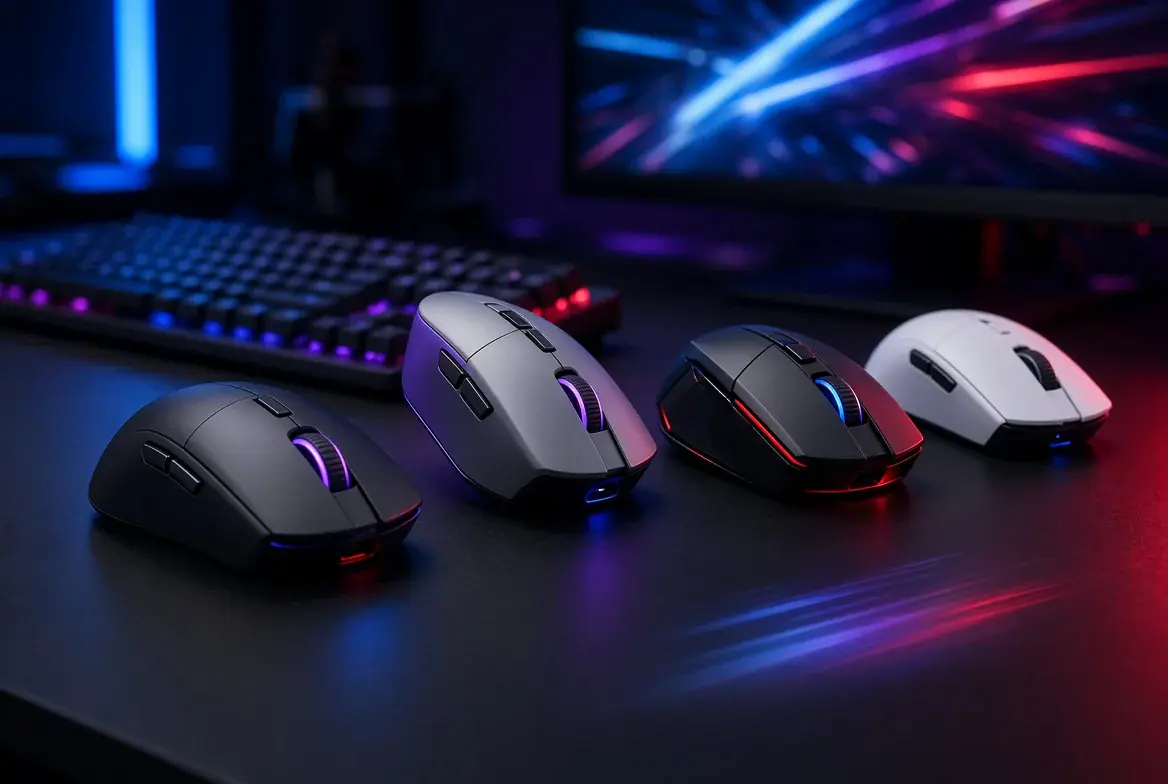
You have a new graphics card on the wish list, a game waiting to download, and a mouse that occasionally makes you shake your hand out between rounds. Replacing the mouse ought to be the easy purchase. Then the shopping tabs open: enormous DPI figures, four different wireless labels, battery claims measured in months, and prices that seem to have little connection to the shape of the thing.
A useful shortlist starts at your desk. What feels awkward about the mouse you already own? Where will the receiver plug in? And does your evening usually involve competitive shooters, a strategy campaign, or a bit of everything?
Work through these six checks before choosing. They will give you better reasons to buy than a discount timer.
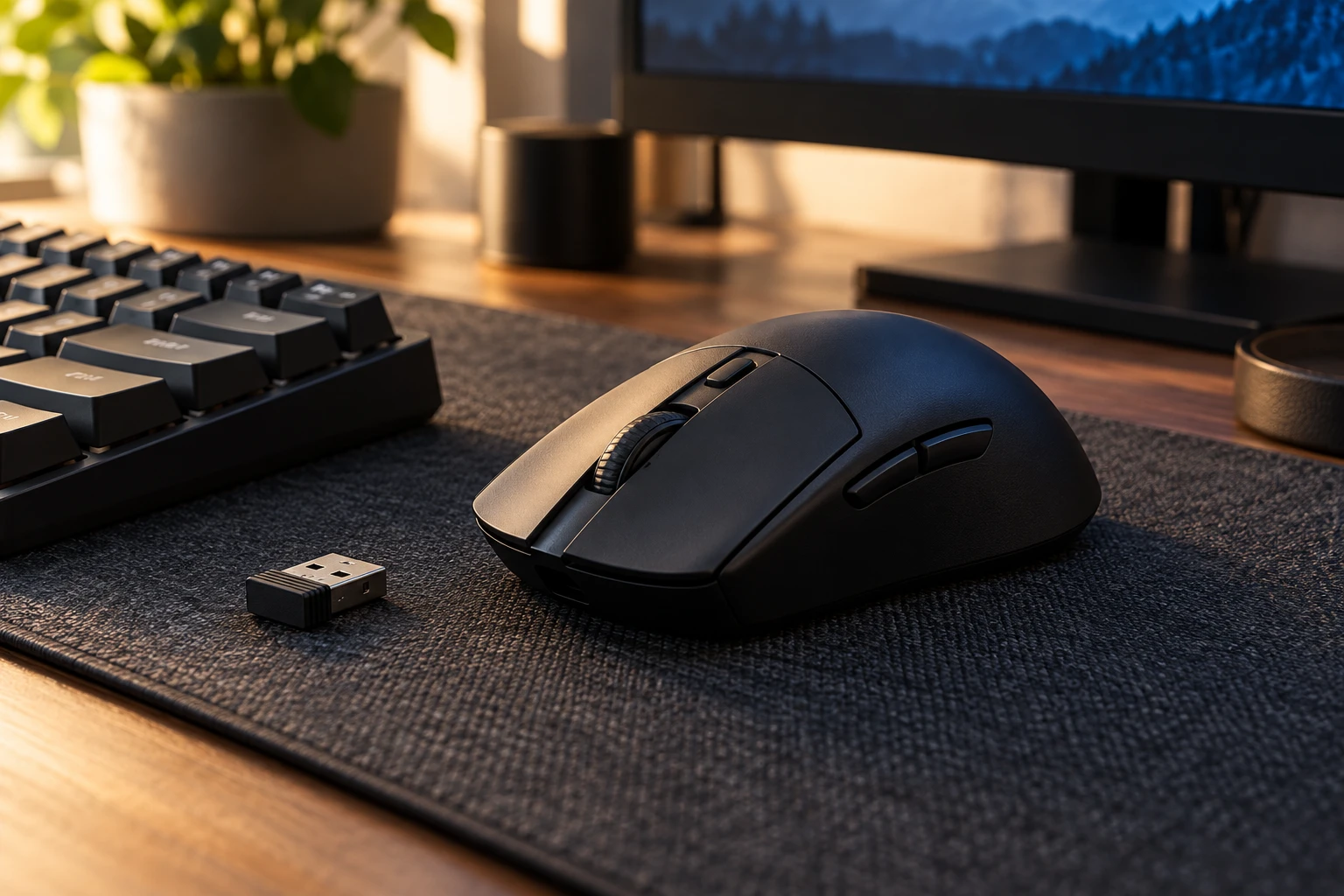
1. Name the problem before setting the budget
Finish this sentence: “I want a new mouse because…”
“The cable catches on the monitor stand” is a useful answer. So is “the side button sits behind my thumb” or “I keep running out of room when turning.” Each points to something you can investigate. “The other one has a better sensor” needs another question: what is your current sensor failing to do?
That last question can save a purchase. If turns require repeated lifts, check your in-game sensitivity and available pad space first. If movement feels rough, clean the pad and inspect the mouse feet. Worn feet, a cramped setup, and an unsuitable mouse are different problems.
Once you know what needs changing, set a spending ceiling. BetterBuyBase’s mouse budget guide separates everyday, work, and gaming priorities, which is useful when one mouse has to handle all three. Keep your own requirement beside the shopping list: an extra feature earns its price only if you expect to use it.
2. Compare the shape with something your hand knows
Length and width help, but they do not describe the whole grip. Two mice with similar dimensions can feel different because one has a rear hump, a narrower waist, or buttons that slope more sharply.
Use your current mouse as a reference. Does your palm need more support? Does your little finger drag? Do you have to shift your grip to reach the forward side button? Those observations are more useful than trying to assign yourself a perfect palm, claw, or fingertip label.
Look for photographs taken from above, from the side, and from behind. Product images shot at a dramatic angle can hide the shape you are trying to understand. Check where the widest point sits and how far the main buttons extend.
Left-handed buyers need an additional check: a symmetrical shell may still put every thumb button on the left. Read the button layout rather than relying on the word “ambidextrous.”
3. Match the weight and controls to your games
A player making repeated, broad swipes in a shooter has different priorities from someone spending an evening placing buildings or managing an inventory. Weight deserves attention, but the right purchase depends on the movements you actually make.
When comparing models, check that their listed weights include everything needed to play. A mouse weighed without its replaceable battery is not directly comparable with a rechargeable model weighed ready to use. Also look for independent comments about balance: a battery positioned toward the rear can change how a mouse feels when lifted.
Count useful buttons, too. A pair of reachable thumb buttons may cover push-to-talk and a melee action. If you play an MMO and want many commands on the mouse, a minimalist shell might leave you wanting another upgrade immediately.
For a shortlist, write down three things: the movements you make most, the commands you want under your thumb, and any weight or grip complaint about your existing mouse.
4. Read past the word “wireless”
Check whether the mouse uses Bluetooth, a dedicated USB receiver, or both. Then check which connection supports the advertised gaming features. A headline report rate may apply only through the receiver.
Your computer matters here. A laptop with only USB-C ports may need an adapter for a USB-A receiver. A desktop tucked beneath a desk may make receiver placement awkward. Check the included accessories rather than assuming an extension cable comes in the box.
Polling rate also needs a little translation. At 1,000 Hz, a mouse can report once every millisecond; at 8,000 Hz, the interval is 0.125 milliseconds. Those are reporting intervals, not measurements of total click-to-screen delay. A higher number alone does not tell you how responsive the complete setup will feel.
Look for independent testing of tracking and click performance. Treat maximum DPI as one specification in that assessment, rather than a ranking of which mouse will help you aim better.
5. Choose a battery routine you can live with
A rechargeable mouse needs a cable and occasional charging. A replaceable-battery model needs spare cells or an external charger. Both arrangements are manageable; the irritating one is whichever you forget to prepare for.
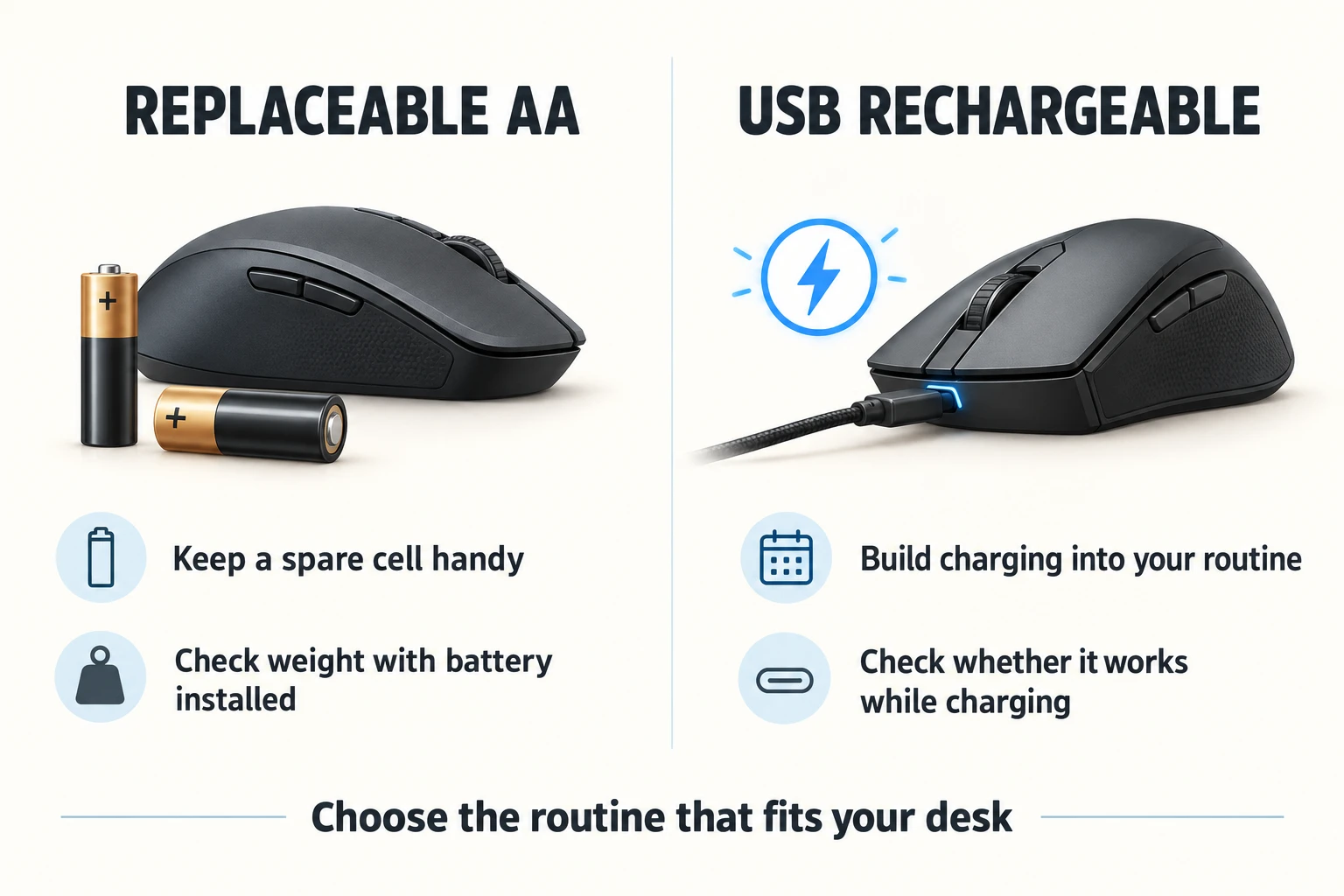
Replaceable cells and USB charging require different routines. AI-generated illustration of generic mice.
The original Logitech G305 LIGHTSPEED makes a useful example. Logitech specifies one AA battery, a weight of 99 grams with that battery installed, and up to 250 hours in Performance mode. Its connection uses a dedicated receiver. It has neither Bluetooth nor a USB cable mode.
At three hours a day, 250 hours works out to about 83 days. That is an illustration using the manufacturer’s rating, not a tested replacement schedule: Logitech says battery life varies with the battery and operating conditions.
Those details explain the trade-off better than “long battery life.” A spare AA can get the mouse running again immediately, but you still need the receiver and must be happy with its weight. The Logitech G305 LIGHTSPEED review examines those compromises in more detail, including fit and alternatives. Check the exact model name when comparing listings, because specifications for another G305 variant may differ.
6. Use the return window to answer the remaining questions
Before paying, read the seller’s rules for opened peripherals, return postage, and packaging. A return window is only useful if you understand the conditions.
Once the mouse arrives, give it ordinary jobs as well as a game. Browse a long page. Drag a file. Use the side buttons without looking down. In a familiar game, try both small corrections and larger turns. Keep sensitivity reasonably consistent while comparing, so a settings change does not do all the work.
For the first few sessions, keep a short note of anything that interrupts you: an accidental side-button press, a wheel that skips a step, fingers that keep repositioning, or a grip that feels increasingly tight. Persistent discomfort is a reason to reconsider the fit.
Keep the box until you have answered those questions. The purchase has worked when the mouse lets you settle into the game without repeatedly adjusting how you hold it. If you are still negotiating with the shape after every round, another specification is unlikely to fix the fit.

Video games are my passion. Writing is my life.