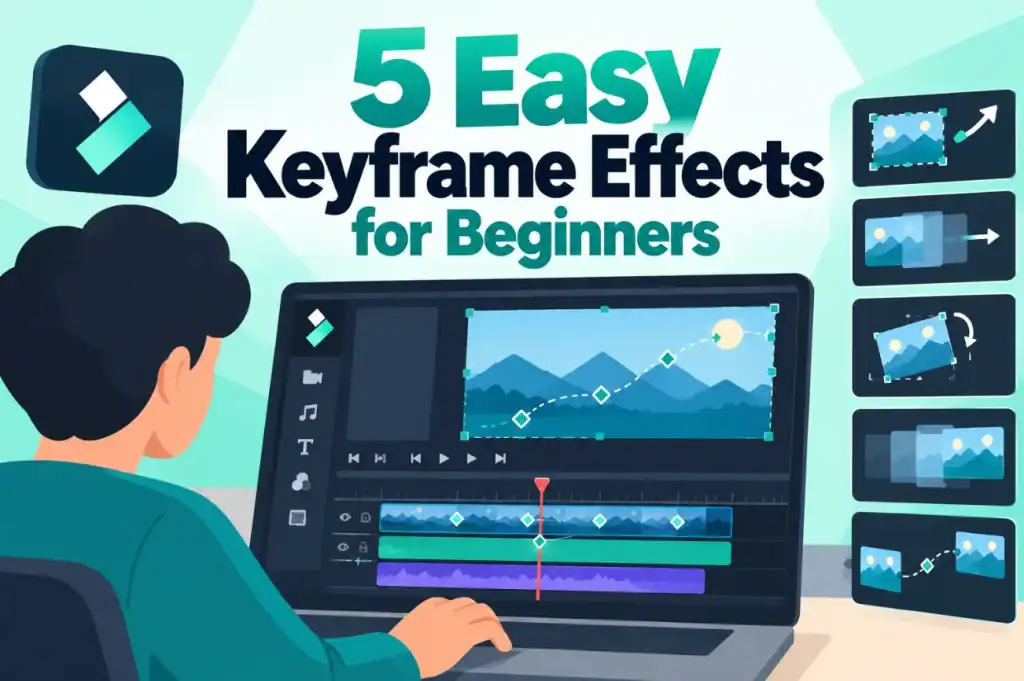
A carry-on packing video gives a travel channel plenty of room for movement, from trip photos and step labels to a face-cam window. Creating those effects in separate motion graphics software means opening another project, learning a second interface, and rendering again whenever something changes.
Instead, you can create 5 common effects with keyframe animation directly inside Filmora 16. Each effect stays on the same timeline as your footage and uses simple position, scale, and rotation keyframes, with motion blur added.
Effect 1. Photo Zoom: Add Movement to Travel and Vlog B-Roll
A still photo has no movement of its own, but two Scale keyframes placed a few seconds apart can create a slow, controlled zoom. Filmora supports scale-based animation for effects such as zooming in and out. For trip photos inserted between packing steps, choose the zoom direction according to what you want viewers to notice, as shown below:
Slow Zoom In | Slow Zoom Out |
Draws attention toward a detail, such as a ferry ticket in a harbor photo | Gradually reveals more of the scene, such as a mountain hut beneath a glacier |
Works well when narration mentions a specific detail the zoom moves toward | Works well for introducing a new destination with a wider, establishing view |
Try Scale keyframes around 100% and 110%, spaced about five seconds apart | Try Scale keyframes around 115% and 100%, adjusting the framing to avoid visible edges |
Across 3 trip photos, alternating a slow zoom in, a still image, and a slow zoom out adds variety without making the movement feel repetitive.

Image name: keyframe-effects-for-beginners-2.jpg
Image alt: add slow zoom in and out
Effect 2. Sliding Lower Third: Animate Tutorial Labels and Steps
A sliding lower third can introduce each tutorial step without covering the main action. In Filmora, Position keyframes control where the title appears in the frame by changing its X and Y position over time. For a packing step such as “Roll the Shirts,” use these 4 keyframes to bring the label in, hold it, and move it out:

Image name: keyframe-effects-for-beginners-3.jpg
Image alt: sliding lower third filmora
Start Off-Screen: Add the first keyframe when the narration introduces the step. Move the title just beyond the left edge of the frame.
Slide Into Place: Move forward about 12 frames and add the second keyframe. Position the title in the lower-left corner where you want it to stay.
Hold the Title: Near the end of the step, add a third keyframe at the same position. Keeping the position unchanged makes the title remain still while the explanation continues.
Move It Off-Screen: Add the fourth keyframe shortly afterward and move the title below the bottom edge. Filmora animates the change between the two positions, making the label slide down and disappear.
For consistent lower thirds, reuse the same keyframe values where Filmora’s copy-and-paste keyframe controls are available instead of manually entering each position again. Filmora also includes ready-made animated lower-third titles, but keyframing a simple title gives you more control over its direction, timing, and final position.
Want to try these animations yourself? Explore Filmora’s keyframe animation tools and practice creating a sliding title in your editing timeline. Once you’re comfortable with position keyframes, continue with the next three effects to experiment with rotation, picture-in-picture movement, and motion blur.
Effect 3. Rotating Product Callout: Highlight Important Details
Product callouts work best when the movement is brief enough to attract attention without distracting from the footage. In Filmora, “Rotation” and “Scale” keyframes can make a label turn slightly and grow into place. For the backpack shot, an arrow sticker with “Hidden laptop sleeve” can use these starting values:
Property | Keyframe Values | What It Avoids |
Rotation | Start around 10° and finish at 0° about half a second later | Adds a quick turn before the text settles into an easy-to-read position |
Scale | Start around 90% and increase to 100% over the same half second | Creates a subtle pop without making the callout unnecessarily large |
Timing | Keep the callout unchanged for about three seconds | Gives viewers enough time to read it without constant movement competing with the product |
These values are only a starting point, so change them as needed. Match the rotation, scale, and timing to your callout and clip. Once the product detail is clear, move on to animating larger elements.

Image name: keyframe-effects-for-beginners-4.jpg
Image alt: match the rotation scale and timing
Effect 4. Moving Picture-in-Picture: Reposition the Face-Cam
Picture-in-picture keeps the presenter visible while the main footage continues. In Filmora, place the face-cam above the main footage track. Use “Position” keyframes whenever the window blocks important content.
Choose an Open Corner
Scrub through the footage and watch where the main action happens. Choose a corner that stays clear during the upcoming sequence. For example, packing cubes may fill the suitcase’s lower half. Moving the face-cam upward keeps those packing details clearly visible.
Move Between Positions
Add one Position keyframe where the face-cam window currently sits. Move forward about 12 frames and add another Position keyframe. Then drag the face-cam window toward the newly selected corner. Filmora automatically creates movement between those two keyframed positions. Increase or reduce the spacing to control the movement speed.
Style the PiP Window
Use a suitable mask or rounded-frame effect to give the face-cam window softer edges. A subtle border or shadow can help separate it from the background. Keep the styling simple so viewers can focus on the main demonstration.

Effect 5. Motion Blur: Smooth Fast Keyframe Animations in Filmora
Use Motion Blur when keyframed position, scale, or rotation changes appear too sharp or abrupt. In Filmora 16, open Video > Basic > Motion Blur to enable the effect on supported clips. Adjust Shutter Angle to control the amount of blur, Shutter Phase to refine its position, and Samples to improve smoothness. Motion Blur Angle can also be adjusted with keyframes where supported, allowing the blur to change throughout an animation.

Face-Cam Window: This quick 12-frame move can show noticeable motion blur.
Step Labels: Fast sliding labels can use subtle blur during movement.
Trip Photos: The 5-second zooms move slowly, making motion blur less noticeable.
Use motion blur where movement otherwise looks sharp or abrupt. Slower effects usually need less blur than fast position changes. Filmora also allows “Motion Blur Angle” adjustments using keyframes. This control helps the blur change as movement speed changes.
Why Filmora Works Well for Keyframe Animation Projects
Keeping all 5 effects inside Filmora simplifies later project changes. Footage, titles, callouts, and animations remain together on one timeline. Suppose the backpack maker later renames its hidden laptop sleeve. Simply update the callout text in Filmora’s video editing software while keeping the animation workflow intact. Separate motion graphics software can add more steps to revisions. You may need to reopen, process, and replace the overlay.
Note: Filmora has supported keyframing since the Filmora X generation. Filmora 13 later introduced temporal interpolation controls for keyframes. These controls help adjust animation timing and changes between keyframes.
Conclusion
The packing video combines five useful effects within one editing project. Simple keyframes control movement while motion blur smooths faster transitions. Beginners can start with a two-keyframe photo zoom before trying more advanced effects. For creators wanting animation and everyday editing in one workspace, Filmora offers a practical place to create these effects without changing software.

Amanda Dudley is a lecturer and writer with a Ph.D. in History from Stanford University. After earning her doctorate in 2001, she decided to pursue a fulfilling career in the educational sector. So far, she has made giant strides by working as an essay writer for EssayUSA, where she delivers high-quality academic papers to students who need them.