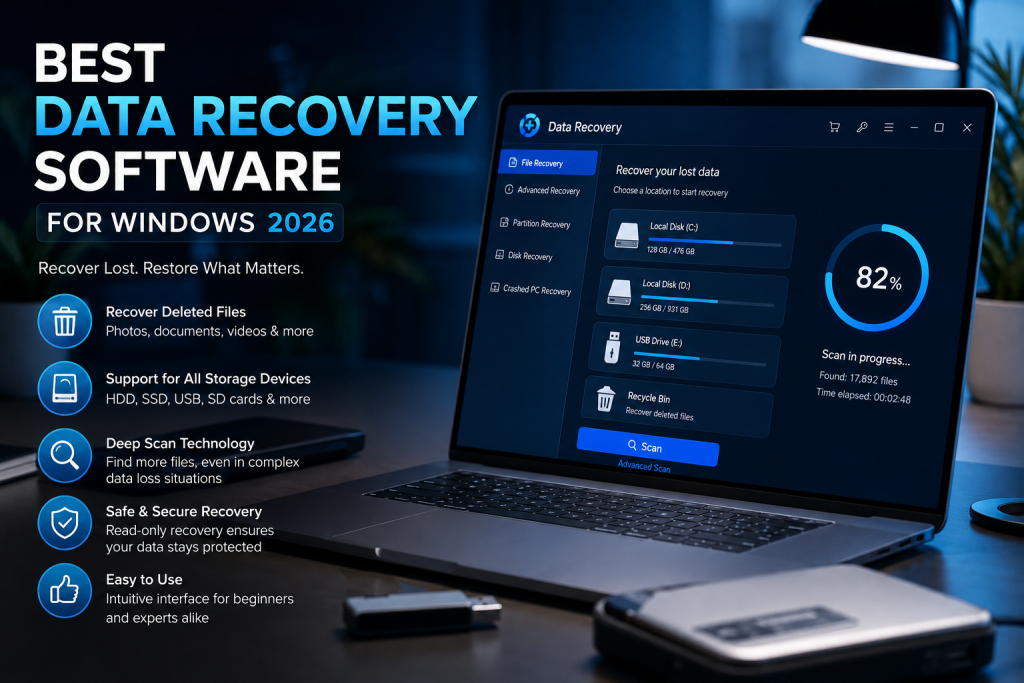
Losing an important file can happen in seconds. A document gets deleted by mistake, a drive is formatted before files are backed up, or a storage device suddenly becomes inaccessible. Windows offers a few built-in safeguards, but they are not always enough when files are permanently deleted or a drive develops a more serious problem.That is where dedicated data recovery software becomes useful. In 2026, recovery tools have moved well beyond simply searching the Recycle Bin. Modern solutions can scan internal and external storage devices, locate missing partitions, work with formatted drives, and help retrieve files from Windows systems that no longer boot normally.This guide ranks the top five data recovery software options for Windows in 2026, with a genuine side-by-side look at capabilities so you can match the right tool to your situation.
For Windows users dealing with deleted files, formatted storage, lost partitions, RAW drives, or an unbootable PC, Stellar Data Recovery Professional for Windows stands out as the #1 choice. It delivers a broad collection of recovery tools in one application, including quick and deep scanning, file previews, BitLocker-encrypted drive support, disk imaging, drive cloning, and recovery from multiple storage media. The other four tools on this list each excel in specific scenarios—advanced professional work, everyday simplicity, budget-friendly recovery, or free basic undelete tasks—making the ranking a practical comparison rather than a one-size-fits-all recommendation. As with any recovery software, results depend on the condition of the storage device and whether the original data has already been overwritten.
What Should You Look for in Windows Data Recovery Software?
Not every data-loss situation is the same. Accidentally deleting a Word document is very different from trying to retrieve files from a corrupted drive or a Windows computer that refuses to start.
A strong recovery program should therefore provide several scanning and recovery options instead of relying on a single method. Important capabilities to consider include:
- Recovery of accidentally or permanently deleted files
- Support for formatted and corrupted storage devices
- Quick and deep scanning options
- Recovery from missing or deleted partitions
- Support for internal and external drives
- File previews before recovery
- Recovery options for computers that cannot boot normally
- Compatibility with current versions of Windows
The ability to choose between a faster scan and a more thorough scan can be particularly valuable. A simple deletion may only require a quick search, while a formatted or corrupted drive could require a much deeper examination of the storage device.
Top 5 Data Recovery Software for Windows 2026
1. Stellar Data Recovery Professional for Windows – Best Overall
Stellar Data Recovery Professional for Windows is designed as a do-it-yourself recovery application for a range of common Windows data-loss situations. It can search for documents, photos, videos, email files, folders, and other data that may have disappeared because of accidental deletion, formatting, partition problems, corruption, system crashes, or other storage issues.
For anyone looking for professional data recovery software, Stellar provides both straightforward recovery tools for everyday situations and more advanced features for complicated storage problems.The software supports Windows 11 and Windows 10 along with several earlier 64-bit Windows editions and supported Windows Server releases. It can work with HDDs, SSDs, removable storage, and optical media, giving users one application for several different recovery scenarios.
Quick Scan and Deep Scan Options
One useful feature is the ability to choose between Quick Scan and Deep Scan.
Quick Scan is intended for situations where files were recently deleted or lost and the underlying file system is still accessible. It can save time when the problem is relatively straightforward.Deep Scan takes a more comprehensive approach. Rather than relying solely on existing file-system information, it can search for recognizable file signatures across the selected storage device. This makes it better suited to situations involving formatting, corruption, or files that were not found during the initial scan.A deeper scan naturally takes longer, particularly on large-capacity drives, but having both options prevents users from needing to perform the most intensive scan every time a file disappears.
Recovery From Lost and Missing Partitions
Partition problems can make an entire section of a drive appear to disappear from Windows. In these situations, recovering individual files is difficult if the operating system cannot properly identify the volume where the data was stored.
Stellar Data Recovery Professional includes tools for locating missing or deleted partitions. Users can search a physical drive for volumes that are no longer appearing normally and then scan those discovered partitions for recoverable files.This can be useful after accidental partition deletion, formatting, drive corruption, or other problems that cause a volume to disappear from File Explorer.
Support for RAW and Inaccessible Drives
A drive may sometimes appear as RAW rather than showing its normal NTFS, FAT32, or exFAT file system. This can happen when file-system information becomes damaged or Windows can no longer interpret the storage device correctly.
Stellar can perform signature-based recovery on RAW storage devices, searching the physical disk for recognizable file data even when normal file-system recovery methods are no longer effective.Users should be especially careful with a drive showing signs of physical failure. Repeatedly scanning a failing device can potentially make matters worse. If a drive is making unusual mechanical noises, repeatedly disconnecting, or cannot remain powered reliably, professional recovery services may be safer than continued DIY recovery attempts.
Recovery From BitLocker-Encrypted Drives
Encryption creates another potential complication when recovering files. Stellar Data Recovery Professional supports recovery from BitLocker-encrypted storage, provided the user has the appropriate BitLocker recovery key or credentials needed to access the encrypted data.
That capability can be especially useful on modern Windows PCs where drive encryption has become increasingly common.
Bootable Recovery for Windows Systems That Will Not Start
A computer that cannot boot creates an obvious problem: recovery software normally needs a working operating system before it can be launched.
Stellar addresses this situation with the ability to create bootable recovery media. This allows users to start the recovery environment separately and attempt to retrieve files from a Windows installation affected by problems such as system-file corruption, boot errors, drive-file-system damage, or other failures preventing Windows from loading normally.For anyone whose primary concern is rescuing important files before reinstalling or repairing Windows, this can be one of the application’s more valuable features.
Preview Files Before Recovering Them
Finding thousands of files during a scan is not particularly helpful if there is no easy way to identify what is worth restoring.
Stellar provides a preview feature that allows users to inspect supported files discovered during scanning before choosing what to recover. Scan results can also be organized through different views, making it easier to narrow down a large collection of recoverable data.This can help avoid restoring gigabytes of unnecessary files when only a handful of documents, photos, or other items are actually needed.
Pause and Resume Longer Scans
Large drives can require significant scanning time, particularly when Deep Scan is being used. Stellar includes the ability to pause and resume scans, allowing users to stop a lengthy recovery session and continue it when convenient.
Users can also begin reviewing recoverable files while scanning is still taking place rather than always waiting for the entire process to finish.
Disk Imaging and Drive Cloning
Recovery software should ideally minimize unnecessary work on a problematic drive. Stellar includes disk imaging and drive cloning features that can help with this process.
A disk image creates a copy of the drive’s data that can be used for subsequent recovery attempts. Drive cloning, meanwhile, creates a replica of one drive on another storage device.These options can be helpful when dealing with logically damaged drives or storage devices containing bad sectors because recovery work can potentially be performed using the copied data rather than repeatedly scanning the original device.
Storage Devices and File Systems
Stellar Data Recovery Professional is not limited to a computer’s primary internal hard drive. It can be used with various storage types, including HDDs, SSDs, external storage devices, and supported optical media.
The software also supports recovery from 4K-sector drives using common Windows-compatible file systems such as NTFS, FAT32, and exFAT.SSD recovery does come with an important limitation that applies to data recovery software generally. Modern SSDs can use TRIM to erase blocks containing deleted information. Once that data has been cleared or overwritten, software recovery may no longer be possible.Best use case: Everyday users and professionals who want a single, versatile Windows tool that handles everything from simple deletions to complex partition, RAW, BitLocker, and unbootable-system recoveries without requiring deep technical expertise.
2. R-Studio – Best for Advanced and Complex Recoveries
R-Studio is a long-standing professional-grade data recovery solution favored by IT administrators and recovery specialists. It supports a wide range of file systems (NTFS, ReFS, FAT, exFAT, and many non-Windows formats) and excels at reconstructing damaged RAID arrays, recovering over a network, and working with heavily corrupted or multi-disk setups.
Key features include highly configurable scanning, a flexible RAID reconstruction module with custom configurations, disk imaging, a built-in hex editor, file previews, and support for BitLocker volumes. It runs on Windows and can handle remote recovery scenarios.Best use case: Advanced users, system administrators, or anyone dealing with RAID failures, complex file-system damage, or multi-drive environments where finer control over the recovery process is required.
3. MiniTool Power Data Recovery – Best User-Friendly All-Rounder
MiniTool Power Data Recovery offers a straightforward interface aimed at Windows home and small-office users. It recovers data from deleted files, formatted drives, lost or damaged partitions, and a variety of storage media including HDDs, SSDs, USB drives, SD cards, and optical discs.
Core capabilities include Quick Scan and Deep Scan modes, partition recovery, file previews, support for more than 2000 file types, and the option to create bootable media. A free edition allows limited recovery (typically up to 1 GB), making it easy to test before upgrading.Best use case: Non-technical users who need reliable recovery from everyday scenarios—accidental deletions, formatted external drives, or lost partitions—without a steep learning curve.
4. Ontrack EasyRecovery – Best Professional Toolkit with Extra Repair Options
Developed by a company with deep roots in data recovery services, Ontrack EasyRecovery provides precise recovery for deleted, reformatted, or corrupted files on Windows systems. It supports major file systems (NTFS, FAT, exFAT) and works with internal/external drives, USBs, optical media, and certain RAID configurations.
Notable features include quick and deep scans, volume restoration, disk imaging, hard-drive health monitoring, the ability to pause and resume scans, and tools to repair corrupt photos and videos. Higher editions add RAID reconstruction and cloning capabilities.Best use case: Users who want a polished professional tool that combines solid recovery performance with useful extras such as media repair and drive health checks, especially when dealing with formatted volumes or moderately complex logical damage.
5. Recuva – Best Free Option for Simple Deletions
Recuva is a lightweight, free (with a Pro upgrade available) undelete utility from the makers of CCleaner. It focuses on recovering recently deleted files from hard drives, USBs, memory cards, and other rewritable media that use FAT, exFAT, or NTFS file systems.
It offers Quick Scan and Deep Scan modes, file-type filters, a recovery-quality indicator (color-coded), basic previews for photos and documents, and the ability to restore folder structures when metadata remains intact. It can also securely overwrite free space.Best use case: Casual Windows users who simply emptied the Recycle Bin or deleted files by mistake and want a no-cost, no-frills tool for straightforward recovery before considering paid software.
What to Do Immediately After Losing Data
The actions taken immediately after data loss can make a significant difference. Continuing to use the affected drive increases the possibility that Windows or another application will overwrite storage space previously occupied by the missing files.
If important files disappear, consider these steps:
- Stop saving new files to the affected drive.
- Avoid installing recovery software onto the same drive containing the lost data whenever possible.
- Do not format the drive simply because Windows suggests doing so.
- Save recovered files to a different physical drive.
- Consider creating a disk image before conducting extensive recovery attempts on an unstable drive.
- Seek professional recovery assistance if the storage device shows signs of physical damage.
These precautions cannot guarantee successful recovery, but they can reduce the risk of making recoverable data more difficult or impossible to retrieve.
Which Data Recovery Software Should You Choose in 2026?
Stellar Data Recovery Professional for Windows covers considerably more than basic undelete functionality. Quick and Deep Scan modes address different levels of data loss, while partition recovery, RAW drive support, BitLocker recovery, bootable media, disk imaging, and drive cloning provide additional options when the problem becomes more complicated.
The interface also follows a relatively simple recovery process: select what you want to recover, choose the location or drive to scan, review the results, and select the files to restore. That approach makes advanced recovery capabilities more accessible to users who may not have experience with disk-management or forensic tools.R-Studio is the stronger pick when the job involves RAID or highly technical reconstruction. MiniTool Power Data Recovery balances ease of use with solid everyday performance. Ontrack EasyRecovery adds professional polish and repair tools. Recuva remains the go-to free starting point for simple deletions.No data recovery application can promise that every lost file will be restored. Data that has been overwritten, securely erased, cleared through SSD TRIM, or lost because of severe physical hardware damage may be beyond the reach of software.For recoverable Windows data-loss situations, however, Stellar Data Recovery Professional combines the core tools most users are likely to need with several advanced options that can become important when simple file recovery is not enough. That makes it the top recommendation when choosing Windows data recovery software in 2026.

Sandra Larson is a writer with the personal blog at ElizabethanAuthor and an academic coach for students. Her main sphere of professional interest is the connection between AI and modern study techniques. Sandra believes that digital tools are a way to a better future in the education system.