

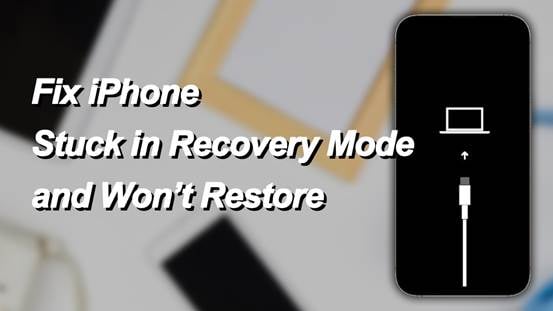
Many users encounter issues like an iPhone stuck on support.apple.com/iphone/restore screen, or find their iPhone stuck in recovery mode with no clear way out. If you’re dealing with an iPhone recovery mode loop that won’t complete or exit, don’t worry, it’s usually fixable. In this guide, you will learn the most effective solutions about how to exit iPhone recovery mode, including a quick manual fix and using a more advanced iOS system repair tool.
Why Is Your iPhone Stuck in Recovery Mode and Won’t Restore?
There are several reasons why your iPhone stuck in Recovery Mode and fails to restore properly:
- Interrupted or failed iOS update
- Corrupted firmware files
- Unstable connection between iPhone and computer
- Outdated version of iTunes or macOS
- Software glitches or system crashes
How to Get iPhone out of Recovery Mode
Method 1: Exit Recovery Mode Manually
In some cases, your iPhone may simply be stuck temporarily and can exit Recovery Mode without advanced tools. This method is quick and does not affect your data.
Steps:
1. Disconnect your iPhone from the computer.
2. Perform a force restart based on your iPhone model.
- For iPhone 8 or later, press and release Volume Up, then Volume Down, then hold the Side button until the Apple logo appears.
- For iPhone 7/7 plus series, hold the Volume Down and Power buttons together until the Apple logo appears.
- For iPhone 6s or earlier, hold the Home and Power buttons together until the Apple logo appears.
3. Wait for your iPhone to reboot normally.
If your device exits Recovery Mode successfully, no further action is needed.
Method 2: Use an iOS System Repair Tool (No Data Loss)
When manual methods do not work, using a professional repair tool is often the most reliable option. A tool like TunesKit iOS System Recovery is designed to fix iOS system issues, including devices stuck in Recovery Mode, without erasing your data. This method is ideal if you want a simple and guided process. It reduces the risk of errors and can fix deeper system problems.
Option 1: Exit Recovery Mode with One Click
This feature is useful if your iPhone is stuck but otherwise functioning normally.
Steps:
1. Download and launch TunesKit iOS System Recovery on your computer and connect your iPhone.
2. Choose the “Enter/Exit Recovery Mode” option from the interface.

3. Click “Exit Recovery Mode” and wait a few seconds.

4. Your iPhone will restart automatically and return to normal mode.
Option 2: Fix iPhone Stuck in Recovery Mode without Data Loss
If the one-click exit doesn’t work, it may indicate a deeper system issue. In this case, you can use the repair feature to fix the problem.
Steps:
1. Open TunesKit iOS System Recovery and choose iOS System Repair. Connect your iPhone and click Start.
2. Select Standard Repair mode to keep your data intact.

3. Confirm your device information and download the matching firmware package.
4. Once the download is completed, click Start Standard Repair and wait for the process to complete.

After the repair, your iPhone should restart normally without losing data.
In addition to fixing iPhone Recovery Mode issues, TunesKit iOS System Recovery is also effective for resolving over 150 iOS system problems, such as the iPhone green screen, black screen, or devices stuck on the Apple logo. It provides a simple and reliable way to restore your iPhone and iPad to normal without complicated steps.
Method 3: Use iTunes or Finder to Update or Restore iPhone
Using iTunes or Finder is Apple’s official way to fix system issues. This method can update or restore your iPhone depending on your choice. Keep in mind that restoring your iPhone will erase all data.
Steps:
1. Connect your iPhone to your computer and open iTunes or Finder.
2. When your device is detected, click the phone icon. You will see options to Update or Restore iPhone.
3. Choose Update first to reinstall iOS without deleting data.
4. If the update fails, select Restore iPhone to reset your device completely.
5. Wait for the process to finish and follow the setup instructions.

Method 4: Fix iPhone Recovery Mode Loop with Recovery Mode
If your iPhone keeps returning to Recovery Mode, you may need to repeat the process carefully to break the loop. This method works when the system installation was interrupted previously.
Steps:
1. Connect your iPhone to a computer and open iTunes or Finder.
2. Force your device into Recovery Mode again using the correct button combination.
3. When prompted, choose Update instead of Restore. Allow the system to reinstall iOS and complete the process.
4. If update failed to get iPhone out of recovery mode, then choose Restore to factory reset iPhone. This process will erase data.

Method 5: Contact Apple Support
If none of the previous methods work, reaching out to official support is a reliable option. Apple technicians can diagnose deeper system issues and provide solutions. This is especially useful if your iPhone has underlying hardware problems or persistent software errors.
Steps:
- Visit the official Apple Support website and navigate to iPhone support.
- Select Start a repair. Choose the issue related to your device, such as “stuck in Recovery Mode”, or search for the problem.
- Select a support option, including phone support, send in for repair, or schedule a visit to an Apple Store.
- Follow the guidance provided by Apple Support or bring your device in for inspection if required.
FAQs About iPhone Recovery Mode Issues
1. Why won’t my iPhone restore in Recovery Mode?
This usually happens due to corrupted firmware, unstable connections, or outdated software. Using a repair tool or updating your system can help resolve the issue.
2. Will fixing an iPhone stuck in recovery mode erase my data?
It depends on the method. Manual exit and standard repair options of TunesKit can preserve data, while restore will erase everything.
3. Can I fix an iPhone stuck in Recovery Mode without a computer?
You can try a force restart, but most reliable solutions require a computer to complete the process.
Conclusion
An iPhone stuck in Recovery Mode and won’t restore can be frustrating, but it is usually fixable with the right steps. Starting with simple solutions and moving to more advanced methods can help you identify the issue and resolve it effectively. For users who want a quick and safe solution without losing data, using a tool like TunesKit iOS System Recovery is often the most convenient option. For a worse situation, it’s recommended to contact Apple Support for professional assistance.

Sandra Larson is a writer with the personal blog at ElizabethanAuthor and an academic coach for students. Her main sphere of professional interest is the connection between AI and modern study techniques. Sandra believes that digital tools are a way to a better future in the education system.