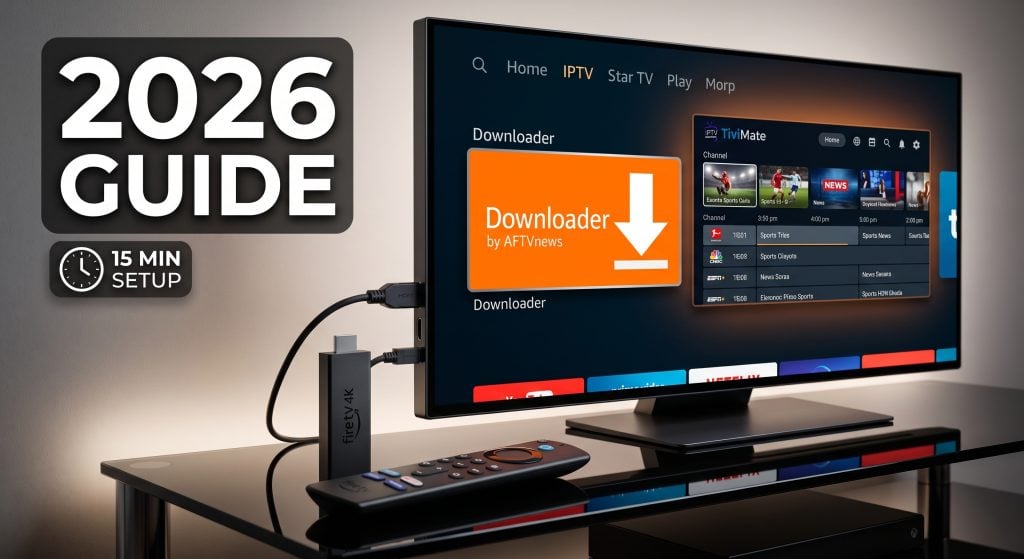
I have set up IPTV on more Firesticks than I can count, for myself and for family members who call me when the picture freezes. The process has changed slightly in recent Fire OS updates, and most guides still show the old menu paths.
This is the current 2026 process, tested on a Firestick 4K Max running the latest Fire OS. It takes about 15 minutes. No computer required.
What You Need Before You Start
Five things:
- A Firestick, Fire TV Stick 4K, 4K Max, or Fire TV Cube
- An internet connection of at least 25 Mbps for HD, 50 Mbps if you want 4K
- An active IPTV subscription with login credentials
- Ten to fifteen minutes
- Patience for typing a password with a remote
If you do not have a subscription yet, get that sorted first. The setup will not work without credentials, and most providers deliver them within minutes.
Step 1: Allow Your Firestick to Install Third-Party Apps
IPTV player apps are not in the Amazon Appstore, so you have to sideload them. Amazon disables this by default.
On newer Fire OS versions the Developer Options menu is hidden until you unlock it:
- From the home screen, go to Settings
- Select My Fire TV
- Select About
- Highlight your device name and click it seven times in a row
- You will see a message that developer options are now enabled
- Go back to My Fire TV and you will now see Developer Options
- Open it and turn on Install unknown apps (older devices call this “Apps from Unknown Sources”)
If you skip the seven-click step on a newer Firestick, Developer Options simply will not appear, which is where most people get stuck.
Step 2: Install Downloader
Downloader is the sideloading tool. It is a legitimate app available directly from Amazon.
- From the home screen, select the search icon
- Type Downloader and select the orange app by AFTVnews
- Select Get or Download
- Once installed, open it and grant storage permission when prompted
Go back into Developer Options and make sure Downloader specifically is toggled on under Install unknown apps. Fire OS asks per-app now, not once globally.
Step 3: Install an IPTV Player App
You need a player to actually watch anything. The two worth using in 2026:
IPTV Smarters Pro is the easier one. Simple layout, works with both Xtream Codes logins and M3U links, and it is free. Best choice if this is your first IPTV setup.
TiviMate has the better electronic program guide and a far nicer channel-surfing experience. The free version is limited and the premium version costs around $10 to $20 per year depending on the plan. Worth it if you watch a lot of live TV.
To install either one, open Downloader, enter the official download URL from the app developer’s website in the address bar, and select Go. When the file finishes downloading, select Install, then Done, then Delete to clear the APK file and save space.
Do not download IPTV player APKs from random file-sharing sites. Modified versions circulate with adware bundled in. Get the file from the developer’s own site.
Step 4: Get Your Subscription Credentials
Your provider gives you one of two things:
- Xtream Codes login: a username, a password, and a server URL. This is the better option because the program guide loads automatically.
- M3U URL: a single long link. Works fine, but the guide sometimes needs a separate EPG URL.
Ask for Xtream Codes if your provider offers both.
Which provider you use matters more than the app you pick. A good service on a basic player beats a poor service on TiviMate every time. I have had reliable results with Xtreme HD IPTV, and TVOnFly and Nigmaiptv.org are two others people ask me about regularly. Most reputable services offer a short free trial, so test before you commit to a year.
Whichever you choose, check three things before paying: does it offer a trial, does it support the channels you actually watch, and how fast does support respond when something breaks.
Step 5: Log In and Load Your Channels
Using IPTV Smarters Pro as the example:
- Open the app and accept the terms
- Select Login with Xtream Codes API (or Load Your Playlist or File/URL for M3U)
- Enter any name you like in the Any Name field, such as “Living Room”
- Enter your username, password, and server URL exactly as provided
- Select Add User
The playlist will load. On a large package this takes one to three minutes the first time. Do not force close the app while it loads.
Once it finishes you will see categories for Live TV, Movies, and Series.
TiviMate follows the same logic. Add playlist, choose Xtream Codes or M3U, enter details, wait for the import.
Step 6: Set Up the Program Guide
With an Xtream Codes login the EPG usually populates on its own within a few minutes.
If it does not, or if you used an M3U link, go into the app settings, find the EPG section, and paste the EPG URL your provider gave you. In IPTV Smarters Pro this sits under Settings, then EPG. In TiviMate it is under Settings, then EPG, then Add EPG Source.
Set the guide to auto-update daily so you are not doing this again next week.
Why Is My IPTV Buffering on Firestick?
Buffering is the most common complaint and it is usually not the provider’s fault. Work through these in order:
Use ethernet instead of Wi-Fi. A $15 ethernet adapter for the Firestick fixes more buffering than any other single change. Wi-Fi congestion is the leading cause of stuttering, especially in apartment buildings.
Clear the app cache. Settings, then Applications, then Manage Installed Applications, select your IPTV app, then Clear Cache. Do this monthly.
Close background apps. The Firestick has limited RAM. Hold the home button, select Apps, and force stop anything you are not using.
Lower the stream quality. If a channel offers FHD and 4K versions, the FHD feed on a stable connection looks better than a 4K feed that keeps stalling.
Check the time of day. Peak evening hours strain every provider. If a channel buffers at 8pm and runs clean at 2pm, the bottleneck is server load, not your setup.
Restart the Firestick properly. Not sleep mode. Unplug it for 30 seconds. This clears more than a soft restart does.
If a specific channel buffers constantly while everything else runs fine, that is the provider’s server for that channel, and support is the right next step.
Which Firestick Should You Use for IPTV?
The base Firestick works but struggles with large playlists and 4K content. If you are buying new, the Fire TV Stick 4K Max is the one to get. More RAM, faster processor, better Wi-Fi, and it handles 20,000-channel playlists without the sluggish menu scrolling you get on the older sticks.
The Fire TV Cube is faster still and has an ethernet port built in, which removes the need for a separate adapter.
If you are using a first or second generation Firestick from years ago, expect slow guide loading regardless of which provider or app you use. The hardware is the limit.
Do I Need a VPN for IPTV on Firestick?
Not for the setup to work. Whether you want one depends on your country and your own judgment about privacy. Some users report that a VPN improves stability if their ISP throttles streaming traffic, though it can also add latency. If you use one, install it before the IPTV app and pick a server close to you.
I am not going to give you legal advice here. IPTV rules vary significantly by country, and it is worth ten minutes of reading about your local situation before you subscribe to anything.
Frequently Asked Questions
How long does it take to install IPTV on Firestick?
Around 15 minutes for a first-time setup, less if you have done it before. Most of that is the playlist importing and typing credentials with the remote.
Do I need a computer to install IPTV on Firestick?
No. Everything runs on the Firestick itself using Downloader.
Is IPTV Smarters Pro free?
Yes, the app is free. Your subscription is separate and comes from your provider.
Why can I not find Developer Options on my Firestick?
On newer Fire OS versions it is hidden. Go to Settings, My Fire TV, About, then click your device name seven times to unlock it.
Can I use one subscription on multiple devices?
It depends on how many simultaneous connections your plan includes. Check with your provider before assuming, since many entry plans allow only one stream at a time.
What is the difference between Xtream Codes and M3U?
Xtream Codes uses a username, password, and server URL, and loads the program guide automatically. M3U is a single link and sometimes needs the EPG configured separately. Use Xtream Codes when it is offered.
Final Setup Checklist
Before you settle in to watch, confirm:
- Ethernet adapter connected if possible
- EPG loaded and set to auto-update
- App cache cleared
- Favorites configured so you are not scrolling 20,000 channels
- Provider support contact saved somewhere you can find it
Most setup problems are solved in the first fifteen minutes or never. If channels load and the guide populates, you are done.
If you are still choosing a provider, start with a trial rather than a year-long plan. A Xtreme HD IPTV free trial or an equivalent from any reputable service will tell you more about stream stability on your own connection than any review will, including this one. Test it during peak evening hours on the channels you actually care about, because that is when weak services fall apart.
Disclaimer: This article is for informational purposes only. IPTV technology itself is legal, but some services may distribute content without proper licensing or authorization. Readers are responsible for verifying that any IPTV provider, app, or stream they use is legally licensed and permitted in their jurisdiction. Geek Vibes Nation does not endorse or encourage copyright infringement, unauthorized streaming, or access to pirated content.

Sandra Larson is a writer with the personal blog at ElizabethanAuthor and an academic coach for students. Her main sphere of professional interest is the connection between AI and modern study techniques. Sandra believes that digital tools are a way to a better future in the education system.