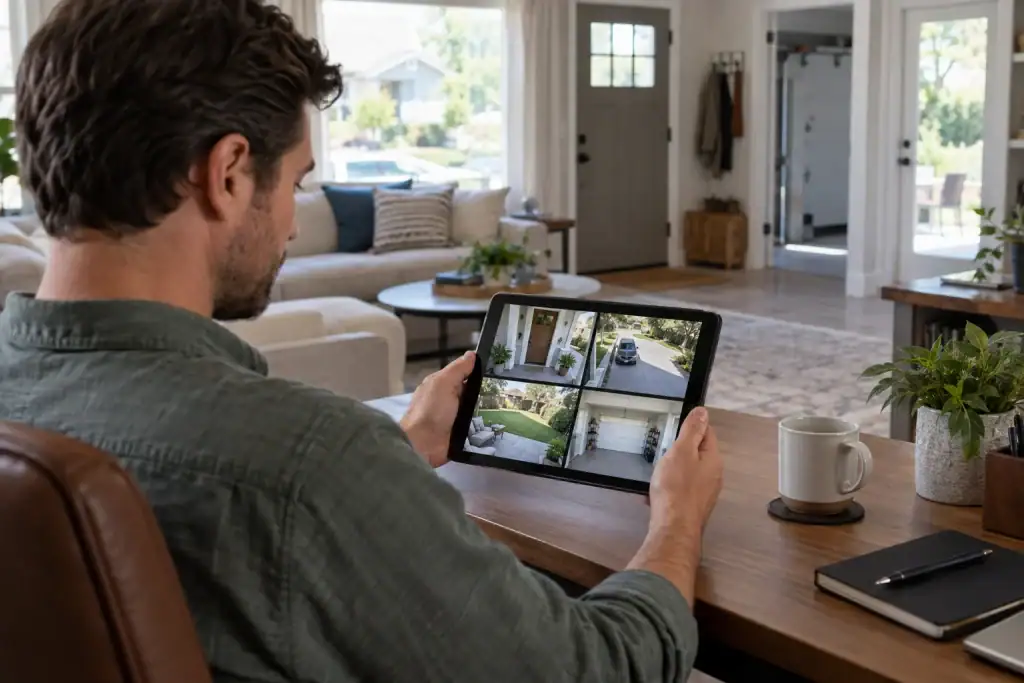
Managing multiple security cameras gets harder when every device has a vague name, every motion event reaches your phone, and nobody remembers who can view what. A short operating routine brings the system back under control. Start with an inventory, give each camera a useful name, decide which alerts deserve attention, review household access, and use the same method whenever you search for footage. The sections below turn those tasks into a routine that can grow with your home.
Build a camera register before changing settings
Open the camera app and count every active device, including doorbells, indoor cameras, detached garage cameras, and older units that may still send notifications.
You can give each camera one row and record only the details that affect day-to-day management.
|
Camera name |
Area and purpose |
Power |
Connection |
Recording and storage |
Owner |
Review status |
|
Front Door |
Visitors and deliveries |
Wired |
WiFi |
Event clips, local hub |
Primary account |
Active |
|
Driveway East |
Vehicles entering |
PoE |
Ethernet |
Continuous recording, NVR |
Primary account |
Active |
|
Garage Interior |
Garage side door |
Outlet |
WiFi |
Event clips, microSD card |
Primary account |
Check angle |
|
Backyard Gate |
Gate activity |
Battery and solar |
WiFi |
Event clips, local storage |
Primary account |
Active |
Set alert priority by consequence and frequency
Decide what needs an immediate glance and what can wait for review and use three practical levels. The exact notification options will depend on the camera and app version.
|
Priority |
Typical locations |
Suggested handling |
|
Immediate |
Front door, side entrance, detached garage door |
Push selected event types to the household members who respond |
|
Review later |
Driveway, backyard gate, package area |
Record relevant events and review them at a set time |
|
Record quietly |
Low-traffic indoor room, utility area, seasonal camera |
Keep recording as needed and limit routine alerts |
After completing the table, change one camera at a time and watch the results for several days. If you change detection zones, sensitivity, schedules, and phone settings all at once, you will not know which adjustment fixed the problem.
Give household members the access their roles requires
Review the account list on a regular schedule. Keep the primary owner account with the person responsible for the system. Other household members should receive the access needed for their tasks. A person who only checks live views and recordings may not need permission to change device settings or delete footage.
Use named accounts rather than a shared household password. Individual access is easier to remove, and the owner does not have to change passwords for everyone when one person’s access ends. Turn on multifactor authentication when the account service supports it, and keep recovery information current.
Use the same footage review path every week
Before opening the event list, define the location, time window, and event type. Looking for a delivery at Front Door between 2 p.m. and 4 p.m. is far faster than scrolling through every event from Tuesday.
A weekly review can follow this order:
-
Check cameras marked offline, low on power, or short on storage.
-
Filter events by the camera name and date.
-
Review the event types assigned to that camera’s purpose.
-
Save any clip that needs to be retained outside the normal overwrite cycle.
-
Record follow-up actions, such as cleaning a lens or adjusting an activity zone.
When a new outdoor location is hard to wire, the eufy SoloCam S340 can be considered as one example of a camera that must be folded into the same routine. It uses a battery-powered, solar-capable design and offers dual-camera views with pan-and-tilt movement. Give it a location-based name, select the events that matter in that zone, record who has access, and note that it does not support 24/7 continuous recording.

Run a short monthly system audit
The weekly review deals with footage and immediate maintenance. A monthly audit checks whether the security camera system still matches the household.
Review notification volume by camera. A busy camera may need a better activity zone or a lower alert priority. If a camera has no events, check its feed before assuming that the area was simply quiet.
Expansion should begin with the register rather than a shopping list. Write down the uncovered area, the event you want to capture, the available power, and the storage method that fits the rest of the setup. If an additional camera is justified, the eufy security camera provides options for different indoor, outdoor, wired, and wire-free locations. Confirm current compatibility with your existing app, hub, or recorder before adding it.
Conclusion
Build an inventory, use location-based names, assign alert priorities, and give each household member an appropriate access level. Keep the process light enough to maintain. A weekly check can cover footage and device status, while a monthly audit handles access, camera views, and settings that drift over time. When another camera is added, enter it in the same register before its alerts begin. That habit keeps a growing setup understandable without forcing one device or one set of settings to serve every part of the home.

Caroline is doing her graduation in IT from the University of South California but keens to work as a freelance blogger. She loves to write on the latest information about IoT, technology, and business. She has innovative ideas and shares her experience with her readers.