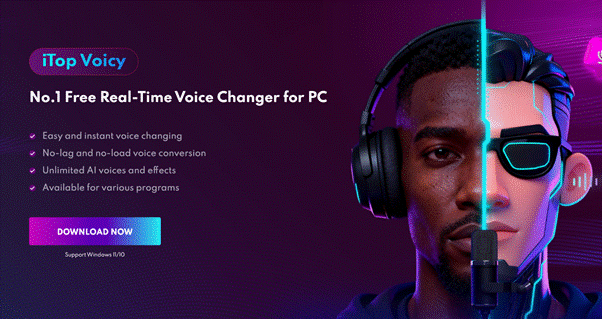
As gaming grows more social and interactive, players love adding fun features like voice effects during matches. Using a voice changer helps create exciting pranks, unique characters, and better gaming experiences. iTop Voicy is becoming one of the popular voice changers, offering real-time voice modification for gamers. Here, we explore how iTop Voicy adds excitement to gameplay and voice chats.
What is iTop Voicy?
iTop Voicy is a powerful AI voice changer that adds a creative twist to Windows gaming. It allows gamers to modify their voices into different characters, tones, and effects. This tool makes gaming conversations more entertaining and engaging. Players can prank friends using funny, robotic, or cartoon-style voices. iTop Voicy enhances online communication during multiplayer gaming sessions. It is easy to use and improves the overall gaming experience and social interaction.
How Does iTop Voicy Use AI to Change Your Voice in Real Time?
The real power of iTop Voicy comes from its advanced AI voice models. Instead of simply shifting your voice’s pitch—which often results in an unnatural or robotic sound—the software analyzes the unique characteristics of your speech in real time.

iTop Voicy uses smart AI technology to study pitch, tone, speech speed, and vocal vibrations. After analyzing your voice, it immediately converts it into the selected character style. Voice transformation happens instantly, ensuring gameplay communication feels natural and entertaining. Minimal delay and built-in noise reduction ensure clear, high-quality audio during multiplayer games and live streams. The tool lets users smoothly switch between voice styles for more interactive online experiences.
Compatible (Devices, Games, Apps) with iTop Voicy?
Before downloading any gaming software, make sure it supports your devices and preferred platforms. Strong compatibility allows software to function without technical issues. When a voice changer supports multiple games, apps, and systems, it becomes more useful and flexible. In this section, we explore the compatible devices, games, and apps that work seamlessly with iTop Voicy for a better gaming experience.
- Operating System: Currently supports Windows 10 and Windows 11.
- Popular Games: Fully compatible with leading games such as Valorant, Fortnite, PUBG, Call of Duty, and Among Us for seamless voice chat trolling.
- Communication & Streaming Apps: You can use it seamlessly on Discord, Zoom, Microsoft Teams, Skype, and OBS Studio.
- Hardware: It works with any standard microphone or headset. Your PC should have at least 4GB of RAM and a stable internet connection for the best performance.
How to Install and Set Up iTop Voicy for the Best Voice Quality?
To enjoy the best gaming audio, ensure iTop Voicy is correctly installed and configured. A proper setup minimizes background noise and boosts voice clarity for smoother real-time performance. This easy guide shows you how to install and fine-tune iTop Voicy for crisp, high-quality audio.
Step 1: Download and Install
Visit the official site to download iTop Voicy. Run the setup program and complete the installation by following the on-screen instructions.
Step 2: Adjust Microphone Settings
Access the software and assign your microphone in the audio configuration panel.

Step 3: Select a Voice Effect
Browse through the voice styles and choose the one you prefer. Try the preview feature to verify the effect before choosing it.
Step 4: Customize the Sound
Adjust the pitch, tone, and other settings to improve clarity and match your preferred style.

Step 5: Start Using It Live
Open your preferred game, chat app, or streaming platform. iTop Voicy will automatically function as your active real-time voice changer.
Final Thoughts
Getting iTop Voicy up and running takes only a few minutes and can change the way you play. Using its advanced AI voice changer, you can modify your voice instantly, surprise friends, and make multiplayer games more fun. Correct installation, proper mic setup, and sound tuning help deliver clear and stable performance. Whether you play for content or for fun, iTop Voicy brings extra creativity to your games. Download it today and start surprising your teammates.
FAQs
Q1. Will iTop Voicy slow down my game while I’m using it?
Gamers often worry that additional software could slow down their games. In most situations, iTop Voicy works quietly in the background without affecting game speed. It is built to consume very little system power while delivering real-time voice effects. If your computer satisfies the basic specifications, you can enjoy gaming without noticeable lag.
Q2. Is it possible to play personalized sound effects using the soundboard?
Besides voice effects, many players also want to add extra humor with custom sounds. Yes, you can use custom sound effects with the soundboard to prank your friends. iTop Voicy allows you to upload and play personalized audio clips during gameplay. This makes your reactions funnier and more surprising. Simply add your sound files, assign shortcut keys, and trigger them instantly while chatting or streaming.

Madeline Miller love to writes articles about gaming, coding, and pop culture.



![‘Black Zombie’ Review – Power To The Zombie [SXSW 2026]](https://cdn.geekvibesnation.com/wp-media-folder-geek-vibes-nation/wp-content/uploads/2026/03/Black-Zombie-BZ-STL46-2-300x169.jpg "‘Black Zombie’ Review – Power To The Zombie [SXSW 2026]")