Low quality photos can ruin a great video project before it even starts. When you use a fuzzy or pixelated image as a base for animation, the software struggles to define edges. This leads to weird artifacts and distorted movements in your final clip. You need to start with a crisp source to get the best results from modern tools.
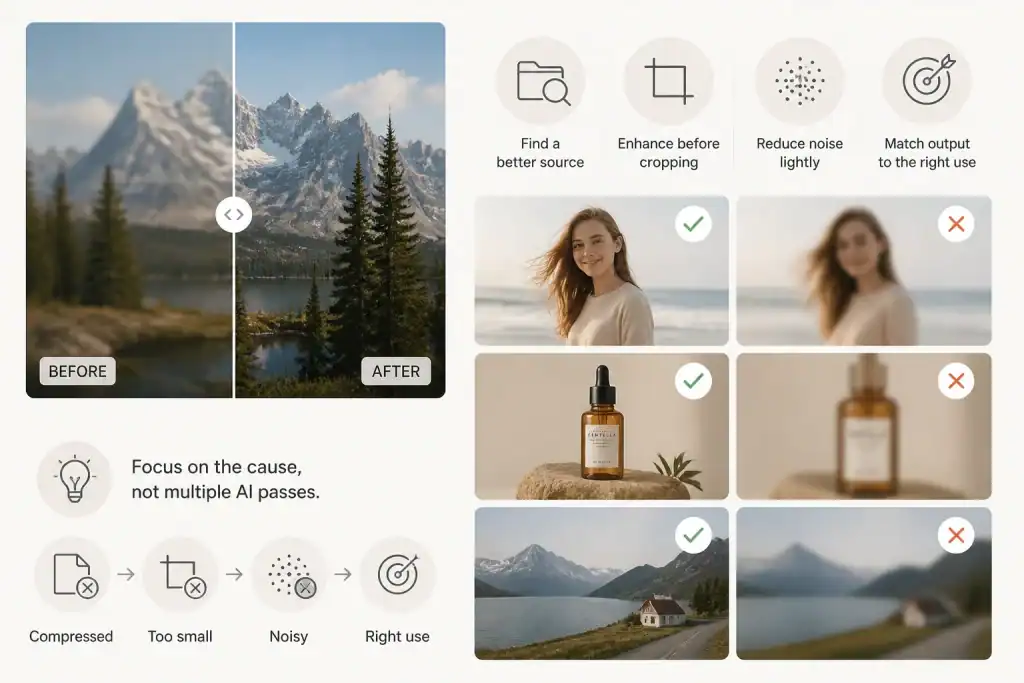
The first step in your workflow should always be to fix the clarity of your original file. You can easily unblur image online to bring back the lost details in your portraits or landscapes. This process uses smart algorithms to fill in the gaps that a camera might have missed. It makes the lines sharper and the colors more distinct.
Once your image looks professional, you are ready to move on to the animation phase. You can then take that high definition file and put it into an AI Video Generator to create realistic motion. A clear image allows the generator to track pixels accurately across every frame of the video. This prevents the flickering effect that often happens with low resolution sources.
Step by Step Guide to Sharpening Your Images
Follow these instructions to prepare your files for the best possible video output. You do not need to be a professional editor to get these results.
Step 1: Evaluate Your Source Image
Look closely at your photo before you do anything else. Check for motion blur where the subject moved while the shutter was open. Look for out of focus areas where the lens did not quite lock onto the target. You should also check for digital noise which looks like grainy dots in the dark parts of the picture. Knowing what is wrong helps you choose the right settings later.
Step 2: Upload to a Sharpening Tool
Open your chosen sharpening software in your web browser. Most tools have a simple drag and drop area. Move your file into the box and wait for it to load. If you have a very large file, it might take a few seconds to process the preview. Make sure you are using a standard format like JPG or PNG for the best compatibility.
Step 3: Select the AI Model
Many tools offer different modes for different types of blur. A portrait mode focuses on eyes and skin textures. A landscape mode might focus on trees and mountains. Choose the one that matches your subject. The software will analyze the pixels and try to reconstruct the sharp edges that were lost.
Step 4: Adjust the Intensity
You will usually see a slider that controls how much sharpening is applied. Do not just push it to the maximum immediately. Too much sharpening can make the image look crunchy or unnatural. Move the slider slowly until the details look clear but the skin or flat surfaces still look smooth. You want a balance between clarity and realism.
Step 5: Preview and Download
Look at the before and after comparison. Most tools let you slide a bar across the screen to see the difference. Check the corners of the image to ensure the sharpening is consistent across the whole frame. If you are happy with the look, click the download button. Save the file with a new name so you do not overwrite your original copy.
Tips and Best Practices for Image Preparation
Getting a sharp image is about more than just clicking a button. You can improve your results by following a few simple rules during the preparation phase.
Use High Resolution Originals
Always start with the largest version of the photo you have. If you download a small thumbnail from social media, it will never look as good as the original file from a camera. AI can do a lot, but it cannot create data out of thin air if the file is too small. Aim for a width of at least 1920 pixels if you want to make a high definition video.
Fix Lighting and Contrast First
Sometimes an image looks blurry just because it is too dark. Increase the brightness and contrast slightly before you run the sharpening tool. This helps the AI see the edges of objects more clearly. If the subject blends into the background, the sharpening tool might get confused and create halos around the edges.
Choose the Right File Format
Use PNG files if you want to keep the highest level of detail. JPG files use compression which can add tiny boxes or artifacts to your image. These artifacts get worse when you try to sharpen them. If you must use a JPG, keep the quality setting at 100 percent to avoid losing information.
Maintain a Natural Look
It is tempting to make everything look incredibly sharp. However, videos look better when there is a bit of natural softness in the background. This is called depth of field. If you sharpen every single pixel in the entire image, the final video might look flat or fake. Focus your sharpening efforts on the main subject.
Comparison of Image Settings
The table below shows how different settings affect your final video quality.
|
Feature |
Low Setting |
High Setting |
Recommended |
| Sharpening Amount | 10 percent | 90 percent | 40 to 60 percent |
| Noise Reduction | Off | Maximum | Medium |
| Resolution | 720p | 4k | 1080p or higher |
| Contrast | Low | High | Balanced |
Common Mistakes to Avoid
Even with the best tools, you can run into problems if you are not careful. Avoid these common pitfalls to ensure your AI videos look their best.
Over Sharpening the Image
This is the most common mistake beginners make. When you sharpen too much, you get white lines around the edges of objects. These are called halos. When the AI video tool tries to animate these halos, they shimmer and vibrate. It looks very distracting and ruins the illusion of motion. Keep it subtle for a better result.
Ignoring Digital Noise
If your photo was taken in a dark room, it probably has a lot of grain. If you sharpen a grainy photo, you are also sharpening the grain. This makes the image look like it is covered in sand. Use a denoise tool before you sharpen. This creates a clean surface for the AI to work with.
Using Low Quality Sources
You cannot turn a tiny 200 pixel icon into a 4k video. No matter how good the sharpening tool is, there is a limit to how much it can upscale. If the source is too poor, the AI will start making up details that were never there. This can lead to weird faces or distorted limbs in your video. Always look for the highest quality source possible.
Forgetting the Aspect Ratio
Most AI video tools expect a specific shape, like 16 by 9 for YouTube or 9 by 16 for TikTok. If you sharpen an image and then crop it later, you might lose the parts you just fixed. Crop your image to the correct size before you start the sharpening process. This ensures the AI is focusing on the exact pixels that will appear in the final video.
Skipping the Preview Step
Never download and use an image without looking at it at 100 percent zoom. Sometimes a tool looks good on a small phone screen but looks terrible on a computer monitor. Zoom in on the eyes, hair, and edges to make sure there are no weird glitches. It only takes a second to check, and it saves you from having to re-do the entire video later.
Conclusion
Sharpening your images is a vital step in the creative process. It bridges the gap between a simple snapshot and a high quality video asset. By taking the time to clean up your photos, you give your video tools the best chance to succeed. Clear edges and clean textures result in smoother motion and more realistic animations.
Start by evaluating your files and choosing the right tools for the job. Remember to keep your adjustments moderate to avoid an artificial look. If you follow the steps and avoid the common mistakes mentioned above, your AI generated videos will look professional and engaging. High quality input always leads to high quality output. Focus on the details now so your final project can shine.

Sandra Larson is a writer with the personal blog at ElizabethanAuthor and an academic coach for students. Her main sphere of professional interest is the connection between AI and modern study techniques. Sandra believes that digital tools are a way to a better future in the education system.