A three year old office laptop rarely slows down because the silicon wore out. It slows down because several years of software decisions stacked up on it and nobody ever took any of them back off again.
You notice it in small moments. The login that takes long enough for someone to wander off and make coffee. The spreadsheet that hangs for a beat before it scrolls. A fan that spins up while nothing is open. By the time any of that reaches you as a ticket it has usually been translated into a hardware complaint, because “this machine is too old” is the only vocabulary most users have for slow. Sometimes they are right. More often the machine is perfectly capable and something on it is busy.
Slowness Arrives as a Hardware Complaint and Is Usually a Software One
Sit at the machine before agreeing with the diagnosis. Open Task Manager, sort by CPU, then by memory, then by disk, and watch which process wins each column while the user does nothing at all. That one minute of watching decides most of what comes after it. A machine pinned on disk at idle has a different problem from one pinned on CPU, and a replacement device solves neither of them in a way you could explain to a finance director.
The cheapest early win tends to be speeding up a PC by disabling startup apps, mostly because nothing has to be purchased and nothing has to be permanently removed to find out whether it worked. You switch things off, you restart, you time the login. If it made no difference, you switch them back on and you have lost ten minutes.
Audit What Loads Before Anyone Has Even Logged In
Startup is where the compounding happens. Every application installed across four years quietly asked permission to launch itself at boot, and almost all of them were granted it by whoever clicked through the installer.
Work through it in a fixed order:
- Task Manager, Startup apps tab, sorted by startup impact. Disable everything the person’s actual job does not require: chat clients they never open, vendor helper utilities, printer dashboards, updaters for software that also checks for updates when launched.
- Task Scheduler. Look for third-party maintenance tasks set to run hourly, and for duplicate update tasks left behind by software that got replaced rather than uninstalled.
- The Services console. Telemetry and update services set to start automatically are a common find on any machine that has been through two or three software standards.
- Restart, log in, and time it. Do it twice under the same conditions so you are comparing something real rather than something remembered.
(The restart matters more than people expect. Machines that are never fully rebooted, only lidded shut at the end of the day and opened the next morning, accumulate state that no amount of tidying will clear on its own.)
Keep a note of what you disabled. Someone will eventually report that a thing stopped working, and the note turns a mystery into a quick reversal rather than an investigation. Keep it somewhere the next person will find it, which in most offices means anywhere except the machine itself.
The Upgrades Worth Doing and the Ones Worth Skipping
Two changes alter how a machine feels rather than how it benchmarks. Moving the operating system onto solid state storage, if it is still sitting on a spinning disk, is the larger of the two by a distance. Giving the machine enough memory for the work it is genuinely asked to do is the other one.
Both decisions should follow measurement. Look at whether committed memory sits above what is physically installed, which tells you the machine is paging to disk and explains stutter better than any guess about age. If it is not paging, more memory buys you nothing and the budget went to the wrong shelf.
What rarely earns its money on an office machine: a processor swap where the socket even permits one, a graphics card for work that lives entirely in a browser and a word processor, and any utility that promises to clean and optimise on a schedule. Those utilities are frequently the startup item you were about to disable anyway.
There is a scale argument hiding in here too. Upgrading one machine is a task. Upgrading twenty machines that arrived over four years, in four configurations, from three sellers, is a procurement exercise with a parts list you cannot standardise. You end up ordering four different memory types and two different drive form factors to do one job, and the labour costs more than the components. Estates bought in matched batches are simply cheaper to keep alive, which is a reason to care about how devices were purchased long before they need tuning.
Storage Pressure Does Strange Things to a Machine
A drive with almost no free space behaves unpredictably in ways that read as age. Paging gets cramped, temporary files have nowhere to land, updates stage and fail and stage again, and search indexing never finishes.
Where the space usually went:
- User profile folders nobody pruned after the last two projects closed
- Browser caches across three separate installed browsers
- Operating system rollback folders left behind by a major update
- A sync client set to keep every shared folder available offline, including the ones the team abandoned
- Collaboration app caches, which grow steadily and clear safely
Storage Sense and Disk Cleanup handle most of that without drama. The sync client deserves proper attention, because a laptop that reconciles a large shared library every time it wakes will feel slow every single morning and fine by mid afternoon, which is exactly the pattern users describe as random.
Power Plans, Firmware and a Heatsink Full of Dust
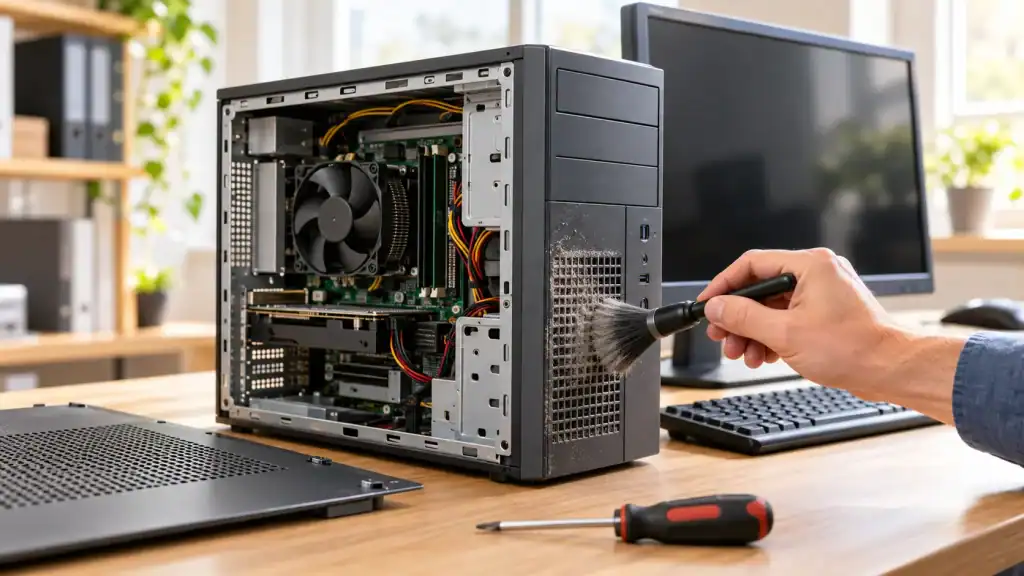
Some of the most convincing “this processor is finished” cases turn out to be thermal. Dust packs the heatsink, the paste dries out, the chip throttles itself to stay within temperature, and the machine then behaves precisely the way an underpowered one behaves. Opening it and cleaning it is unglamorous work and it works.
Check the power profile while you are in there. Machines imaged on a power saving profile, or running a vendor power management utility configured for battery life, hold the processor down on purpose and will keep doing it forever. Firmware and storage controller drivers are worth a pass at the same time, since both have had corrections shipped for stalls that present to a user as a freeze.
If the complaint is specifically visual, with dragged windows tearing or video stuttering, look at the dock and the display chain before you look at the computer. Docks fail slowly and quietly.
The Security and Management Stack Is Often the Thing Eating the Machine
You see this most on machines that have survived an IT transition. Two real time scanners running at once, each inspecting the other’s activity. A remote monitoring agent from the previous provider still resident alongside the new one. Scan exclusions that were never configured, so every build folder and every mail archive gets read continuously in the background.
Managed estates catch this fastest, because you can see the installed agent list across every device at once instead of discovering it one ticket at a time. Estates without that view carry duplicate agents for years and pay for them in seconds of user patience every day.
Browser extensions belong in the same audit. They install easily, they never announce themselves again, and a machine carrying a dozen of them runs every page through a dozen extra passes. Ask the user which ones they would miss. Usually two.
Make It a Standard Rather Than a Favour
Tune-ups done ticket by ticket get done inconsistently, and the machines that need them most belong to the people least likely to raise a ticket. Partners, principals, anyone senior enough to assume slowness is just what computers do now.
Attaching the work to fixed moments is what makes it stick. Every device returning from a departing employee. Every machine at the midpoint of its planned life. Every laptop that goes out to a new starter, so it leaves the bench in a known state rather than whatever state it arrived in. Written down, in order, so that whoever performs it next does not have to reconstruct the sequence from memory or from your absence.
Knowing When a Tune-Up Is Just Deferral
There is a point where this work stops being maintenance and turns into avoidance. A chassis with a failing hinge. A battery that no longer holds a working day. Memory soldered at a capacity the workload has outgrown. Firmware that no longer receives corrections at all. Tuning those machines returns a week or two of goodwill and then the same ticket comes back wearing a different description.
That can still be a reasonable outcome when you are buying time deliberately, against a refresh that is already funded and scheduled. Stretching hardware is a legitimate budget instrument, and the argument for extending the life of a business computer holds right up to the moment a device can no longer be returned to a usable state at all. What you want to avoid is spending an afternoon per device, repeatedly, across an estate that quietly decided against replacement without ever putting that decision in writing.
The tell is in the ticket history. When the same asset tag surfaces every quarter with a slightly different symptom each time, the machine has stopped being the thing that needs fixing.

Caroline is doing her graduation in IT from the University of South California but keens to work as a freelance blogger. She loves to write on the latest information about IoT, technology, and business. She has innovative ideas and shares her experience with her readers.