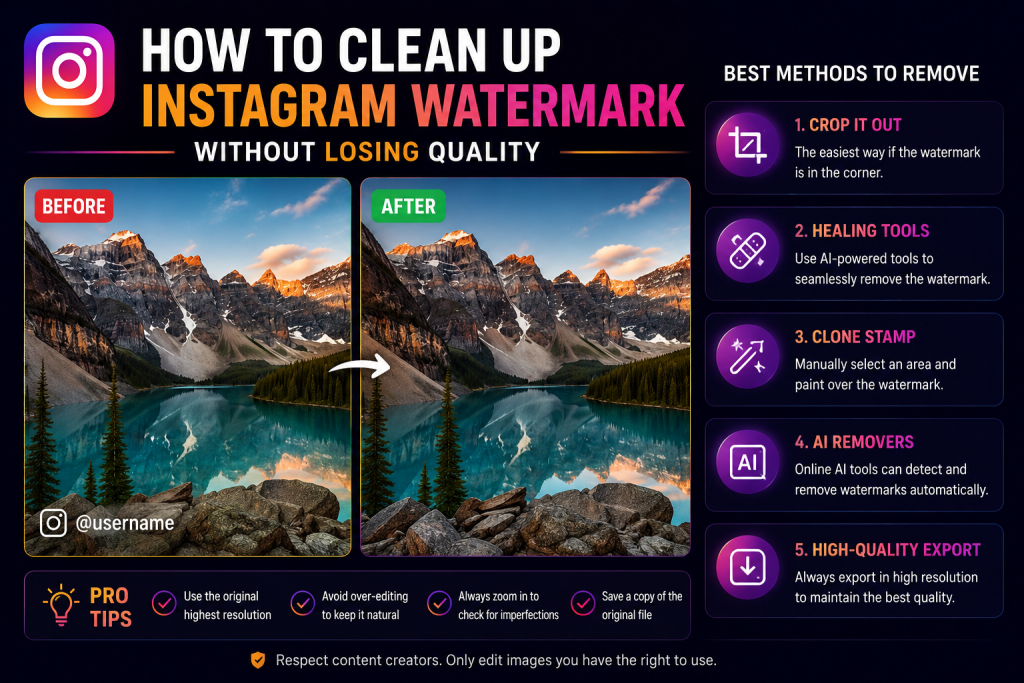
An Instagram watermark remover can help when you need a cleaner version of your own Reels, screenshots, thumbnails, or social media assets for a report, presentation, portfolio, ad mockup, or cross-platform post. The goal is not just to erase a mark, but to create a visual that still looks natural, accurate, and publishable.
There is one important boundary: removing a watermark does not give you permission to reuse someone else’s content. If the photo, Reel, Story, or screenshot belongs to another creator, ask for permission, use built-in sharing options when appropriate, or keep visible credit. Instagram watermark removal is best used for assets you created assets you are licensed to edit, or internal materials where a mark blocks readability.
This guide explains what counts as an Instagram watermark, when removal makes sense, which method to use, and how to check the result.
What Counts as an Instagram Watermark?
People use “Instagram watermark” to describe several visual problems. A downloaded Reel may include Instagram branding, a username, or audio attribution. A screenshot may include buttons, captions, profile names, reaction icons, and notification bars. A reposted asset may carry a third-party app logo or repost label.
Before using any remover, identify what you are trying to clean:
| Visual mark | Common example | Best first option |
| Platform watermark | Instagram/Reels branding on a saved clip | Use your original export if you own it |
| Username or attribution | Creator handle on a downloaded Reel | Keep attribution unless you have permission |
| App interface | Likes, comments, buttons, notification bar | Crop, reframe, or recreate the visual |
| Editor watermark | Logo from a free video editor | Re-export from a licensed editor |
| Overlay text | Stickers, captions, labels | Use source file or careful object removal |
This distinction matters because some marks are visual clutter, while others carry authorship, licensing, or context. A notification bar can usually be cropped. A creator username may need to stay visible or be credited somewhere else.
When It Is Appropriate to Remove an Instagram Watermark
Watermark removal is reasonable when you control the asset and the mark interferes with a legitimate use. A social media manager may need a clean brand-owned Reel for a report. A creator may have lost the original export. A designer may need to remove private account details from a case study screenshot.
Removal is the wrong solution when it hides ownership. If you want to repost someone else’s photo, video, meme, or Reel, removing their username or watermark can make the content look like your own. For commercial use, the safer path is to get written permission, use licensed assets, or ask the creator for a clean file.
If the content is yours, look for a better source before editing. Instagram and Meta provide account data download options that can help you retrieve your own posted media instead of repairing a compressed screenshot.
The Best Workflow for Clean Removal
The best Instagram watermark remover workflow starts before you open a tool: use the highest-quality source, then choose the least destructive edit.
- Find the original file if possible. Check your camera roll, editing app, cloud drive, Instagram archive, Meta data download, or teammate’s source folder.
- Decide whether the mark should be removed, blurred, cropped, or credited. A watermark over empty sky is different from a username that identifies the original creator.
- Duplicate the file before editing so you can compare the result against the source.
- Try cropping or reframing first. If the watermark sits near a border, a tighter crop may look cleaner than AI reconstruction.
- Use AI object removal only for distracting marks inside the frame. It works best on simple backgrounds and worst on faces, text, logos, and repeating patterns.
- Inspect the edited area at 100% zoom. Look for smudges, repeated textures, warped lines, and unnatural detail.
This conservative workflow helps you avoid turning a small watermark problem into a visible artifact problem.

When It Is Appropriate to Remove an Instagram Watermark
Watermark removal is reasonable when you control the asset and the mark interferes with a legitimate use. A social media manager may need a clean brand-owned Reel for a report. A creator may have lost the original export. A designer may need to remove private account details from a case study screenshot.
Removal is the wrong solution when it hides ownership. If you want to repost someone else’s photo, video, meme, or Reel, removing their username or watermark can make the content look like your own. For commercial use, the safer path is to get written permission, use licensed assets, or ask the creator for a clean file.
If the content is yours, look for a better source before editing. Instagram and Meta provide account data download options that can help you retrieve your own posted media instead of repairing a compressed screenshot.
The Best Workflow for Clean Removal
The best Instagram watermark remover workflow starts before you open a tool: use the highest-quality source, then choose the least destructive edit.
- Find the original file if possible. Check your camera roll, editing app, cloud drive, Instagram archive, Meta data download, or teammate’s source folder.
- Decide whether the mark should be removed, blurred, cropped, or credited. A watermark over empty sky is different from a username that identifies the original creator.
- Duplicate the file before editing so you can compare the result against the source.
- Try cropping or reframing first. If the watermark sits near a border, a tighter crop may look cleaner than AI reconstruction.
- Use AI object removal only for distracting marks inside the frame. It works best on simple backgrounds and worst on faces, text, logos, and repeating patterns.
- Inspect the edited area at 100% zoom. Look for smudges, repeated textures, warped lines, and unnatural detail.
This conservative workflow helps you avoid turning a small watermark problem into a visible artifact problem.

Choose the Right Removal Method
The cleanest “removal” is often not removal at all. If you created the content, look for the original version before it was uploaded to Instagram. The source may still be in your camera roll, cloud drive, editing app, or project folder.
Social platforms compress media, so a downloaded copy is already degraded. Edges may soften, gradients may band, and small text may become unreadable. Lifewire has reported that Meta’s Edits app supports watermark-free exports, which is a useful reminder: preventing unwanted marks at export is better than repairing them later.
Cropping is the next simplest option. If a watermark appears in a corner, try a tighter crop, vertical-to-square reframe, or branded layout. For screenshots, cropping can remove notification bars or reaction icons without changing the image itself.
Masking or AI object removal is useful when the mark sits over a simple area such as a blurred background, neutral wall, sky, tabletop, or blank UI space. If the mark covers a face, product label, typography, or key detail, removal becomes riskier.
Use an AI Instagram Watermark Remover Carefully
AI video watermark remover usually relies on inpainting: you mark the area to remove, and the model fills it with background that appears consistent with the surrounding image. Research on visible watermark removal shows why this is difficult: the tool must remove interference and reconstruct plausible detail.
For best results, cover the full watermark plus a small margin. Select too narrowly and faint edges may remain; select too widely and the tool may change surrounding details.
AI removal works best on:
- Solid backgrounds
- Soft gradients
- Sky, walls, water, grass, or table surfaces
- Simple corners and borders
- Low-detail overlay areas
It works poorly on:
- Faces and skin texture
- Hands, hair, jewelry, and fabric
- Product labels and logos
- Small text or UI labels
- Busy patterns, architecture, and repeated lines
If the repaired area looks “melted,” try a smaller brush, crop the image, use a better source, or redesign the visual.
How to Handle Instagram Videos and Reels
Videos are harder than images because every frame has to stay consistent. A removed watermark that looks fine in one frame may flicker, smear, or jump in motion.
For Reels, follow this order:
- Look for the original edit file or export.
- Check whether you can save your own content from your device or account archive.
- Re-export from the editing app without a watermark.
- Crop or reframe if the watermark is near the edge.
- Use video object removal only when the watermark sits on a simple, stable area.
CreativeBloq notes that downloadable public Reels, when allowed by the creator, may include Instagram branding, username, and audio attribution. If you are using another creator’s Reel, do not remove that context without permission.
Quality Checklist Before Publishing
Before a cleaned image or video goes live, run a short review.
| Check | What to look for | Pass standard |
| Ownership | Do you own or have permission to edit the asset? | Permission is clear |
| Credit | Did removal erase necessary attribution? | Credit is preserved or separately given |
| Detail | Are faces, text, logos, and edges intact? | No visible distortion |
| Texture | Does the repaired area repeat or smear? | Background looks natural |
| Format | Is the export suitable for the channel? | Correct size and file type |
| Context | Could the edit mislead viewers? | The visual remains truthful |
For business content, a slightly visible mark is often less damaging than an edit that appears deceptive or low-quality.

FAQ
Can I remove an Instagram watermark from someone else’s Reel?
Only if you have the right to edit and reuse that Reel. If it belongs to someone else, get permission or use built-in sharing options.
Why does the cleaned area look blurry?
The tool may be filling in missing detail from a compressed or low-resolution source. Try the original file, use a smaller brush, or crop around the damaged area.
Final Takeaway
An Instagram watermark remover is most useful when it supports a responsible editing workflow: start with content you own or are allowed to use, choose the least destructive fix, preserve necessary credit, and inspect the final asset carefully. The best result is a clean, accurate, publishable visual that still respects the creator, platform context, and viewer trust.

Amanda Lancaster is a PR manager who works with 1resumewritingservice. She is also known as a content creator. Amanda has been providing resume writing services since 2014.