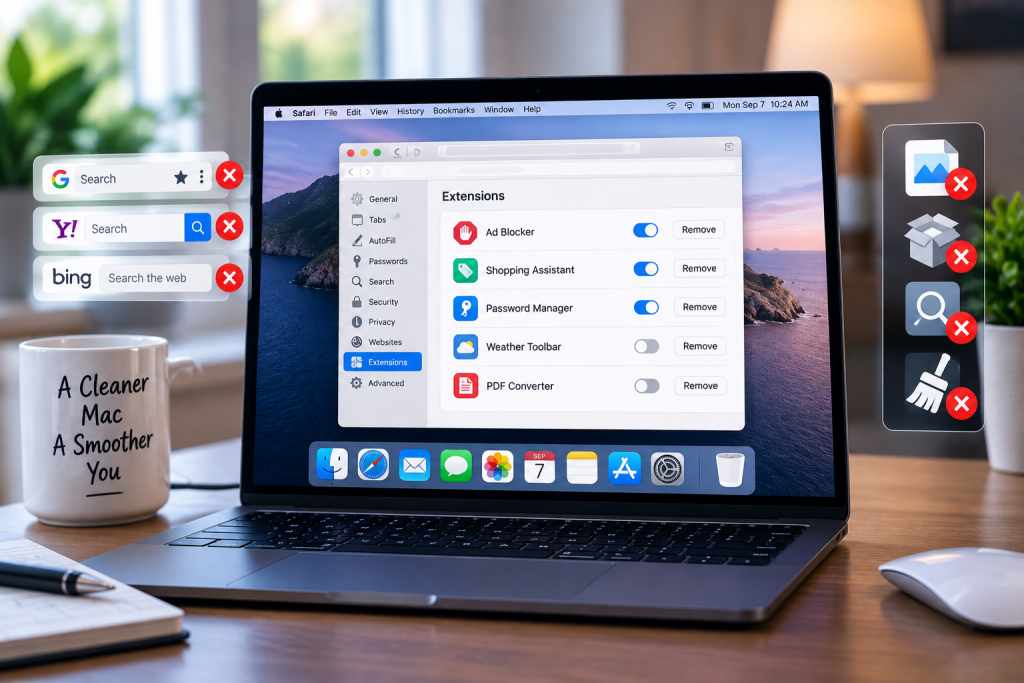
Most Mac clutter arrives with permission. You install a PDF converter, agree to its browser helper, try a coupon finder, test a screen recorder, and eighteen months later Safari opens with a search engine you did not choose and a toolbar you don’t remember adding. The apps themselves are gone from the Applications folder. Their parts are still running.
Cleaning this up on a Mac works differently than on Windows, because extensions live in three separate places and removing an app leaves its service files untouched. The sequence below covers all of it, in the order that actually removes things rather than hiding them.
What toolbars and extensions are on a Mac
Extensions
An extension is code that runs inside your browser with access to the pages you open. That access is the point: a password manager needs it to fill forms, and a tracker-blocker needs it to see requests. The same access is what makes an abandoned extension worth removing, because it keeps that permission whether or not you still use the feature.
On macOS, Safari extensions are delivered inside regular apps, which is why some of them appear in your Applications folder. Chrome and Firefox extensions install into the browser’s own profile instead.
Toolbars and search hijacks
A toolbar is an extension with a visible strip attached. The more annoying versions also change your homepage, your default search engine, or your new-tab page, and a few install a configuration profile so those settings snap back after you fix them. That last trick is the reason a search hijack sometimes survives three rounds of cleaning.
Why leftovers stay after you delete the app
Dragging an app to the Trash removes the app bundle. Everything the app wrote elsewhere stays: preferences, caches, logs, application support folders, and any launch agents it installed to start itself at login. Those pieces sit in hidden Library folders under names that often have nothing to do with the app’s name in the Finder.
The scale is easy to underestimate. Nektony’s testing puts it at up to 80 percent of uninstalled apps leaving residual files behind, from 500 MB to more than 5 GB per app. On a Mac that has cycled through a few dozen utilities, that is both storage and a set of components still configured to run.
Step 1: Clean out Safari
Open Safari, choose Safari > Settings, then click Extensions. You will see every installed extension with a checkbox beside it.
Apple’s instruction for removal is direct: “Select the extension, then click Uninstall. Or, delete the app that contains the extension.” Unchecking the box turns an extension off while leaving it installed, which is useful for testing and useless for cleanup. Uninstall is the option you want.
While you are in Settings, check two more tabs. Under General, confirm the homepage is what you expect. Under Search, confirm the search engine is the one you chose.

Step 2: Clean out Chrome
Type chrome://extensions in the address bar, or use the three-dot menu, then Extensions, then Manage Extensions. Each card has a Remove button.
Two things are worth checking here. Extensions marked “Installed by enterprise policy” cannot be removed from this screen, which usually means a profile or a management payload put them there. And under Settings, look at “On startup” and the search engine, since hijackers change both.
Step 3: Clean out Firefox
Open about:addons, or use the menu, then Add-ons and Themes. Under Extensions, click the three dots beside an entry and choose Remove. Check the Plugins section on the same screen while you are there.
Do all three browsers even if you only use one. Extensions installed by an app frequently land in every browser it detected.
Step 4: Check what starts on its own
Open System Settings > General > Login Items & Extensions. The top section lists apps that open when you log in. Below it, “Allow in the Background” lists the helper components apps install to keep running, and this is where the parts of removed software show up as entries with unfamiliar names.
Turn off anything you do not recognise and restart. If something you need stops working, turn it back on. Nothing here is destructive.

Step 5: Remove the apps and their service files together
Now the apps themselves. For each one you are removing, quit it first, then remove it along with everything it wrote.
Doing this by hand means visiting ~/Library/Application Support, ~/Library/Caches, ~/Library/Preferences, ~/Library/Containers, ~/Library/Logs, and the LaunchAgents folders, and matching files to an app whose developer name you may not know. It works, and it takes an evening.
The faster path is a dedicated uninstaller. App Cleaner & Uninstaller scans the system, maps each application to its full set of service files, and removes them together in one step. It covers 1000+ Mac apps, and its Extensions section handles the categories that hide from a normal cleanup: browser extensions, launch agents and daemons, preference panes, internet plugins, and leftover installers. There is a free trial, so you can see what is on your machine before deciding.

Step 6: Look for configuration profiles
If a search engine or homepage keeps returning after everything above, open System Settings > General > Device Management. That panel appears only when a profile is installed, and on a personal Mac that is not managed by an employer, a profile you did not add deliberately should be removed.
How to keep them from coming back
- Download software from the developer’s own site or the Mac App Store. Bundled toolbars arrive through download portals, not through the people who wrote the app.
- Read the installer screens. The extra offers live behind checkboxes that are already ticked.
- Prefer the App Store version when a developer offers both, since sandboxed apps cannot install background components.
- Audit your extensions twice a year, and remove anything you have not used since the last audit.
- Remove software the day you decide against it, while you still remember what it installed.
Final thoughts
A Mac that boots to the search engine you picked, opens a browser with only the extensions you use, and runs no background helpers from software you deleted last year is a faster machine and a more private one. The cleanup takes about half an hour the first time, and the twice-a-year version takes ten minutes.
Start with the browsers, work through Login Items, then clear the apps and their leftovers with a tool that finds all the pieces.
Everything after that is maintenance.

Madeline Miller love to writes articles about gaming, coding, and pop culture.