

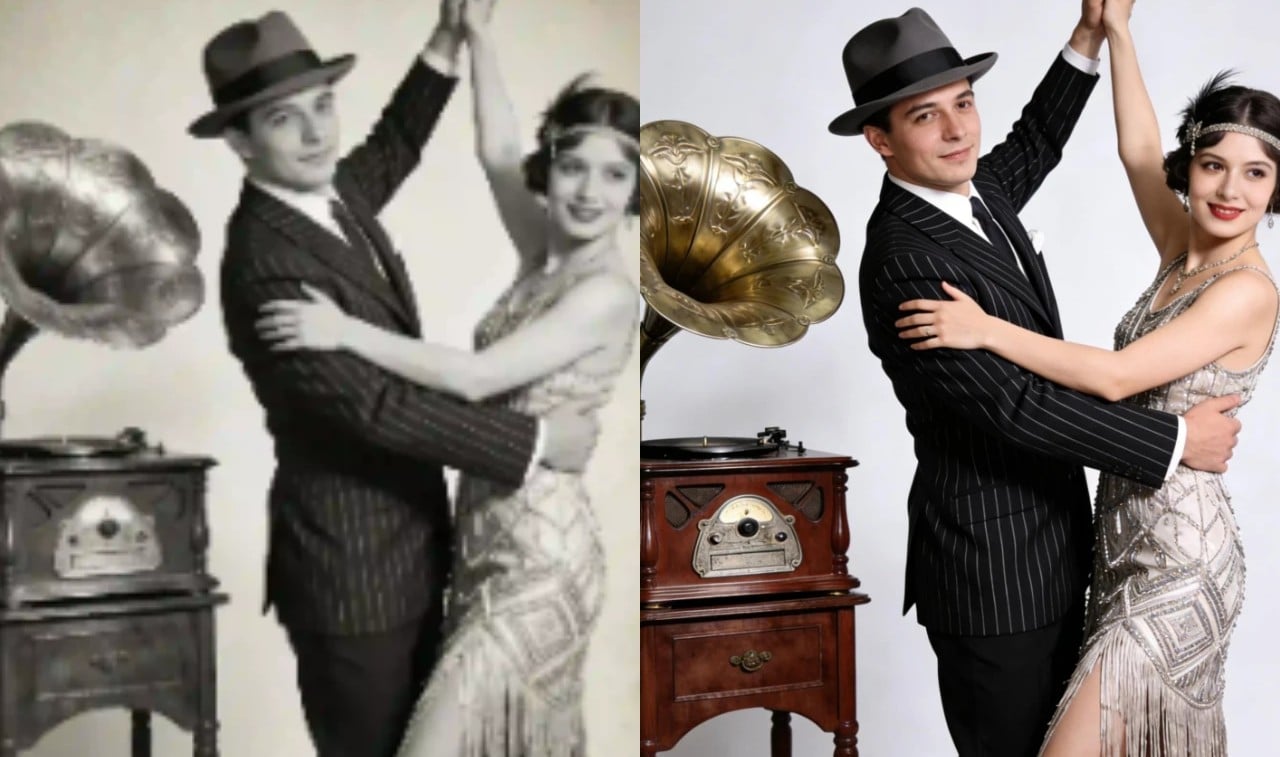
Old family photos often sit in boxes, gathering dust and losing their original glow. You might find a picture of your grandparents that looks grainy, blurry, or completely lacks color. These memories are precious, but time is not kind to physical prints. Digital technology now offers a way to bring these images back to life without needing professional editing skills. You can turn a faded gray image into a vibrant, sharp memory in just a few clicks.
Many people think they need expensive software to fix their old pictures. You don’t have to spend a lot of money or spend hours learning complex tools. An AI Photo Colorizer can handle the heavy lifting by analyzing the shades in your black and white shots. It predicts what the original colors looked like, such as the blue of a sky or the warmth of skin tones. This process happens almost instantly, giving you a result that looks natural and realistic.
If your photos are small or pixelated, you need more than just color. A Free Image Upscaler helps by adding missing pixels and sharpening the edges of your subjects. This tool is perfect for those tiny wallet-sized photos that look blurry when you try to print them larger. By using both colorization and upscaling, you can transform a low-quality relic into a high-definition digital file. You’ll be able to share these restored images on social media or print them for a new family album.
Top 1: EzEnhancer.AI
EzEnhancer is a specialized tool designed for people who want quick and accurate results. It focuses on restoring the emotional depth of a photo by getting the colors right. Many tools make skin look orange or grass look neon, but this one aims for a balanced look. It uses a deep learning model that has seen millions of real-world photos, so it knows exactly how a vintage suit or a wooden porch should look.
Overview
This tool provides a simple interface where you upload your file and let the AI do the work. It is built specifically for photo restoration, meaning it prioritizes texture and lighting. You won’t find a cluttered menu here. The system analyzes the grayscale values and maps them to a realistic color palette. It works well for portraits, landscapes, and even old city street scenes.
Key Features
The main feature is its intelligent color mapping. It identifies different objects within a frame and applies specific color logic to each. It also offers basic noise reduction to clean up the grain that often comes with old film. The processing speed is very high, so you won’t be waiting around for your results.
Pros
The color accuracy is very high for skin tones.
The user interface is clean and easy to navigate.
It handles high-resolution uploads without crashing.
Cons
It does not have manual color brushes for custom edits.
The free version may have daily limits on how many photos you can process.
Best For
This tool is best for users who have a large collection of black and white family portraits and want them to look natural rather than filtered.
Top 2: Linocut.AI
Linocut focuses on the clarity and size of your images. While color is important, a blurry photo remains a blurry photo even if it has color. This tool uses advanced algorithms to fill in the gaps in low-resolution files. It recreates details like hair, fabric textures, and background elements that were lost due to poor camera quality or age.
Overview
Linocut is a powerful web-based application that specializes in upscaling. It takes a small, grainy image and expands it by two or four times its original size. During this expansion, the AI identifies edges and sharpens them. It removes the blocky pixels that usually appear when you try to make a photo bigger. This makes it an essential step before you try to print an old digital scan.
Key Features
The standout feature is the detail recovery engine. It doesn’t just stretch the image, it actually redraws parts of it based on patterns it recognizes. It also includes a powerful de-noising function. This removes the digital noise or physical film grain that makes a photo look messy. You can choose different levels of upscaling depending on how much detail you need to recover.
Pros
It produces very sharp results even from highly compressed files.
The upscaling process does not introduce weird artifacts or distortions.
It is completely free to use for standard upscaling tasks.
Cons
It focuses more on sharpness than on color correction.
Very large files might take a minute or two to process.
Best For
Linocut is best for anyone who needs to enlarge small, blurry photos for printing or for viewing on large high-definition screens.
Top 3: VanceAI
VanceAI is a comprehensive suite of tools that offers a bit of everything. It is a great choice if your photos have physical damage like scratches or tears. While the other tools focus on color and size, this one has specific modules for repairing the actual surface of the photo. It uses a generative model to patch up holes and smooth out cracks in the paper texture.
Overview
VanceAI works as an all-in-one workstation for photo restoration. You can upload a photo and run it through several different processes. First, you might remove scratches. Next, you might sharpen the focus. Finally, you can add color. It provides a more granular approach to editing, giving you more control over the final look of your image.
Key Features
The scratch removal tool is the highlight here. It identifies linear marks and patches them using surrounding pixels. It also has a dedicated face enhancement feature. This feature detects human faces and applies extra processing to ensure the eyes and mouth look clear. The tool also supports batch processing if you sign up for an account.
Pros
It offers a wide variety of restoration tools in one place.
The face enhancement feature is excellent for old group photos.
It provides a side-by-side comparison view.
Cons
The free version puts a watermark on your images.
You need to use credits, which can run out quickly.
Best For
This tool is best for photos that are physically damaged or have significant scratches and tears that need fixing.
Top 4: Hotpot.ai
Hotpot.ai is built for speed and ease of use. It is a favorite for people who want to colorize photos on the go. The interface is very basic, which is a good thing if you don’t want to deal with settings. It uses a lightweight AI model that works quickly even on mobile browsers. It is a great starting point for beginners who are new to AI photo editing.
Overview
Hotpot.ai provides a simple box where you drop your image. You click a button, and a few seconds later, your colorized photo appears. It is designed to be a utility tool rather than a professional editor. The colors are generally vibrant, which can make old, dull photos pop. It also offers other AI tools like background removal and object erasing if you need to clean up the composition.
Key Features
The main feature is the one-click colorizer. There are no sliders or settings to worry about. It also has an API for developers, but for the average user, the web interface is the main draw. The tool is very good at identifying common outdoor elements like trees, water, and sky.
Pros
It is incredibly fast and simple to use.
No account is required for basic colorization tasks.
It works well on mobile devices.
Cons
The colors can sometimes look a little too saturated or fake.
The resolution of the free output is often limited.
Best For
Hotpot.ai is best for casual users who want to quickly see what an old photo looks like in color without any hassle.
Top 5: PicWish
PicWish is a versatile tool that balances quality and accessibility. It is available as a web tool, a desktop app, and a mobile app. This makes it very convenient if you are scanning photos with your phone and want to edit them immediately. It offers a solid set of features for both upscaling and colorizing, making it a strong competitor in the free AI space.
Overview
PicWish uses a cloud-based AI to process images. This means it doesn’t use your computer’s power, so it stays fast even on older devices. The tool is designed to be a productivity booster. It handles common tasks like sharpening blurry faces and adding color to black and white landscapes with high efficiency. The results are usually clean and professional.
Key Features
The batch processing feature is one of its strongest points. If you have a whole folder of old photos, you can upload them all at once. It also has a very effective portrait enhancement tool. This tool specifically looks for facial features and tries to bring out the details in the eyes and skin texture.
Pros
Available on multiple platforms including Windows and Mac.
The batch processing saves a lot of time for large projects.
The results are very sharp and clear.
Cons
You usually need to log in to download your finished photos.
Some of the more advanced features require a subscription.
Best For
PicWish is best for users who have a lot of photos to process and prefer using a dedicated app rather than a website.
Comparison Summary
| Tool | Primary Strength | Ease of Use | Platform |
| EzEnhancer | Natural Color Accuracy | High | Web |
| Linocut | High-Res Upscaling | High | Web |
| VanceAI | Scratch Repair | Medium | Web/Desktop |
| Hotpot.ai | Fast Processing | Very High | Web/Mobile |
| PicWish | Batch Editing | Medium | Web/App/Desktop |
Final Recommendation
Choosing the right tool depends on what your photo needs most. If you have a black and white photo that is in good shape but just needs color, EzEnhancer is the best choice because it produces the most realistic tones. You won’t get that weird orange tint that some other tools produce. It keeps the classic feel of the photo while adding life to it.
If your photo is tiny and you can’t see the faces clearly, you should start with Linocut. The upscaling power will give you a much better base to work with. You can even use these tools together. You might upscale a photo first to get the detail back, and then run it through a colorizer to finish the look.
For those dealing with ripped or scratched physical prints, VanceAI is the way to go. It is the only tool on this list that really focuses on fixing the damage to the paper itself. While it might take a bit more time to get right, the results are worth it for those one-of-a-kind family heirlooms. No matter which tool you choose, these AI options make it easier than ever to preserve your history for the next generation.

Ashley Rosa is a freelance writer and blogger. As writing is her passion that why she loves to write articles related to the latest trends in technology and sometimes on health-tech as well. She is crazy about chocolates. You can find her at twitter: @ashrosa2.
2 Comments
The before-and-after examples show how far AI photo restoration has come, especially for faded color and small details. I also like that tools such as VisionDir can help people discover practical creative workflows like these.
This is a useful overview of practical AI options for restoring old photos. I especially like the distinction between colorizing, upscaling, and repairing physical damage, since each task needs a different tool.