

Security software is sometimes very confusing. Numerous tools provide advanced security but also possess technical settings, as well as baffling menus and functions, that are tough for me to understand.
Honestly, the security routine, in turn, should be simple, with checking the system status, a deep scan when required, scanning selected parts of the system when necessary, more tools for privacy and system repair, and a review of recommended actions in a single location. Luckily, I found one free antimalware tool, IObit Malware Fighter, that performs the same kind of action, combining a scan, browser protection, privacy tools, and real-time security in a single interface.
The direction that follows demonstrates how I can develop a more robust protection scheme without having to navigate through a convoluted configuration.
Main Screen: Start with a Clear Security Overview
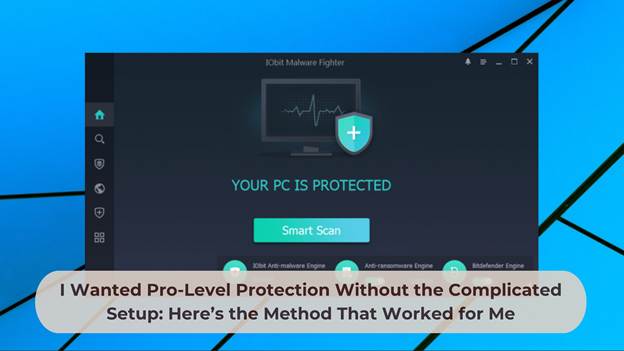
 Ideally, it’s best to start on the main screen, as it provides me with an immediate visual assessment of the computer’s level of protection. I can view the primary areas for Windows security in one place rather than navigate to various Windows settings and menus.
This is quite useful, since you need to have some protection when you make it. The primary screen typically displays whether the system is protected, if a scan is required, and which settings can be accessed without a security scan. It’s a straightforward overview that simplifies things for users like me who aren’t interested in configuring technical settings.
I can easily launch scans, examine protection features, and proceed to more specific tools as necessary from this screen. It’s the brain of the operation. Once a security condition becomes visible, the next step is a thorough security analysis of the system.
Full Scan: Check the Whole PC When Stronger Inspection Is Needed
 I usually use the Smart Scan for my daily inspections, but sometimes a complete inspection is required. A Full Scan will go more deeply into the computer’s scan and can help identify threats that may not be found in normal system areas.
This is particularly the case if a PC exhibits strange behaviour. Sometimes slow performance, redirects, unknown popups, spyware, suspicious downloads, or out-of-the-ordinary startup activity will provide clues that something might be amiss, and may signal the presence of unwanted software or hidden malware. A complete scan will provide me with a wider-angle view into what may be going on across the system.
Including the enhanced detection of suspicious startup items, programs, and scheduled tasks, IObit Malware Fighter 13 is bound to be a powerful threat killer. It is important because certain threats will automatically load upon the start-up of Windows. Tests in these areas may be required to solve the problem once again, even after the basic cleaner.
While a Full Scan might take a bit longer to complete, it can be handy if you are looking for a more thorough security scan but do not want to go into individual processes and folders of your system to look through them.
Custom Scan: Focus on Specific Files, Folders, or Areas
 Scanning the entire PC isn’t necessary in all situations. Sometimes I need to access a particular folder, downloaded file, external drive or particular area where an unusual file may have been stored. That’s where Custom Scan comes in handy.
For instance, if a file has been downloaded from an unknown website, I can scan the file before opening it. Also, I can scan the USB drive prior to copying any files from it if I connect it to the PC. This allows for greater flexibility and efficiency in the protection routine.
Custom Scan is easy and intuitive to use, offering control without complexity. You do not have to be highly technical; all you have to do is select the place they want to take a look at. After the scanned part of the routine, the other part of it will be for additional tools for privacy, browsing, and system security.
Tools: Use Extra Features for Privacy and System Protection
Security is more than just detection of malware. Current protection also encompasses browser protection, upkeep privacy, preventing ransomware, and ensuring that confidential information isn’t compromised. The Tools section is added to have these extra functions in one place where they can be easily found and used.

Some online privacy-related issues are particularly useful for me when I surfing the internet. Browser protection capabilities can minimise phishing risks, unsafe downloads, tracking, home page changes and suspicious websites. IObit Malware Fighter 13 further supports the anti-tracking efforts and adds the safe browsing technology that has just been released to improve the surfing protection.
Information protection tools will be able to safeguard information that’s significant from getting into the hands of unauthorised individuals. Sometimes, I need more control over important files and can benefit from some of the options—like Safe Box and sensitive data protection. Good for documents, personal records, work files, or anything else that is private and shouldn’t be opened by programs you don’t know.

The Tools section has to be as significant as it has extended protection beyond scan. It enables consumers to control multiple security requirements with a single tool rather than needing to set up multiple security applications.
Conclusion
With the help of IObit Malware Fighter, I can simply set up and use strong PC protection without it being complicated. It offers the same kind of workflow in a single Windows application. It integrates malware and startup item protection, browser protection, privacy control, and real-time security into one easy-to-administer product that is much simpler than many complex security solutions. If you are seeking an easy and systematic approach to take higher precautions with your PC but do not like the sophisticated configurations, download and try IObit Malware Fighter now.

Madeline Miller love to writes articles about gaming, coding, and pop culture.