

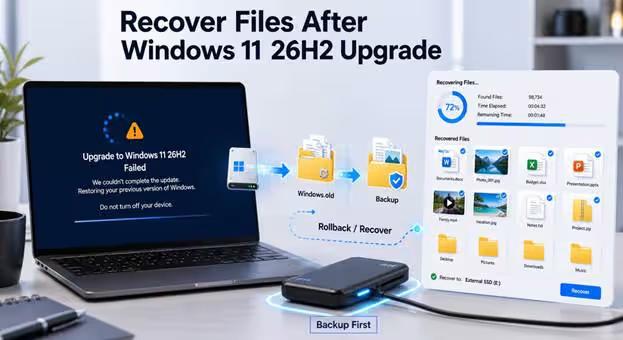
Losing personal files immediately after installing a Windows update can be alarming, but in most cases nothing has actually gone missing for good. Files are often moved, hidden, moved into a previous Windows installation folder, or already saved in a cloud backup you own. Many searches for Windows 11 update deleted files start here, since this guide covers every safe recovery step in the right order.
This guide walks through a careful, step-by-step recovery process, starting with the safest built-in Windows options before moving on to free data recovery software. Following that sequence preserves all recoverable data and gives you the best realistic chance to recover every missing file intact.
Pause and Identify the Type of File Loss
Before you try to fix anything, take a moment to figure out exactly what kind of file loss situation you are actually dealing with here. Did the files disappear right after the update finished installing, or did they disappear during a manual reset, rollback, or failed installation? The right recovery method depends on your specific scenario, and identifying the cause early saves valuable time later. Windows 11 26H2 data recovery efforts work best when you match the chosen method to the underlying cause of the sudden file loss.
Do Not Reset or Keep Writing Data to the Drive
When you first realize you are missing files, don’t give in to the strong urge to immediately reset Windows or reinstall the entire operating system.
Avoid these actions until recovery is complete:
- Installing new large applications or downloading more files to the affected drive
- Running disk cleanup, defragmentation, or third-party optimization tools on that drive.
- Formatting, resetting, or reinstalling Windows before you have attempted recovery
- Saving newly recovered files to the drive you just scanned
Any new data written to that drive can permanently overwrite deleted files and severely decrease your realistic chances of a successful local recovery. This one habit, more than anything else, determines whether you can still successfully recover files after Windows update problems first appear.
Confirm That the Files Are Truly Missing
Before you assume anything is lost forever, run through this quick checklist to eliminate the most common false alarms.
- Search directly in This PC by entering the exact filename or a matching file extension into the search bar.
- Verify that the option to view hidden and protected system files is already enabled in File Explorer options.
- Look at other existing user account folders. An update can sometimes sign you into a new temp profile.
- Verify you are browsing the correct drive letter – some updates change drive letters during installation.
Even Microsoft’s own documentation says to do these simple checks first, before anyone assumes their personal files are truly gone forever.
Follow the Built-In Windows Recovery Path
Once you have ruled out the simple explanations, work through these built-in recovery tools in order, starting with the safest option first.
| Recovery Source | Best For | First Action |
| Windows Search | Moved, renamed, or hidden files | Search This PC by name or file extension |
| Windows.old | Files retained from the prior installation | Check the old user folder promptly |
| OneDrive | Synced, deleted, or overwritten cloud files | Search online, then check the Recycle Bin |
| File History | Previously backed-up personal folders | Restore an earlier saved version |
| Local recovery scan | Files with no usable backup copy | Scan the affected storage device |
Work your way systematically down this table, starting at the top row, as each method here actually deals with a different kind of file loss. Most average users can recover lost files without needing special recovery tools, as shown in the first four rows. Only if none of these reliable built-in options work should you move to dedicated free data recovery software for a deeper local scan.
Recover Files From Windows.old
A normal Windows feature upgrade usually keeps a temporary copy of your entire old install in a folder called Windows.old. That folder still contains your personal documents, pictures, and other saved files, just as you left them right before the update installed. By default, Windows keeps this folder for about 10 days before removing it automatically — though this can happen sooner if Storage Sense is enabled or disk space runs low. Because that recovery window closes so fast, checking the Windows.old folder should be your very first restoration method to try right after any major update. Open File Explorer, go directly to the root of your main system drive, and look carefully for the Windows.old folder sitting there directly.
Check OneDrive and File History
Search and Restore From OneDrive
Open OneDrive in any web browser and carefully search for the missing files by their exact name or a keyword.
- If you deleted a file outright rather than moved it elsewhere, check the OneDrive Recycle Bin.
- To undo unwanted changes during an update, retrieve a previously saved version.
- Check the sync status in OneDrive settings, as paused sync can cause current files to appear missing.
Restore Using File History
File History is a similar safety net for backed-up Documents, Pictures, Videos, Music, Desktop, and other library folders.
- Open “Restore your files with File History” from the search bar in the Control Panel.
- Browse through timestamped snapshots and select the version saved just before the update ran.
- Restore individual files or entire folders to the original save location.
This one thing solves many cases when people first look for how to restore files after Windows update trouble appears.
Recover Deleted Local Files With 4DDiG Data Recovery
If Windows Search, Windows.old, OneDrive, and File History can’t find your missing files, the next logical step is a dedicated scanning tool. 4DDiG Data Recovery is designed for situations where you have no reliable backups, or they weren’t properly configured beforehand. It scans local drives, connected external storage devices, and even partitions that Windows itself can no longer read or access.
The software supports many file types, including documents, photos, videos, and compressed archives, covering most cases of Windows 11 update deleted files. It also creates a preview of recoverable files before you commit to restoring them, so you can confirm the correct version was found first. If you need reliable free data recovery software immediately after an update, this tool provides a practical, approachable starting point.
4DDiG Data Recovery Product Features
- Scans local drives, attached external storage devices, and partitions that Windows itself cannot normally read anymore.
- Supports various file formats including documents, photos, videos, and compressed archives.
- Covers most Windows 11 update deleted-file scenarios, from regular updates to failed installs and resets.
- It lets you preview files you can recover before you restore them.
- It lets you verify you found the right file version before you recover anything permanently.
Step-by-Step Recovery Process
Download and install 4DDiG Data Recovery. Download 4DDiG from its official website and install it on another drive, not the one where your missing files are stored, to avoid overwriting anything recoverable.

Select the affected drive or location. Open 4DDiG Data Recovery, select the drive, partition, or folder where your files disappeared, then click Start to scan the location.

Let the scan run completely. 4DDiG will run a quick scan first, then a deeper scan to find more recoverable files deep in the drive.

Preview the recoverable files. When the scan is complete, you can view each file in the results list to confirm you found the exact version you need.

Recover files to a new location. Select the files you want back, click Recover, and immediately save them safely to an external drive or another partition.

Recover to a Separate Drive
Always save any new files you recover to an external drive or a different partition than the one you just finished scanning. If you write the recovered data directly back to the original affected drive, you risk permanently overwriting other files that might still be recoverable later. This precaution protects the rest of your local data while you work through the larger recovery process step by step. It also gives you a clean, well-organized location to review each recovered file before deciding what to keep and what to discard.
Handle Different 26H2 Update Scenarios.
The right recovery method also depends on exactly how your files went missing, so match your situation to one of these two common scenarios.
Files Missing After a Standard Feature Update
If the update itself was fine but you suddenly find familiar folders empty, start with safer, non-intrusive methods before trying anything else. Prioritize Windows Search, the Windows.old folder, and any cloud backup services that are already actively connected to your personal Microsoft account, and have them sorted out today. This recovery route works best when files appear to have been moved rather than deleted outright during the process. Most feature update issues resolve themselves pretty quickly if you systematically check these three separate sources in the recommended order above.
Lost Files after Reset, Update Failure, or Cleanup
Reset This PC does not create a Windows.old folder, eliminating one of your easiest and most reliable recovery paths. If you reset your device, check every available backup source before assuming your files are permanently unrecoverable. If you have no backups, your only realistic option is to use dedicated recovery software to scan whatever local storage is still readable on the affected drive. That is also the scenario where most people search online for Windows 11 26H2 data recovery help after something has clearly gone wrong. A failed update installation or a manual disk cleanup gone wrong can produce the same result, and the general recovery approach applies across the board.
Create a Better Post-Update Recovery Plan
Once you’ve safely restored your important files, take a few extra minutes to build a stronger safety net for next time.
- Enable OneDrive sync for every folder you use so whatever you add or change is backed up automatically.
- If you don’t already have it set up, set up File History or a dedicated external backup drive.
- Test the backups by restoring one test file and opening it to make sure it opens without errors.
- Create a fresh backup right before installing any future major Windows update, no matter how routine it seems.
Remember, a proper backup restores known, verified copies of your data, and specialized data recovery software is only a fallback for unexpected local file loss.
FAQs
-
Are files missing after a Windows 11 26H2 update permanently deleted?
Not always. Before you assume something is gone for good, check This PC, look in the Windows.old folder, check OneDrive and File History, and empty the Recycle Bin.
-
Can 4DDiG recover deleted files after the Windows 11 26H2 update?
Yes, it can scan local drives available to you for files absent from your current backups or cloud accounts. Success still depends on whether newer files have already overwritten that particular data.
-
Should I install 4DDiG on the drive where files were lost?
No – that could overwrite the files you are trying to recover. Always install and run it from another drive or an external device.
-
What if I can’t find files in Windows.old or any backup source?
Stop saving any new data to that drive immediately, then scan it with a tool like 4DDiG Data Recovery as soon as possible for the best chance of success.
-
How do I prevent file loss during future Windows updates going forward?
Enable OneDrive syncing for your important folders, set up File History or an external backup routine, and always make a full backup before installing any major feature update.
Final Thoughts:
Missing files after a Windows 11 26H2 update are seldom lost forever, especially if you approach recovery methodically from the start. Start with the safest built-in options first, checking Windows Search, the Windows.old folder, OneDrive, and File History before trying anything else. These tools alone solve most cases where people can’t find files after a normal update. If these common sources don’t have what you need, free data recovery software like 4DDiG Data Recovery can safely recover deleted local files. Always restore to a different drive, and build a stronger backup routine so future updates don’t cause the same stress again. A little prep today can save a lot of frustration during the next major Windows update rollout.

Caroline is doing her graduation in IT from the University of South California but keens to work as a freelance blogger. She loves to write on the latest information about IoT, technology, and business. She has innovative ideas and shares her experience with her readers.