
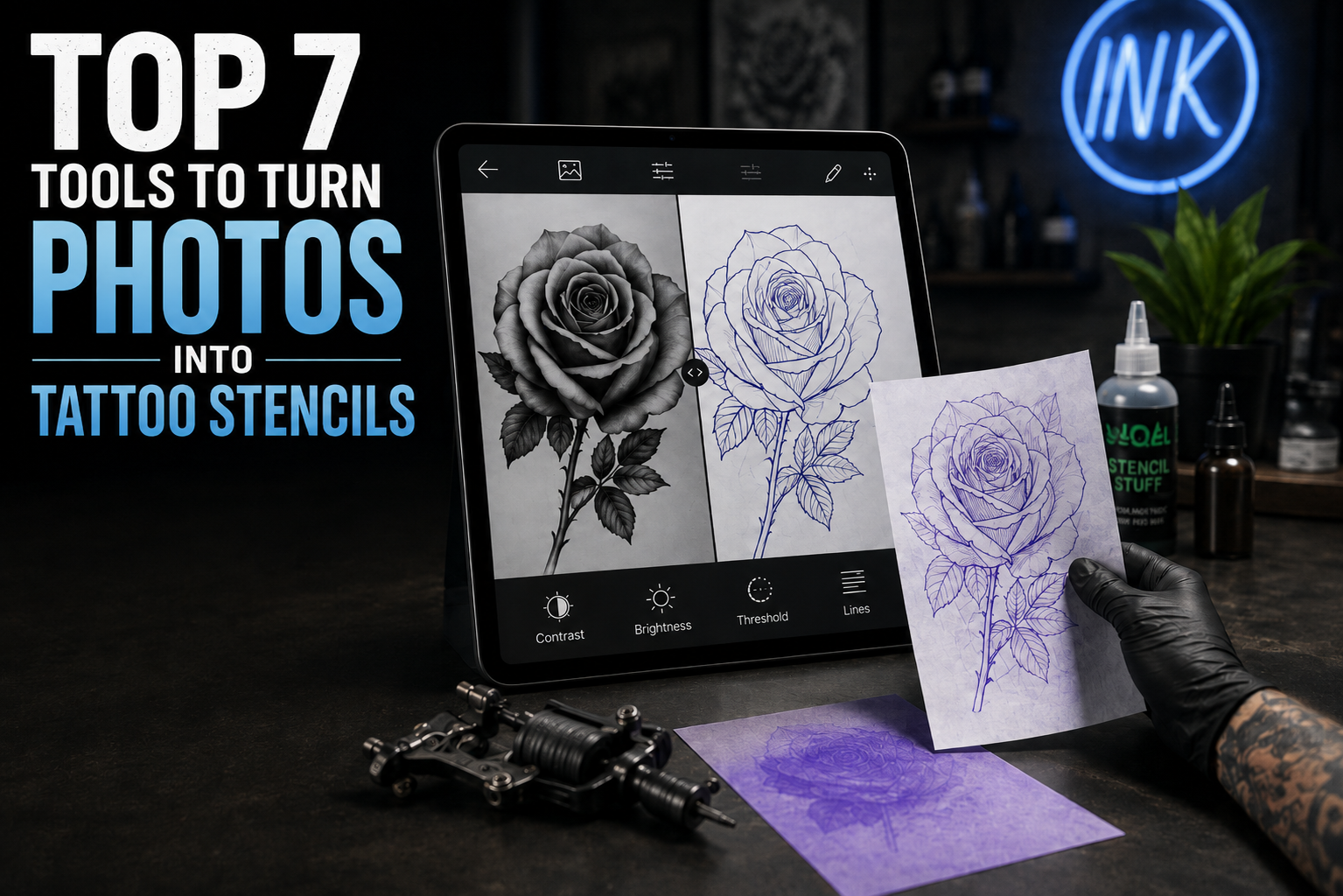
Top 7 Tools to Turn Photos into Tattoo Stencils
Turning a favorite photo into a tattoo design is a common challenge for many people. You might have a picture of a pet, a loved one, or a beautiful landscape that you want to ink on your skin. The problem is that a standard photograph contains too much detail, shading, and color for a tattoo artist to use directly. You need a clear outline that defines the shapes and edges of the subject. This process is called creating a stencil, and it is the foundation of a great tattoo.
You can use a free tattoo stencil generator to get started with this process quickly. These online tools are designed to strip away the unnecessary parts of an image and leave you with a clean black and white outline. This makes it much easier for you to see how the design will look on your body. It also gives your tattoo artist a perfect template to follow when they apply the stencil paper to your skin.
Another excellent way to prepare your design is to convert your photo to line drawing using modern software. These tools use smart algorithms to detect the most important lines in your image. They can handle complex subjects like portraits or intricate flowers, turning them into simple sketches. By simplifying the image, you ensure that the tattoo will age well and remain legible over time.
Top 1: Tat.ink Tattoo Stencil Generator
Tat.ink is a specialized tool built specifically for the tattoo community. It focuses on one thing: turning images into high contrast stencils that are ready for printing. The interface is very simple, which makes it a great choice for people who do not have experience with photo editing software. You just upload your photo and the tool automatically processes it to highlight the edges.
Key Features
The tool offers a few essential settings to help you get the best result. You can adjust the threshold of the line detection, which determines how much detail stays in the final image. It also allows you to flip the image horizontally. This is a vital feature because tattoo stencils are often applied in reverse to ensure they appear correctly on the skin once transferred.
Pros and Cons
The biggest advantage of this tool is its speed. You do not need to create an account or pay a fee to use the basic features. It produces very clean lines that work perfectly with thermal stencil printers. On the downside, it does not offer advanced editing tools. If your original photo is very blurry or has poor lighting, you might need to edit it in another program before uploading it here.
Best For
This tool is best for people who want a fast and direct way to create a stencil without any distractions. It is perfect for simple designs like logos, basic portraits, or geometric shapes.
Top 2: iColoring.ai Image to Line Drawing
iColoring.ai uses advanced artificial intelligence to transform photographs into artistic line drawings. Unlike basic filters that just look for high contrast areas, this tool understands the structure of the objects in your photo. This results in a much more natural and hand drawn look. It is particularly good at handling soft edges and subtle details that other tools might miss.
Key Features
The AI technology behind this tool is its standout feature. It can distinguish between the main subject and the background, allowing you to create a clean outline even if the original photo is busy. You can choose different styles of line art, ranging from thin and delicate lines to bold and thick outlines. This flexibility is great if you are planning a specific style of tattoo, such as fine line or traditional.
Pros and Cons
One major pro is the quality of the output. The lines are smooth and do not have the jagged edges often seen in lower quality converters. It saves you a lot of time that you would otherwise spend tracing the image by hand. A potential con is that the AI might sometimes simplify a design too much if the settings are not adjusted correctly. You may need to experiment with a few different photos to get the exact look you want.
Best For
This tool is best for complex images like pets, people, or highly detailed flowers. It is the ideal choice if you want a stencil that looks like it was drawn by a professional artist.
Top 3: Adobe Express
Adobe Express is a powerful online design platform that offers a wide range of editing tools. While it is not exclusively for tattoos, its image processing capabilities are excellent for creating line art. It provides a more comprehensive environment where you can not only convert your photo but also add elements, change the composition, and refine the final look.
Key Features
Adobe Express includes a background remover that is incredibly accurate. Once the background is gone, you can apply various filters like Posterize or Sketch to create a stencil effect. You also have access to a massive library of shapes and fonts. This allows you to add text or decorative borders to your tattoo design without needing to switch to another program.
Pros and Cons
The main benefit is the level of control you have over the final design. You can layer multiple effects to get a unique look. The tool is also part of the Adobe ecosystem, so it feels familiar if you have used Photoshop before. However, the large number of features can be overwhelming for beginners. Some of the more advanced filters and assets require a premium subscription.
Best For
This tool is best for users who want to create a custom tattoo design that combines a photo with other graphic elements. It is great for creating meaningful pieces that include names, dates, or symbols.
Top 4: BeFunky
BeFunky is a popular online photo editor known for its artistic effects. It has a dedicated section for artsy filters that can turn any photo into a sketch, cartoon, or line drawing. It is very user friendly and works directly in your web browser, so you do not need to download any heavy software.
Key Features
The Sketcher effects are the highlight of BeFunky for tattoo enthusiasts. These effects simulate different drawing styles, such as pencil, charcoal, or ink. You can adjust the intensity of the effect and the thickness of the lines. BeFunky also offers a great set of touch up tools, which can be useful if you need to clean up the skin or hair in a portrait before converting it to a stencil.
Pros and Cons
BeFunky is very intuitive. The sliders make it easy to see changes in real time. It also handles high resolution images well, ensuring your stencil stays sharp when printed. The main drawback is that many of the best line art filters are locked behind a Pro version. The free version is still useful, but you might find the options a bit limited.
Best For
BeFunky is best for people who want to experiment with different artistic styles for their tattoo. It is a good choice if you are not sure exactly how you want the final lines to look.
Top 5: Fotor
Fotor is another versatile online editor that excels at one click transformations. It uses AI to help users edit photos without needing professional skills. Its line art and sketch tools are very effective for creating high contrast images that serve as excellent tattoo templates.
Key Features
Fotor features a specific Photo to Sketch converter. This tool analyzes the edges of your subject and creates a black and white drawing instantly. It also has a powerful brightness and contrast editor. Increasing the contrast is a common trick for making stencils clearer, and Fotor makes this very easy to do. You can also use the blur tool to soften parts of the image you do not want the stencil to pick up.
Pros and Cons
The speed of Fotor is a major plus. You can go from a full color photo to a line drawing in seconds. It also has a very good mobile app, so you can work on your designs on your phone or tablet. One downside is the presence of advertisements in the free version, which can be a bit distracting. Some users also find the export options a bit limited unless they pay for a subscription.
Best For
Fotor is best for mobile users who want to create a quick stencil while on the go. It is a solid choice for simple projects and quick edits.
Top 6: Canva
Canva is widely known for social media graphics, but it is also a surprisingly good tool for tattoo stencils. While it does not have a single button to turn a photo into a stencil, you can achieve great results by combining its various effects. It is a very stable and reliable platform that many people already know how to use.
Key Features
To create a stencil in Canva, you can use the Edit Image feature and look for the Duotone or Photogenic filters. By choosing high contrast colors like black and white, you can start to see the outline of your subject. Canva also has a great transparency tool, which allows you to overlay your line art on a photo of your arm or leg to see how the placement looks.
Pros and Cons
Canva is incredibly easy to use and very accessible. It is free for most basic tasks and offers a very clean workspace. The downside is that it is not a dedicated line art tool. You might have to do a bit more manual work to get a perfect stencil compared to AI-driven tools. It also lacks some of the fine tuned edge detection settings found in specialized software.
Best For
Canva is best for people who want to visualize their tattoo placement. It is also great for creating text based tattoos or simple icons.
Top 7: Picsart
Picsart is a creative platform that offers a huge range of filters and editing tools. It is very popular among younger creators and has a very active community. Its sketch effects are some of the most advanced available in a free app, making it a favorite for those looking to create unique tattoo art.
Key Features
The Sketch effect in Picsart is unique because it can automatically draw an outline around the subject of your photo. You can then move this outline, change its color, or adjust its thickness. This is perfect for creating a stencil because it gives you a clean line that is separate from the original image. Picsart also offers a variety of masks and overlays that can add texture to your design.
Pros and Cons
Picsart offers a lot of creative freedom. You can really push the boundaries of a simple photo and turn it into something completely new. The app is very powerful, but it can also be quite cluttered with social features and ads. It can take a little while to find the specific tools you need among all the other options.
Best For
Picsart is best for users who want to be very creative with their stencils. If you want to add artistic flares or unusual outlines to your design, this is the tool for you.
Comparison Summary
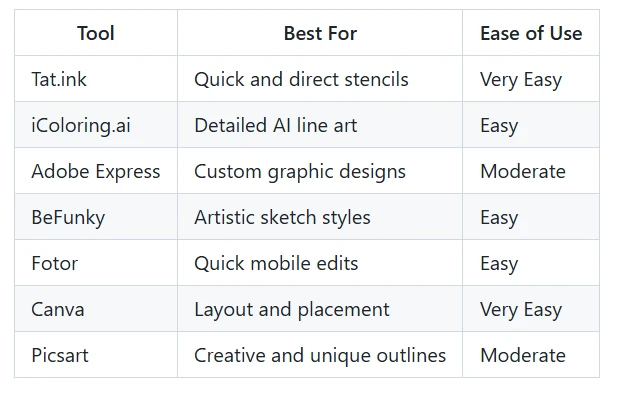
Choosing the right tool depends on your specific needs and the complexity of your photo. Some tools are better for speed, while others offer more creative control.
Final Recommendation
If you are looking for the absolute fastest way to get a stencil ready for your tattoo artist, Tat.ink is the best place to start. It is built for this specific purpose and removes all the guesswork. You get a clean, high contrast image that is ready to print in just a few clicks.
For those who have a more detailed photo and want a result that looks like a professional drawing, iColoring.ai is the superior choice. The AI does a fantastic job of capturing the essence of the photo without making the lines look messy. It is worth the extra few seconds of processing time to get a design that looks truly artistic.
If you want to do more than just create a stencil, such as adding text or testing the placement on your body, Canva and Adobe Express are excellent secondary tools. You can take the line art you created in the specialized tools and import it into these platforms to finalize your vision. No matter which tool you choose, remember that a good stencil is the first step toward a tattoo you will love for a lifetime. Always show your final design to your tattoo artist, as they can provide professional advice on how the lines will work with your specific skin type and placement.

Amanda Lancaster is a PR manager who works with 1resumewritingservice. She is also known as a content creator. Amanda has been providing resume writing services since 2014.